Procurement · Procurement managers · about 4 min
Categories, items and settings
Set these up once. Categories and items make requisitions quicker and reports useful; the settings are your purchasing policy.
1. Spend categories and items
Procurement → Spend categories groups what you buy, two levels deep (IT → Hardware). With Finance, each category has an expense account: that's where its spending posts, and how orders are checked against the budget.
Finance chooses the account, not procurement. Anyone who can Manage the chart of accounts sees the Spend categories page too, with an account picker on each row, and is notified when a new category needs one. Buyers see Not mapped yet until then - they don't need any Finance permission. A vendor invoice in an unmapped category can't go to payables until it's mapped, or the vendor has a default expense account in Finance → Vendors.
Procurement → Items is your catalogue - code, name, goods or service, unit, category, preferred vendor and a guide price that orders keep up to date. People pick items when they raise requisitions.
2. Your purchasing rules
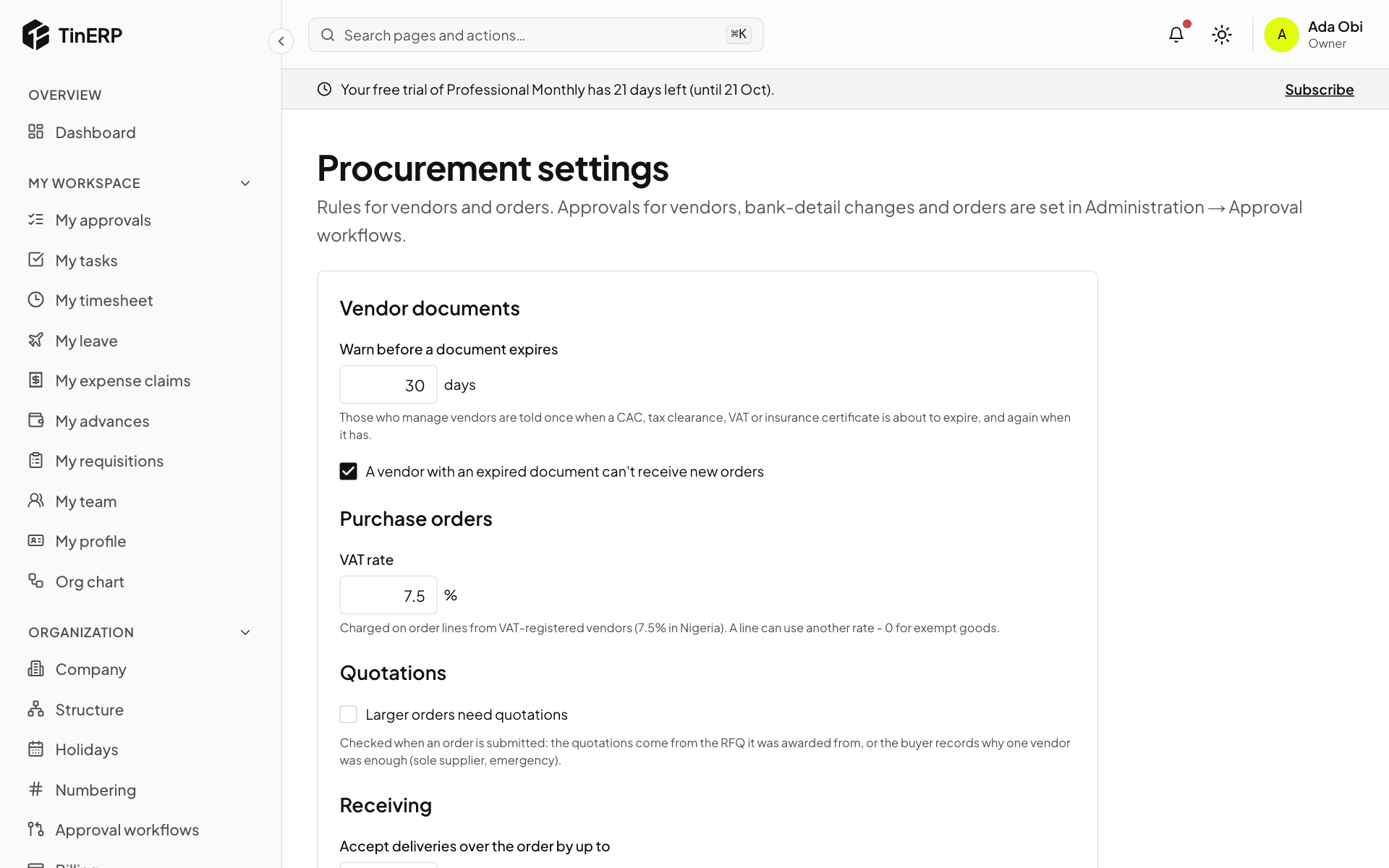
Procurement → Procurement settings: when to warn about vendor documents expiring; the VAT rate on orders; Larger orders need quotations - orders over an amount need a number of quotations, or a sole-supplier reason; how much over the order a delivery may be; whether whoever raised an order may also receive it; and how far above the order price an invoice may be and still match.