Administrators · Owners and admins · about 5 min
Roles and permissions
Everyone has one role. TinERP starts you with Owner, Admin, Manager and Staff. You can change all of them except Owner, and add your own - an HR officer or a finance officer, for example.
1. See your roles
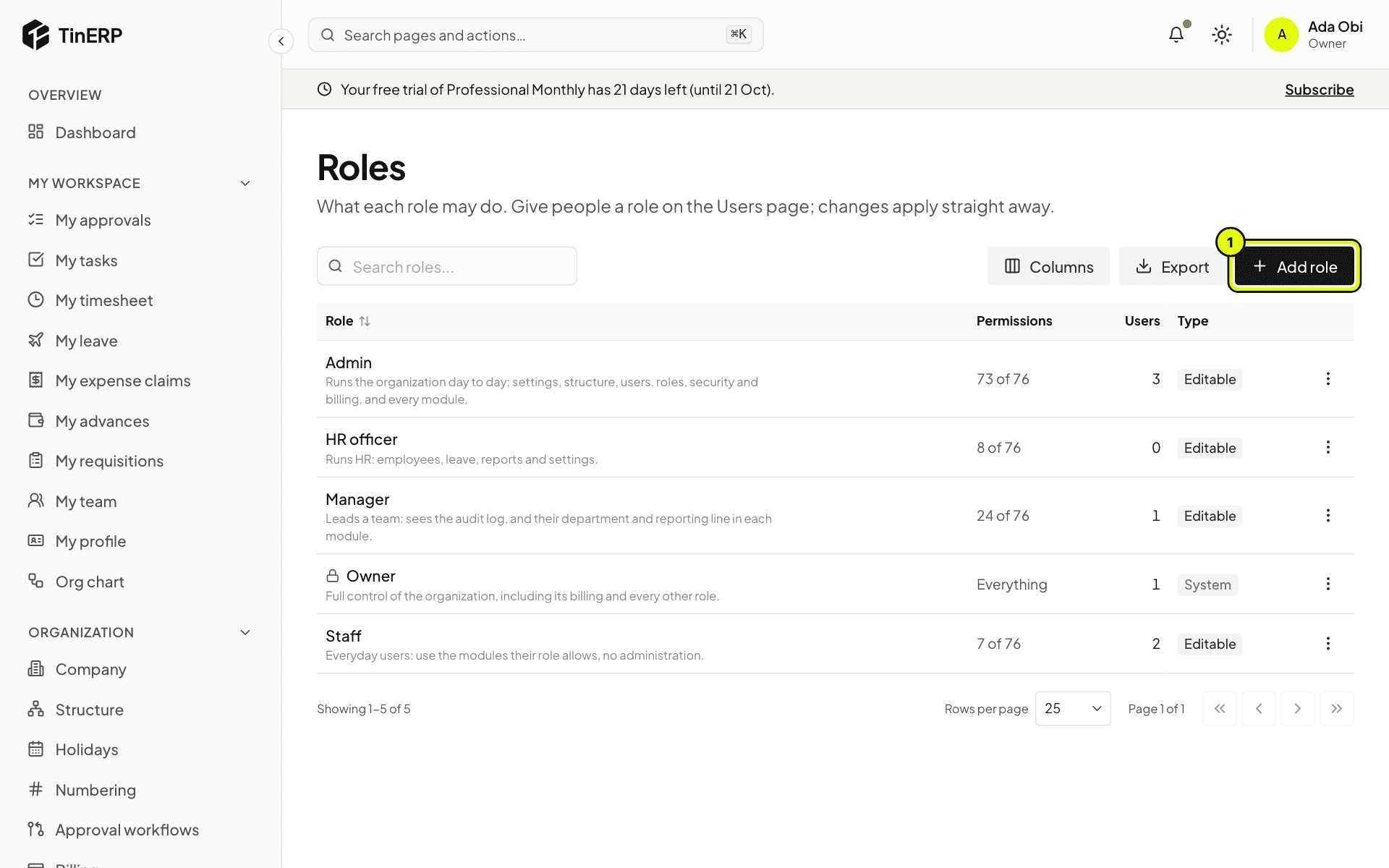
Go to Access & security → Roles. Each role shows what it's for, how many permissions it has and how many users.
Owner always has everything - including what comes with new modules - and can't be changed. Admin runs the organization day to day. Manager leads a team: they see their department and reporting line in each module. Staff use TinERP for themselves.
2. Add or change a role
Select Add role (1), or open a role's menu and choose Edit. Give it a name and a line about what people with it do, then tick its permissions - they're grouped by module, each with a line saying what it allows. Select Save.
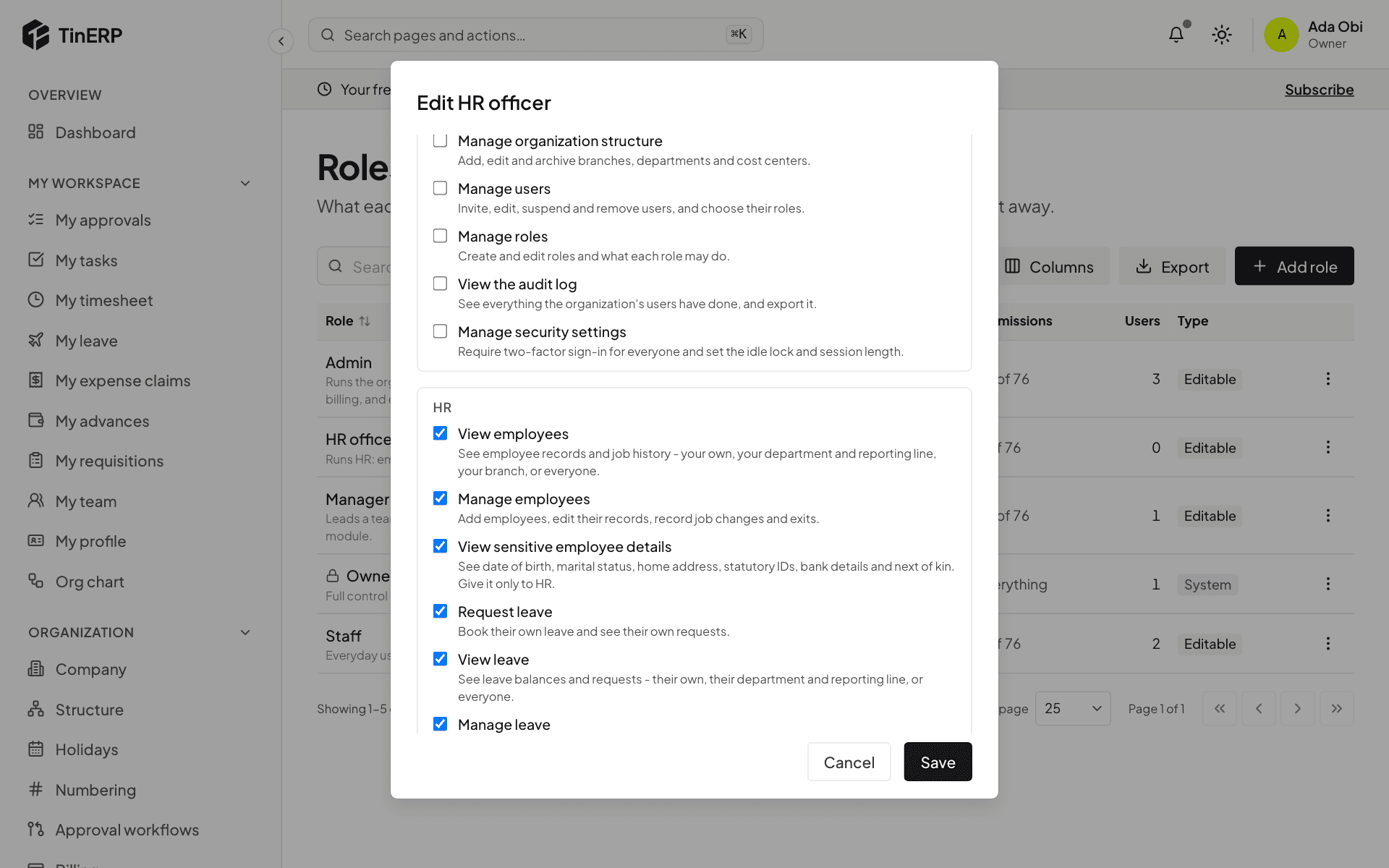
Tip: Sensitive employee details - date of birth, home address, ID numbers, next of kin, bank details and documents - have their own permission that no starting role has. Give it only to your HR role.
3. Give people the role
Go to Users, open the person's menu, choose Edit and pick the role. Changes to a role apply at once to everyone who has it.
Questions
Does someone need a permission to approve things?
No. Who approves is decided by your approval rules - see Set who approves what - not by roles.
Can I delete a role?
Yes, from its menu - once you've given everyone who has it another role. Owner can't be deleted.