Projects · Admins · about 4 min
Set up timesheets
These settings apply to everyone's timesheets. Leave (from HR), public holidays and weekends are filled in on everyone's timesheet by themselves.
1. Choose the period
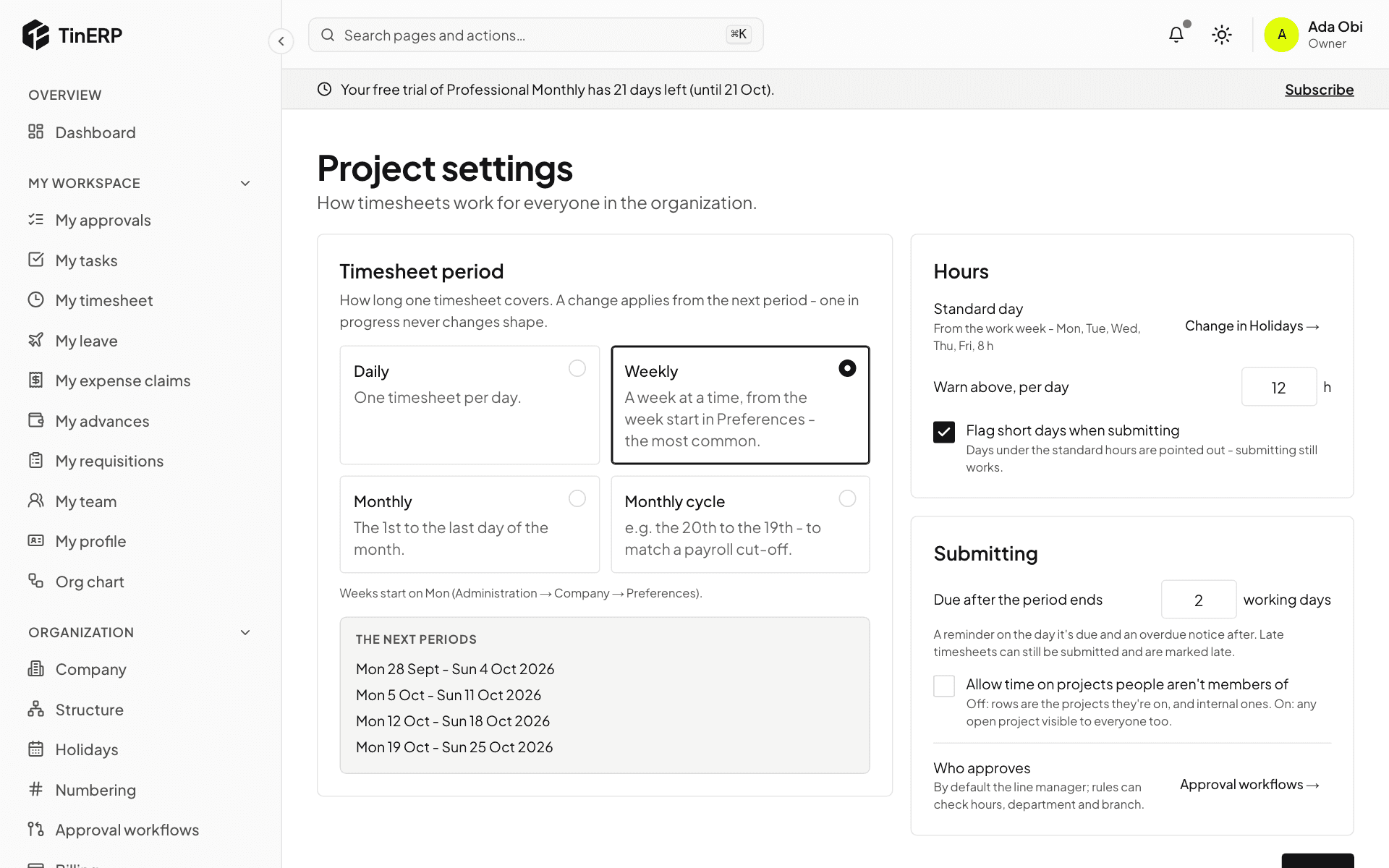
Go to Projects → Project settings. Under Timesheet period, choose Daily, Weekly, Monthly or Monthly cycle - for example the 20th to the 19th, to match a payroll cut-off. The next periods shows what people will see.
A change applies from the next period; one in progress never changes shape.
2. Set the hours rules
The standard day comes from your work week, set in Organization → Holidays. Choose when to warn about long days (Warn above, per day), and whether to Flag short days when submitting.
3. Deadline and approval
Under Submitting, choose how many working days after a period ends timesheets are due. People get a reminder on the day and an overdue notice after; late timesheets can still be submitted and are marked late.
Tick Allow time on projects people aren't members of if you want people to log time freely. Who approves links to Approval workflows - by default, each person's line manager.