Managers · Managers · about 4 min
Your team's leave
If people report to you, you have My team in My workspace. It covers your department and everyone in your reporting line - HR keeps who reports to whom on each employee's record.
1. Start from your dashboard
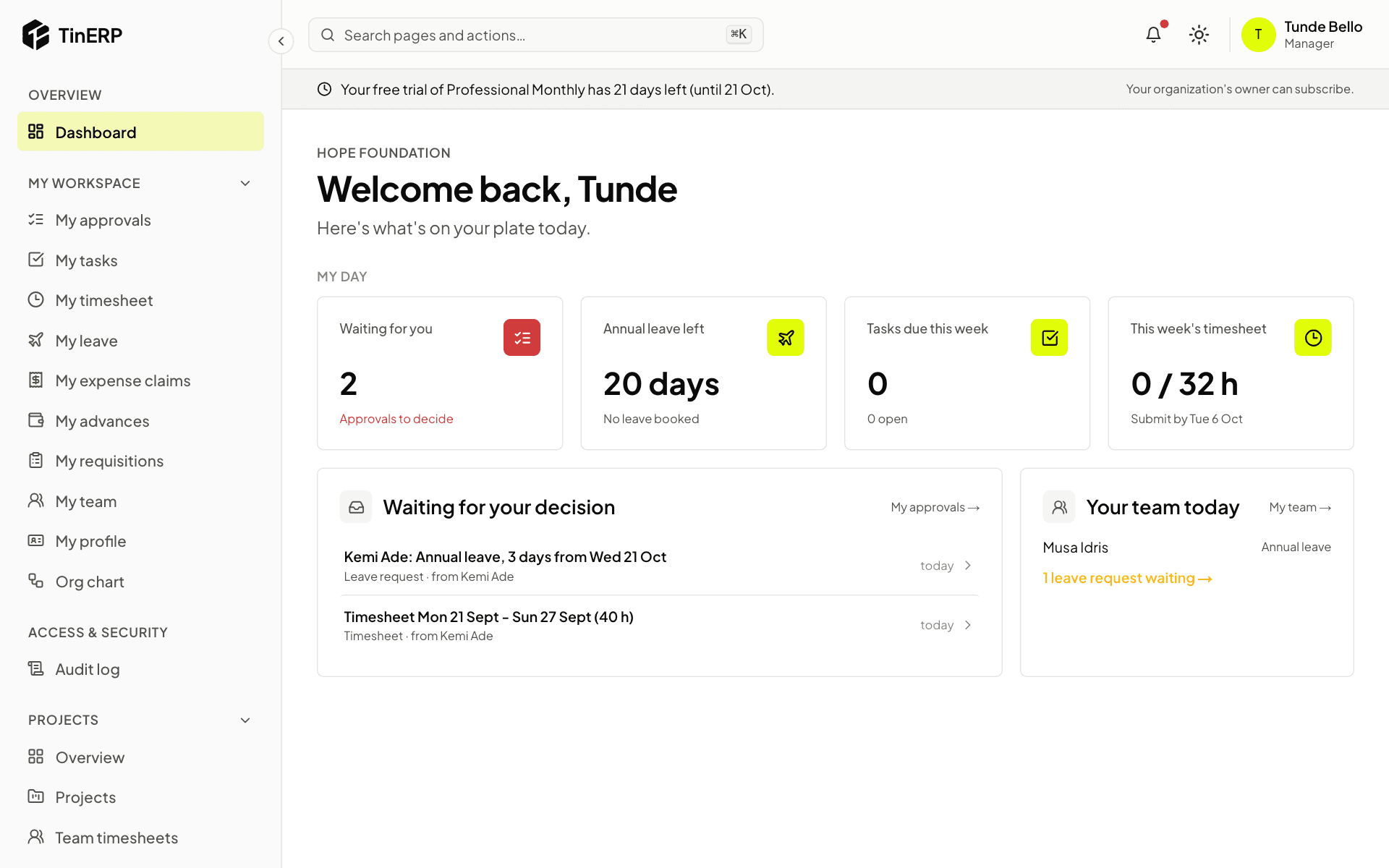
Your team today on your dashboard shows who is off today, and how many of your team's leave requests are waiting - select it to see them. Waiting for your decision lists everything that needs you, leave and timesheets included.
2. See balances and requests
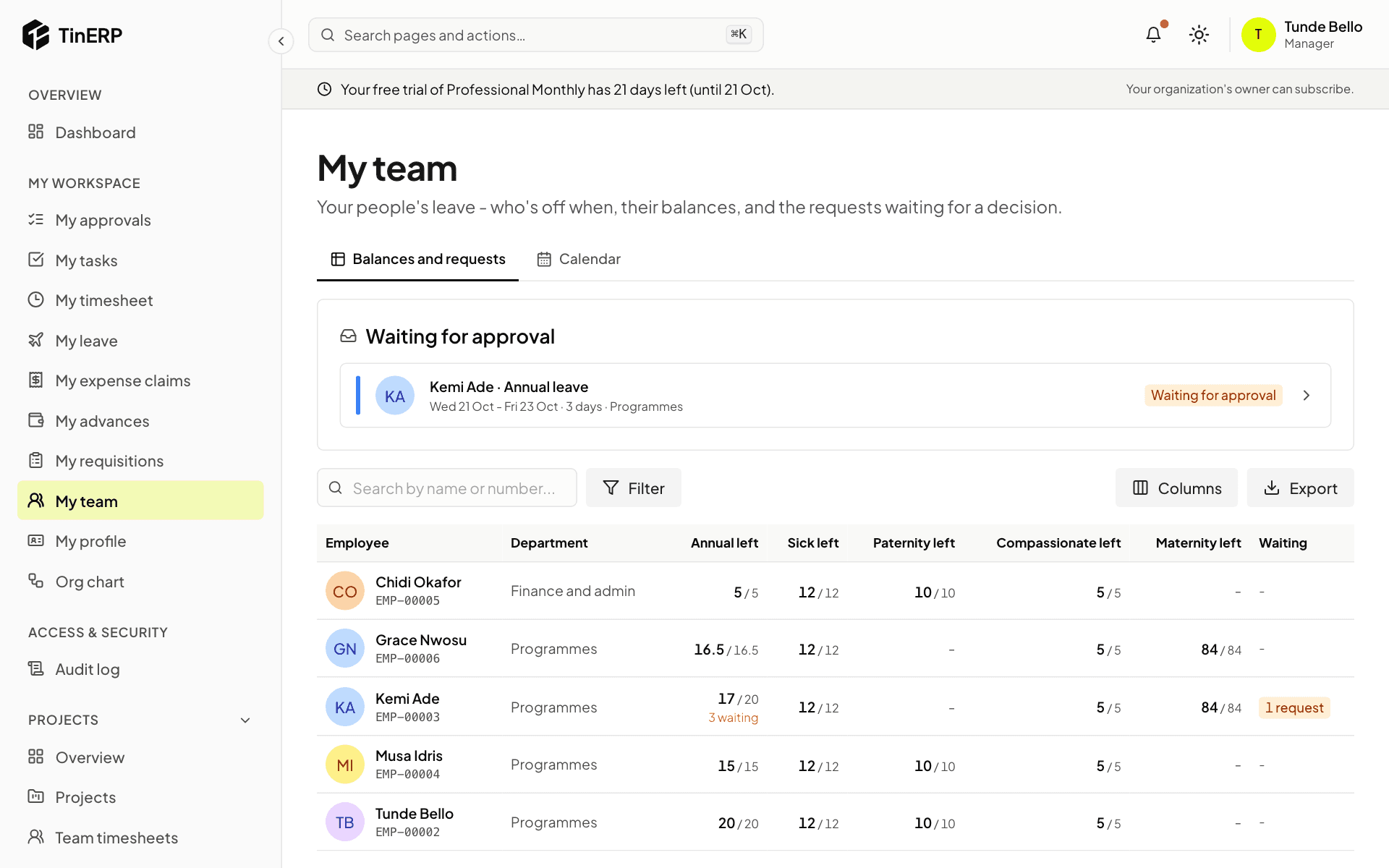
Go to My workspace → My team. Waiting for approval lists your team's leave requests that haven't been decided. Below it, the table shows how many days each person has left of every leave type, and what they have waiting.
Search for someone, filter by department, or Export the table.
3. Check the calendar
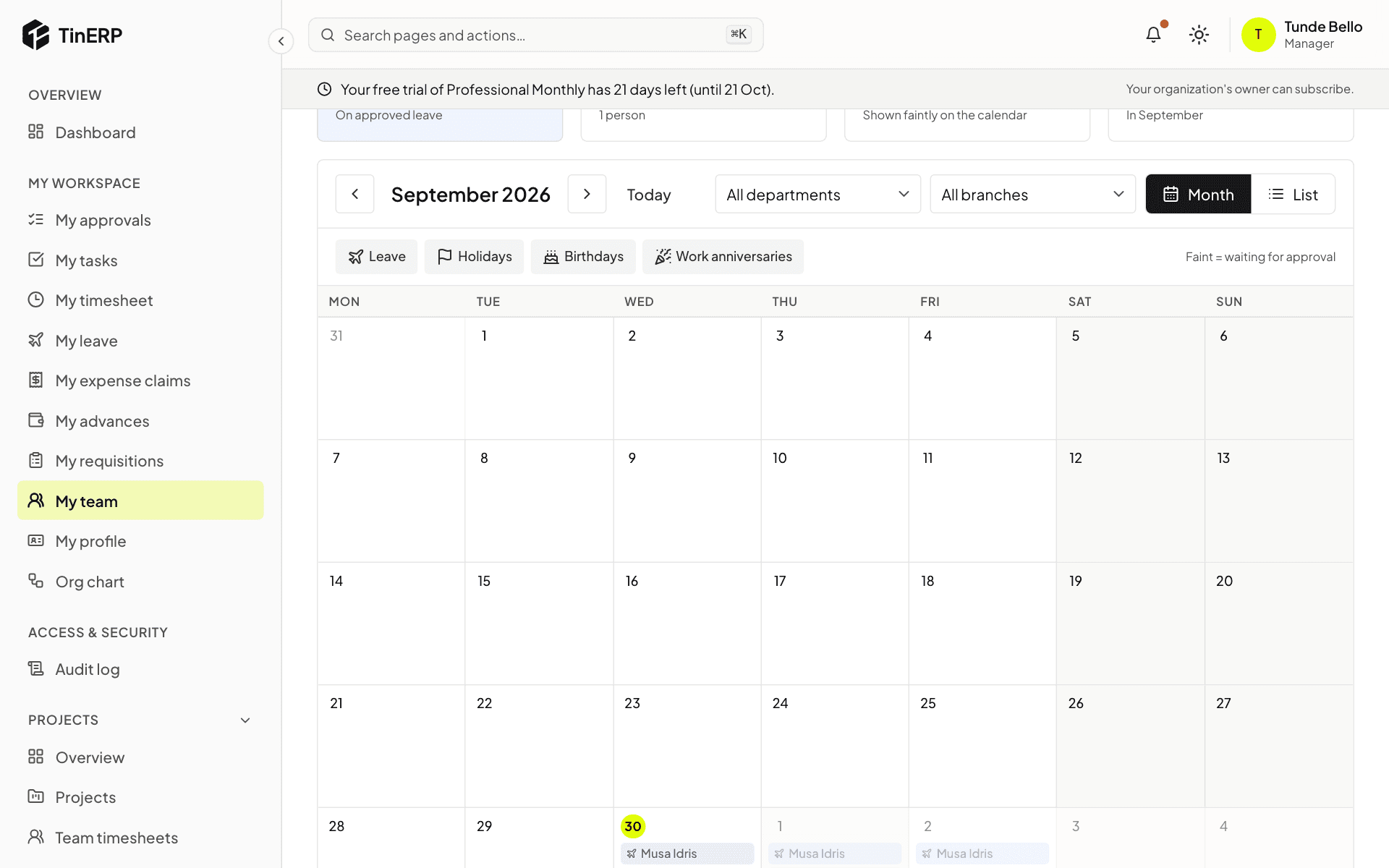
Select Calendar for the month at a glance: approved leave, requests still waiting (shown faintly), public holidays, and the birthdays of people who chose to share them.
Move between months with the arrows, switch to List, filter by department or branch, and select the kinds of event at the top to show or hide them.
4. Decide a request
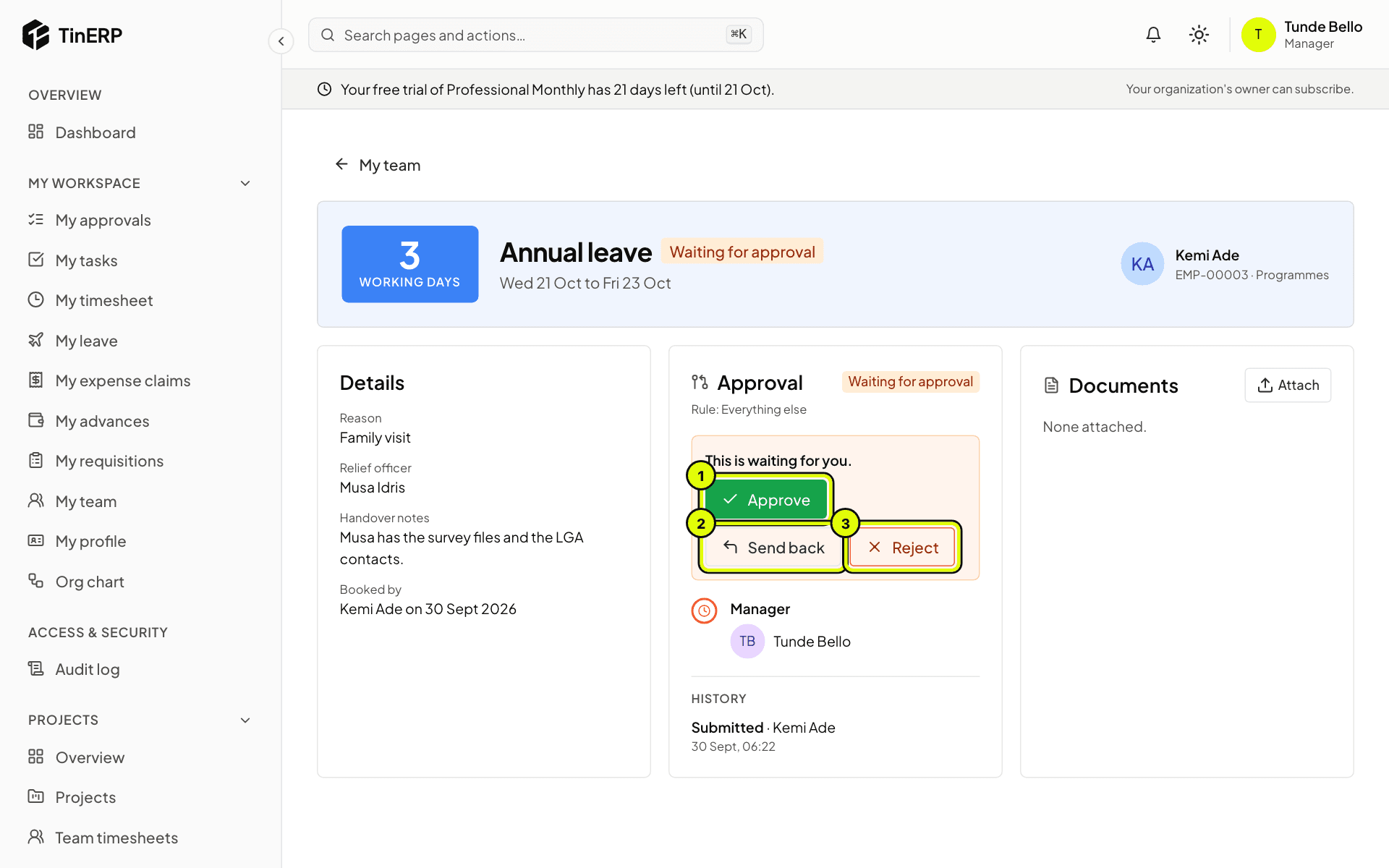
Open a request to see the dates, the days it takes, the reason, the relief officer and the handover notes.
Choose Approve (1), Send back (2) if something needs changing, or Reject (3). When you send back or reject, say why - they see your note. Approved days come off their balance straight away.
Tip: You can also decide from My workspace → My approvals, together with everything else waiting for you.
Questions
Someone is missing from My team - why?
My team follows the reporting lines on employee records. Ask HR to check the person's manager and department.
Can I book leave for someone in my team?
No - people book their own in My leave. HR books leave for people who don't sign in to TinERP, such as drivers.