15 guides ready to print - choose Save as PDF in the print window for a handout. Back to the help centre
TinERP user guide
Finance
Finance teams · The books: setup, journals, invoices and bills, banking, tax, budgets, grants and the financial statements.
Printed 3 October 2026 · the latest version is always in the help centre online
Contents
Finance
How Finance works
Set up Finance
The chart of accounts
Opening balances
Journals
Everyday journal examples
Customers, invoices and receipts
Bills and payments
Banking and reconciliation
VAT and WHT returns
Pay expense claims and advances
Budgets and grant budgets
Prepayments and deferred income
Reports and financial statements
Close a month and the year
Finance · Finance teams · about 5 min
How Finance works
Finance keeps your organization's books: its accounts, what it's owed and owes, its bank and cash, its taxes, budgets, funds and grants - and the financial statements that come out of them. If you don't have a finance background, these ideas are all you need to follow the rest of this chapter.
1. The ideas behind it
Double entry. Every transaction is recorded in at least two accounts, and the debits always equal the credits. Paying ₦50,000 rent: Rent is debited, Bank is credited. TinERP won't post anything that doesn't balance.
Journals. Each transaction is a journal entry. Invoices, bills, payments, claims and advances all create journals behind the scenes; you write journals yourself only for adjustments.
Posted means final. A posted journal is never edited or deleted. A mistake is corrected with a reversal linked to the original, so the history stays - auditors require it.
Periods. Books are kept by month. A closed month can't change, so figures already reported don't quietly move.
Control accounts agree with their detail.Trade receivables always equals the unpaid customer invoices; Trade payables the unpaid bills; the same for VAT, WHT and employee advances. Only their own documents post to them.
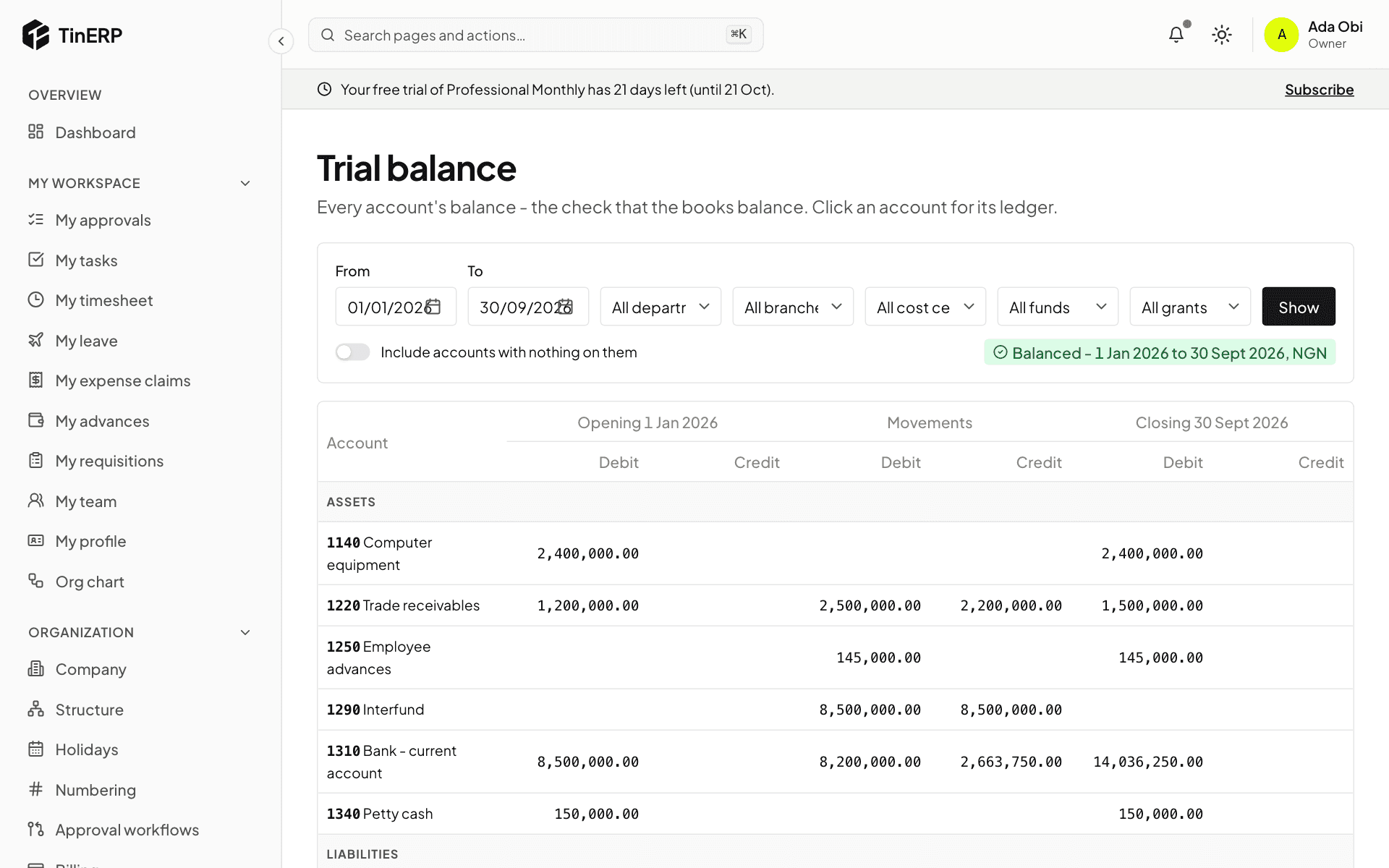
The trial balance from 1 January, balanced, with each account's opening balance, movements and closing balance
2. Who does what
Finance has its own permissions, so a team can split the work - for example one person enters bills, another pays them. The Admin role has them all except Reopen closed periods, which no role has until you give it.
Most organizations add roles such as an Accountant (the ledger, journals, invoices, bills) and a Finance manager (approvals, periods, budgets), and give Pay expense claims and Pay and settle advances to whoever pays people. See Roles and permissions.
Everyone else meets Finance through My expense claims and My advances, and managers through their approvals.
3. Where everything is
The Finance menu holds it all: Journals, Banking, sales (Sales invoices, Receipts, Customers, Aged receivables), purchases (Bills, Payments, Payment runs, Vendors (finance), Aged payables), Tax returns, Expense claims and Advances, Budgets and Budget vs actual, Prepayments and deferrals, Recurring journals, the reports (Financial statements, Trial balance), and the setup (Opening balances, Chart of accounts, Periods, Finance settings).
Questions
Finance says it isn't set up yet.
Someone who can manage accounting setup does it once, from Finance → Chart of accounts - see Set up Finance. Until then the other Finance pages explain it rather than working.
Finance · Finance managers · about 10 min
Set up Finance
Before you start, check Organization → Company → Preferences: Finance keeps its books in the base currency and uses the fiscal year start from there, and both are hard to change later.
1. Set Finance up
Go to Finance → Chart of accounts. The first time, it asks three things:
What kind of organization is this?Business, or Not-for-profit (NGO) - an NGO gets funds and grants, and statements by fund. Which reporting framework?IFRS for SMEs for most small and medium organizations, IFRS Accounting Standards for public-interest entities, or Another framework your accountant has approved. Start from the ready-made chart (recommended - reviewed for Nigerian organizations) or a blank one.
Select Set up Finance. TinERP creates the chart of accounts and this financial year's twelve months - and for an NGO, the General fund.
2. Check your accounting policies
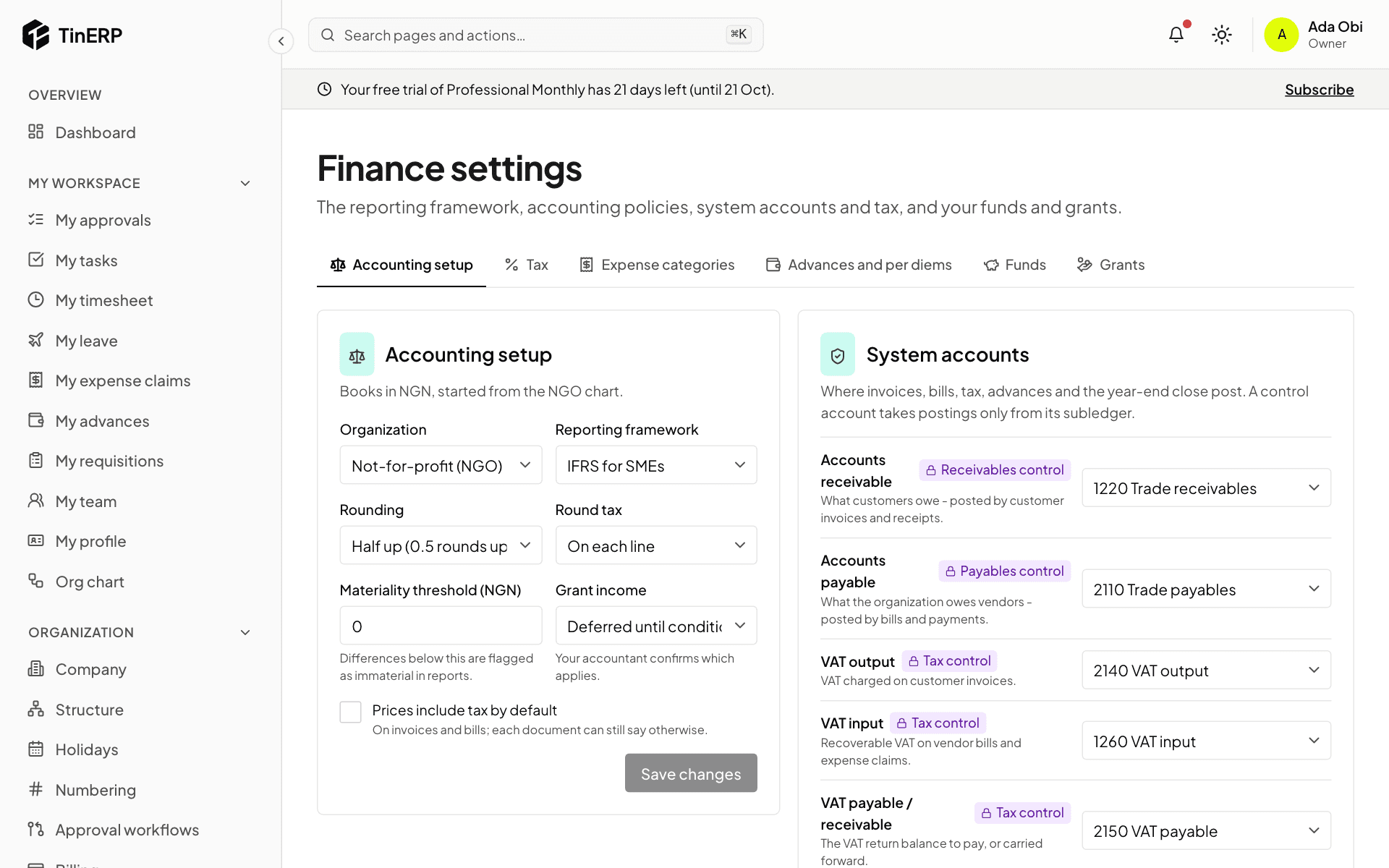
Go to Finance → Finance settings. Accounting setup holds the framework, rounding, how tax is rounded (on each line or the document), the materiality threshold, whether prices include tax by default and - for NGOs - when grant income is recognised. Your accountant confirms these.
System accounts are where invoices, bills, tax, advances and the year-end close post. The ready-made chart fills them all in. Every change asks for a reason, kept in the audit log.
Finance settings: Accounting setup and the system accounts
3. Set your tax status and check the rates
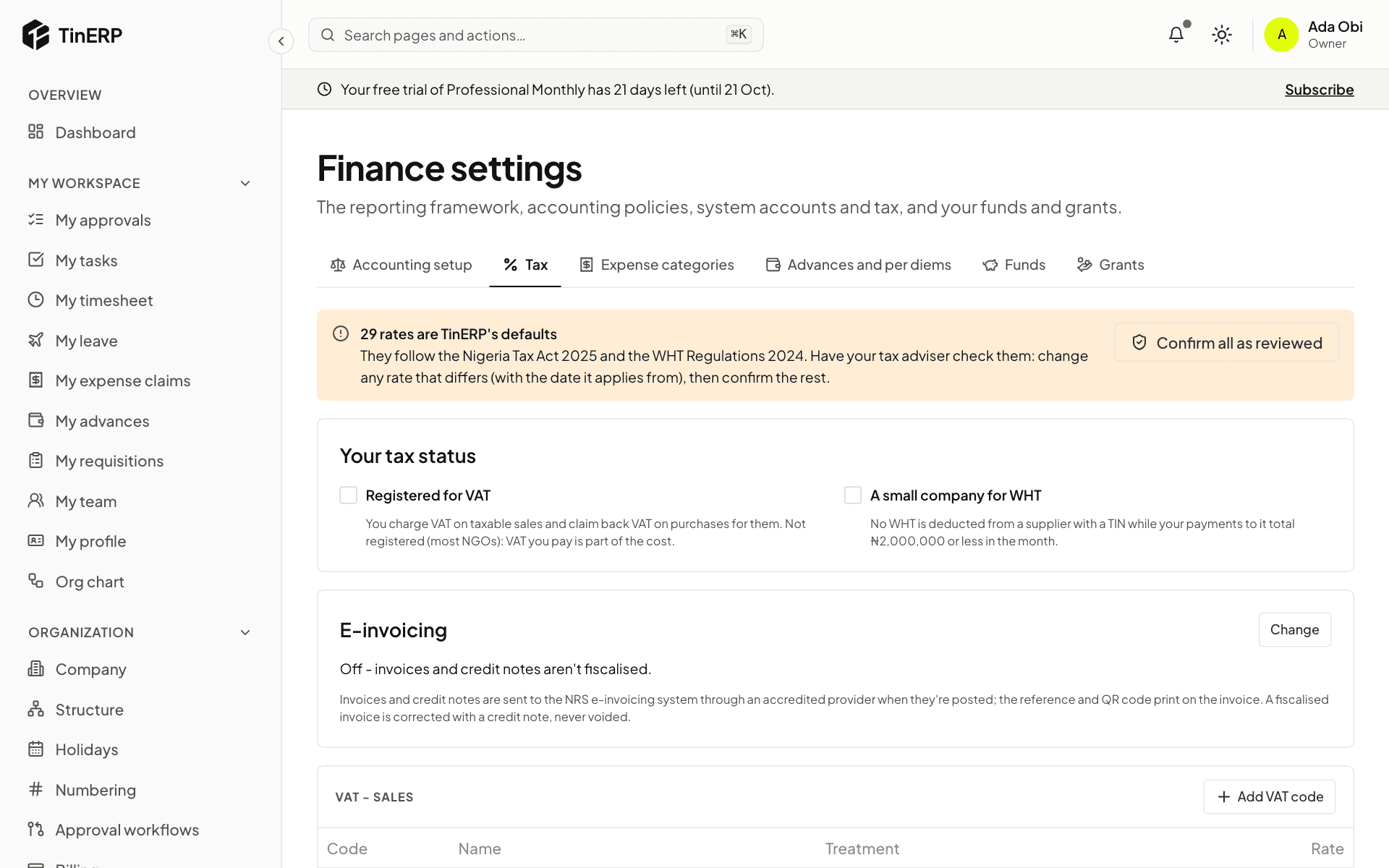
Under Tax, tick Registered for VAT if you are - then you charge VAT on taxable sales and claim it back on purchases. Most NGOs aren't: VAT they pay is part of the cost. Tick A small company for WHT if it applies.
TinERP comes with Nigeria's VAT codes and WHT rates. Have your tax adviser check them, change any that differ (with the date the new rate applies from), then Confirm all as reviewed.
Finance settings → Tax: the default rates to review, your tax status and e-invoicing
4. NGOs: add your funds and grants
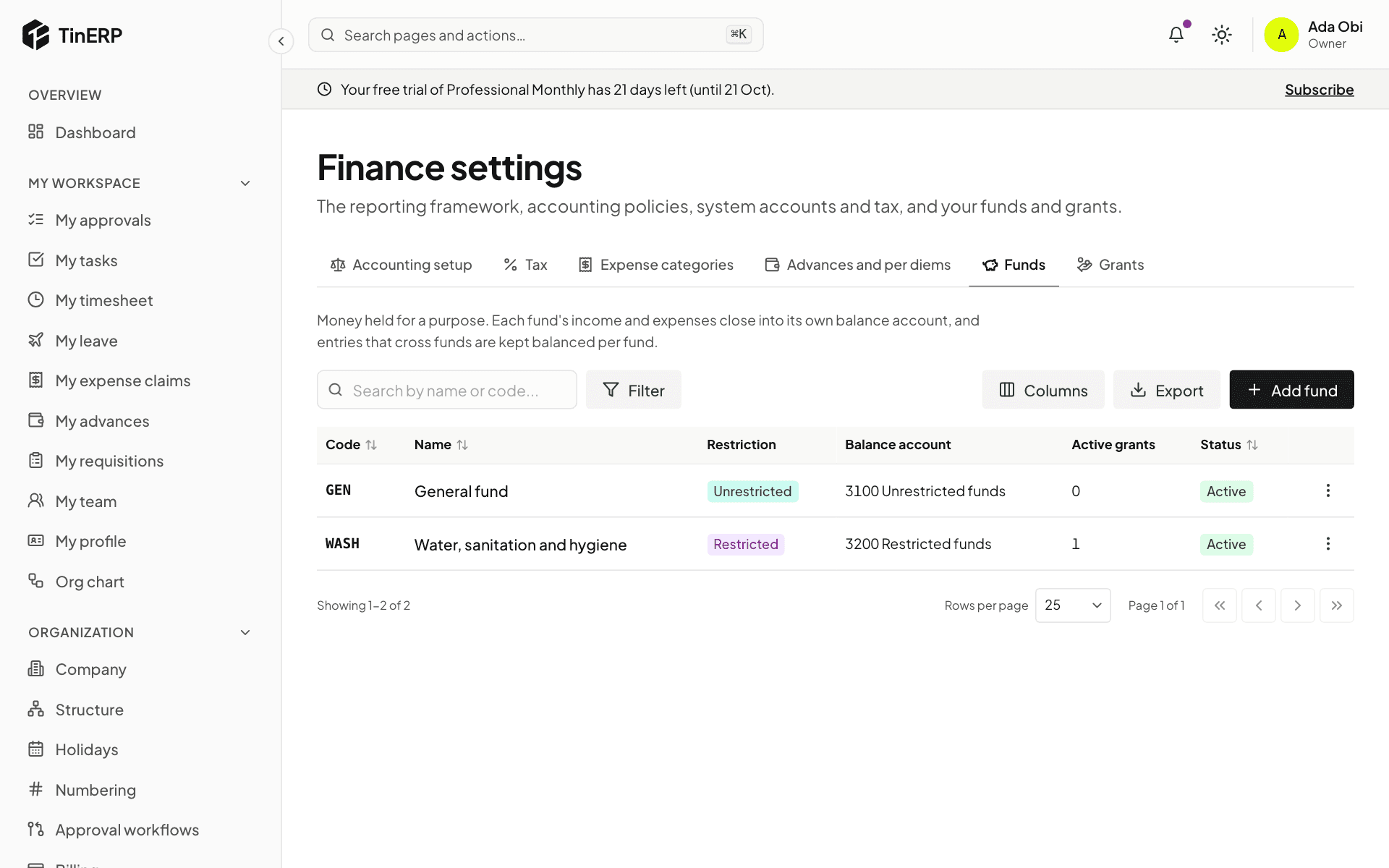
Under Funds, add each pot of money held for a purpose: restricted (a donor limits what it's spent on), unrestricted or endowment, each with the equity account its balance is kept in.
Under Grants, add each donor award: the donor, reference, the fund it belongs to, the amount in the award's own currency, and its dates. Tagging spending with the grant is what makes donor reports come straight from the books.
Finance settings → Funds: the General fund and a restricted WASH fund
5. Check the periods
Go to Finance → Periods. Your financial year is there as twelve open months. Open the next year before its first month starts - nothing can be posted into a year that doesn't exist yet.
Tip: Bringing in balances from an old system? That's next - see Opening balances.
Finance · Finance managers and accountants · about 5 min
The chart of accounts
The chart of accounts is the list of every account the books use, grouped under headers by type: assets, liabilities, equity (funds for NGOs), income and expenses.
1. Read the chart
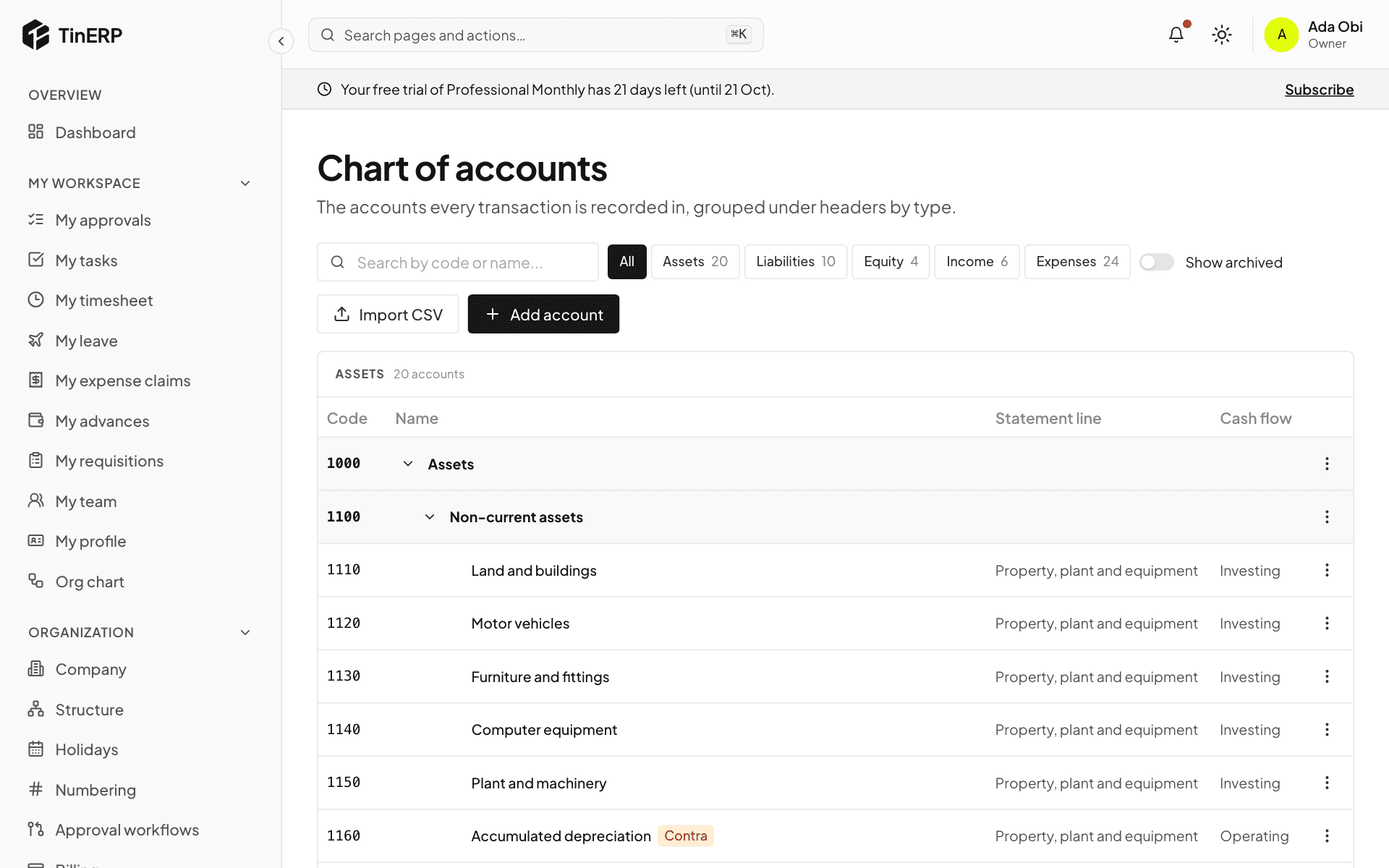
Go to Finance → Chart of accounts. Codes group accounts: 1xxx assets, 2xxx liabilities, 3xxx equity or funds, 4xxx income, 5xxx-6xxx expenses. Headers group other accounts and are never posted to.
Badges show how an account behaves: a control account takes postings only from its own documents; a Contra account's balance is the opposite of its type (accumulated depreciation). Each account shows its Statement line and Cash flow category. Select an account's name to open its ledger.
The chart of accounts: assets under headers, with statement lines and cash flow categories
2. Add or change an account
Select Add account, or use a header's menu to add one under it. Give it a code in the chart's numbering, a name, its type and the header it sits under, whether journals may post to it, and where it goes in the statements.
Dimensions on its lines make reports useful: for each of department, branch and cost center (and fund and grant for NGOs), choose Required, Optional or Not allowed. With department required on salaries, you can see payroll by department.
Accounts are never deleted: use the menu to Archive one. You can't archive a system account, or a header with active accounts under it.
3. Import a chart
Import CSV adds many accounts at once - for example your old system's chart. Every row is checked first; if any is wrong, nothing is imported and you're told which rows to fix.
Finance · Finance managers and accountants · about 5 min
Opening balances
If your organization existed before TinERP, start from your last trial balance in the old system - and the invoices, bills and advances still open.
1. Enter the balances
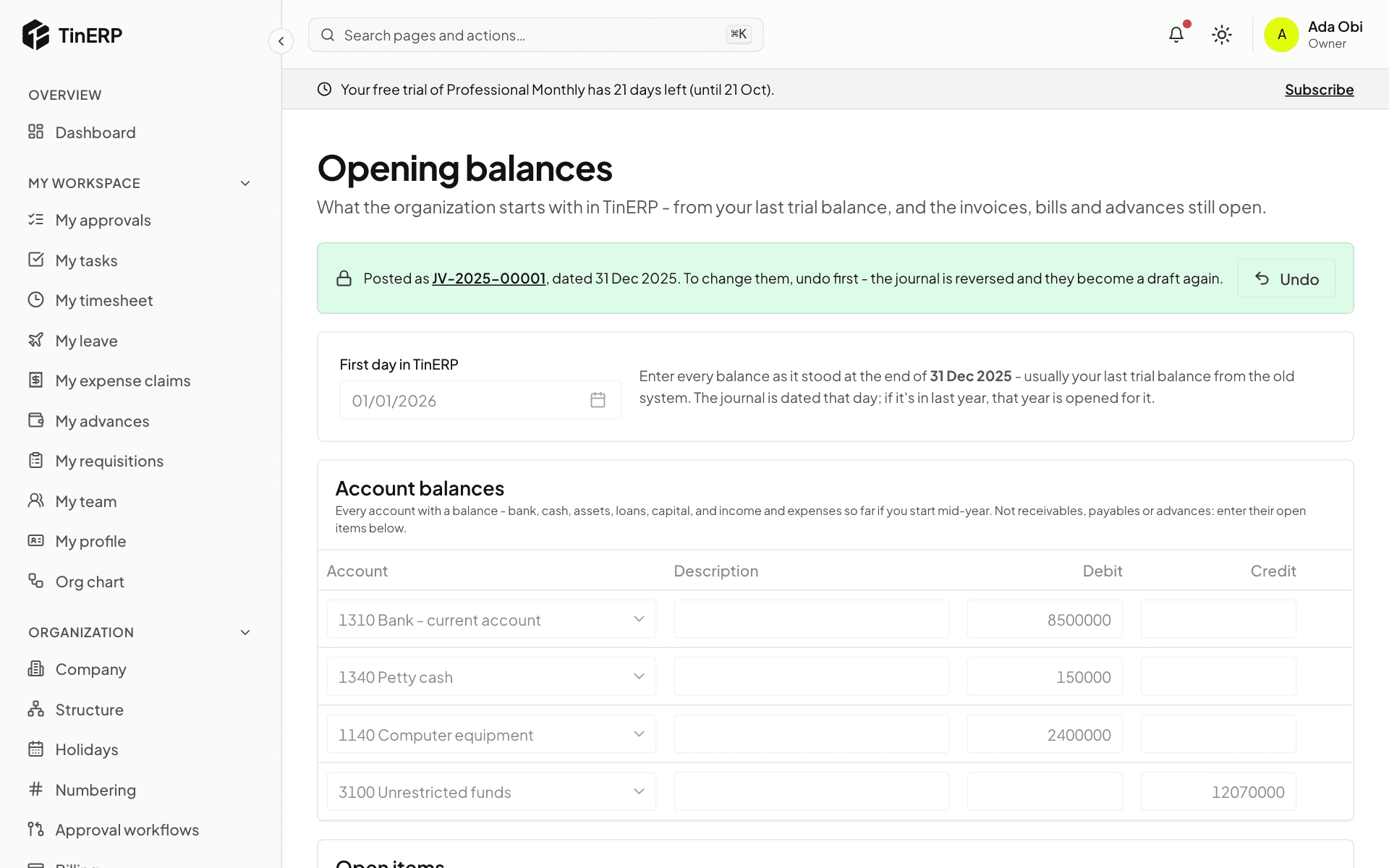
Go to Finance → Opening balances. Choose your First day in TinERP - usually the start of the financial year. Balances are as they stood the day before.
Under Account balances, enter every account with a balance - bank and cash, equipment, loans, funds or capital, and income and expenses so far if you start mid-year. Debits on the left, credits on the right.
Opening balances posted, with the first day in TinERP and the account balances
2. Add the open items
Receivables, payables and advances aren't one figure: under Open items, enter each unpaid customer invoice, unpaid vendor bill and unretired advance, with its number, date and what's outstanding. TinERP adds them up into the control accounts, and later each one can be paid or received against.
Both parts can be imported from CSV: Template gives you the columns, Import CSV reads them back.
3. Post them
The footer shows whether debits equal credits. Save draft as you go, and Save and post when it balances. It posts one journal dated the day before your first day.
Found a mistake later? Undo (with a reason) reverses the journal and makes the balances a draft again.
Finance · Accountants · about 6 min
Journals
Most journals are made for you by invoices, bills, payments, claims and advances. You write your own for adjustments - accruals, depreciation, corrections, reclassifications.
1. Write a journal
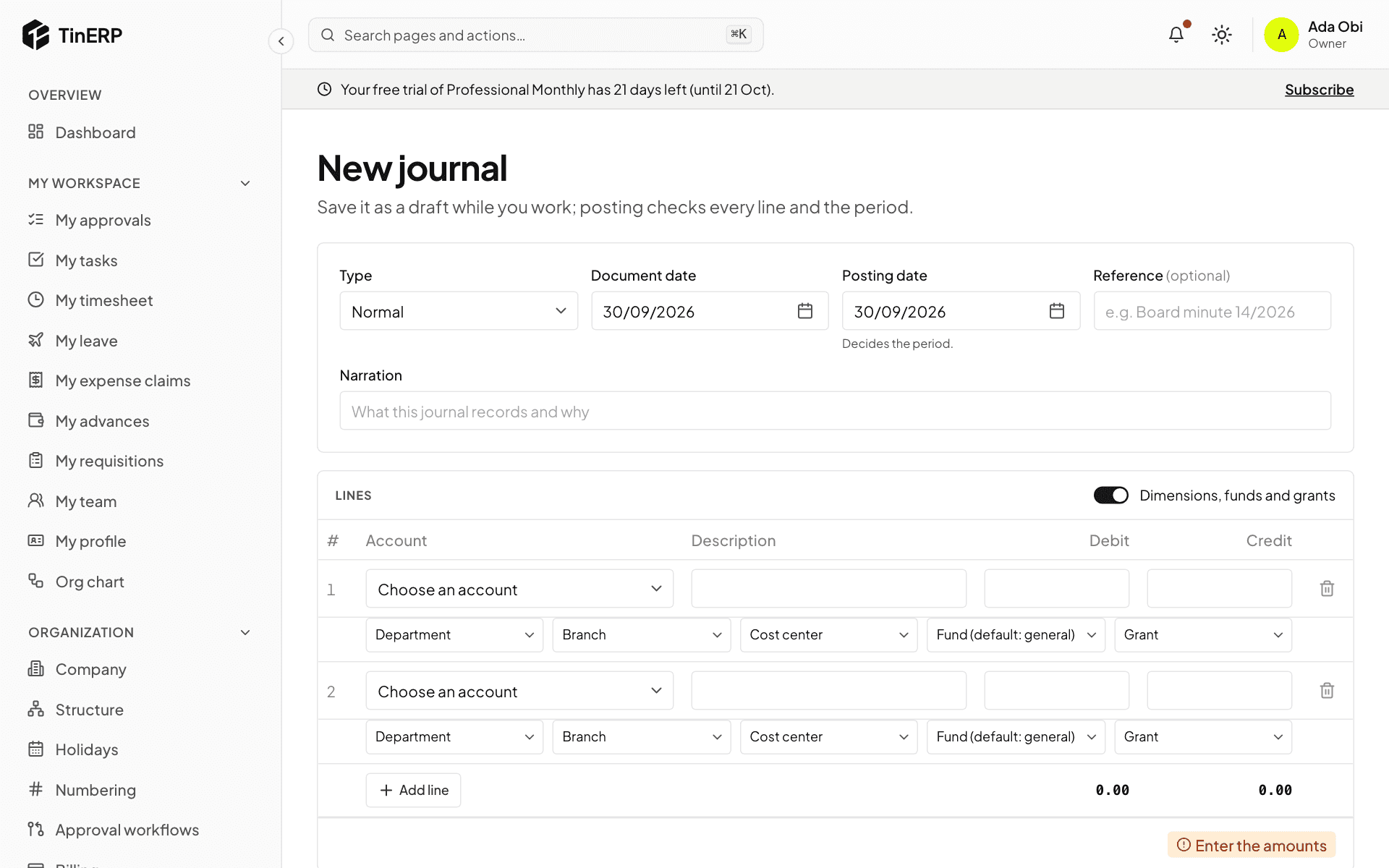
Go to Finance → Journals and select New journal. Choose the Type - usually Normal; Accrual for a cost used but not yet billed, Correction, Reclassification, Adjustment, or for NGOs a transfer between funds.
The Document date is on the paperwork; the Posting date decides the month it counts in. Add a Reference and a Narration someone can understand in two years, then the lines: an account, and a debit or a credit on each.
Turn on Dimensions, funds and grants to tag lines; required ones are marked. Control accounts aren't offered - they change only through their own documents.
A new journal: type, dates, reference, narration and lines with dimensions
2. Save or post it
Save draft keeps it to finish later - a draft may not balance yet. Save and post checks every line and that the month is open, then posts it.
By default journals post at once. Your organization can require approval - for example over ₦1,000,000, or any journal touching fund balances - in Organization → Approval workflows → Manual journal. Nobody approves their own.
3. Reverse a mistake
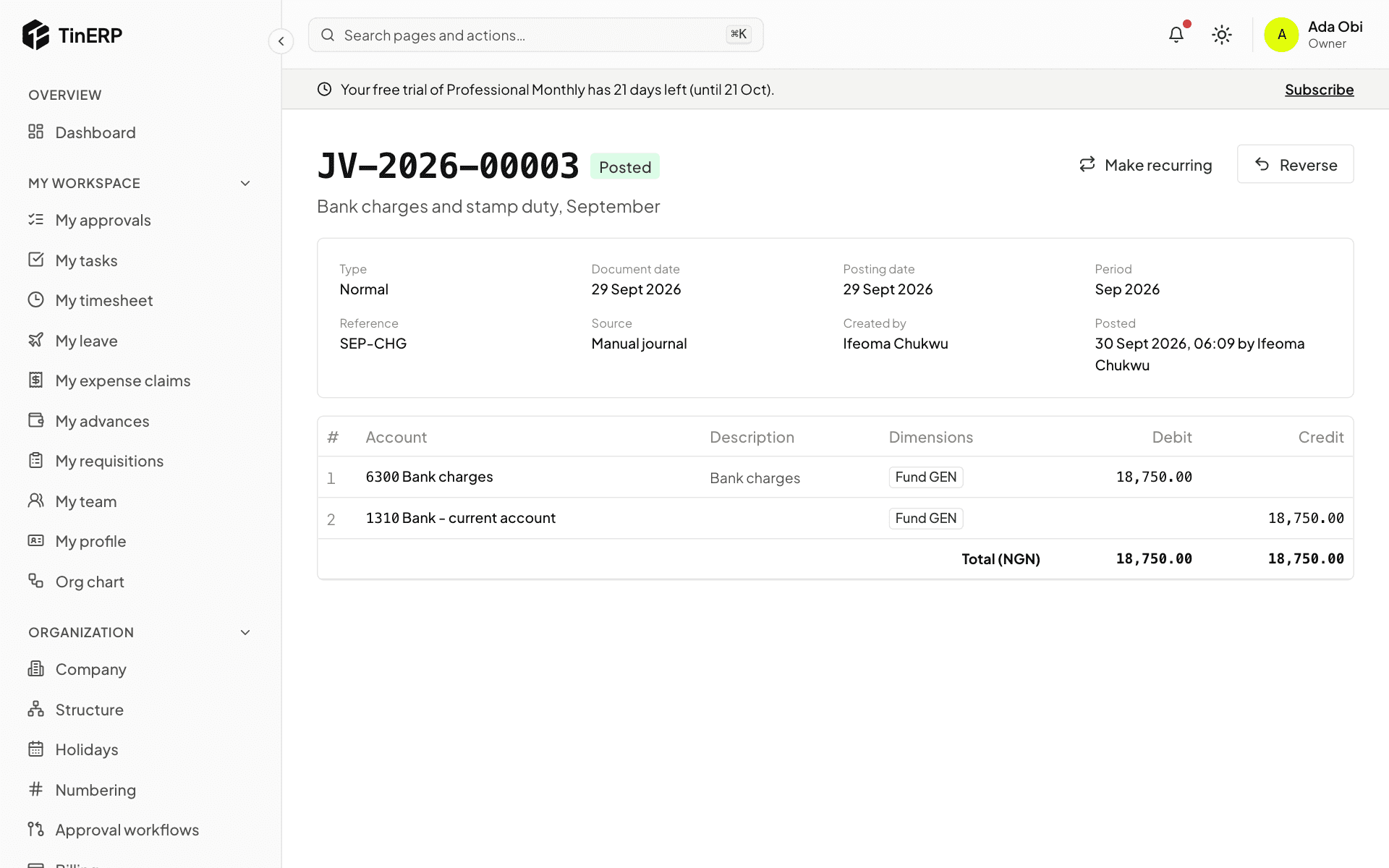
Open the posted journal and select Reverse. Choose the reversal date and give a reason: a new journal is posted with every line on the other side, and both are linked. Then post the correct one.
Journals made by invoices, bills and other documents are corrected in those documents instead - a credit note, a void, a retirement.
A posted journal with Make recurring and Reverse
4. Journals that repeat
For rent, depreciation or standing charges, open a journal and select Make recurring: every month, quarter or year, on a day you choose, from a start date until an end date if there is one. Tick Post each one automatically, or leave each as a draft for someone to check.
Finance → Recurring journals lists them; pause, resume or end them there.
Tip: An Accrual can reverse itself on the first day of next month - so when the real bill arrives, the cost isn't counted twice.
Finance · Accountants · about 5 min
Everyday journal examples
Most transactions come from invoices, bills, payments, claims and advances. These are the ones you journal yourself. Codes are from TinERP's ready-made charts - the same in the business and NGO charts, except where only the name is given.
1. Common transactions
Each of these is one Normal journal with two lines, unless it says otherwise.
Transaction
Debit
Credit
Buy laptops for ₦4,800,000
1140 Computer equipment
1310 Bank - current account
Pay quarterly rent of ₦1,500,000
6200 Rent and rates
1310 Bank - current account
Bank loan of ₦15,000,000 received
1310 Bank - current account
2210 Long-term loans
Repay ₦500,000 of the loan
2210 Long-term loans
1310 Bank - current account
Withdraw ₦400,000 for cash on hand
1330 Cash on hand
1310 Bank - current account
Diesel of ₦250,000 paid in cash
6220 Diesel and generator
1330 Cash on hand
Monthly depreciation of ₦370,000 (type Adjustment)
6320 Depreciation
1160 Accumulated depreciation
A donation of ₦2,000,000 received (NGO)
1310 Bank - current account
Donations
Owners put in ₦25,000,000 (business)
1310 Bank - current account
Share capital
2. Payroll
Until TinERP's Payroll arrives, record each month's payroll as one journal. Gross salaries ₦4,000,000; PAYE withheld ₦360,000; pension 8% from staff (₦320,000) and 10% from the employer (₦400,000). Tag the salary line with the department.
Next month, when you remit them: debit 2170 PAYE payable ₦360,000 and 2180 Pension payable ₦720,000, credit 1310 Bank ₦1,080,000.
Account
Debit
Credit
6100 Salaries and wages
4,000,000
6110 Pension - employer contribution
400,000
2170 PAYE payable
360,000
2180 Pension payable (staff and employer)
720,000
1310 Bank - net pay to staff
3,320,000
3. A cost you've used but not been billed for
September's electricity, estimated at ₦210,000, not yet billed: type Accrual - debit 6210 Electricity and utilities, credit 2120 Accruals, with the automatic reversal left on. On 1 October the reversal is posted by itself; when the real bill is posted in October, September carries the cost and October only the difference.
4. NGOs: a programme cost paid from the general account
A ₦300,000 workshop for a donor-funded programme, paid from the general bank account: debit 5120 Workshops and trainings with the programme's grant on the line, credit 1310 Bank. The grant brings its fund, and when you post, TinERP adds two Interfund lines so each fund still balances - you don't add them yourself.
5. A mistake in a posted journal
A generator service posted to Diesel instead of Repairs: open the journal and Reverse it with a reason, then post a new Correction journal to the right account. The original, the reversal and the correction are linked, so auditors can follow them.
Finance · Accountants · about 6 min
Customers, invoices and receipts
Sales invoices are what you bill - for services, donor-funded work, rent or goods. Receipts are the money coming in against them.
1. Add the customer
Go to Finance → Customers and add them: name, type, TIN, whether they're VAT registered and whether they deduct WHT from what they pay you, contacts, payment terms, a credit limit if you want one, and the income account their invoices default to.
2. Write the invoice
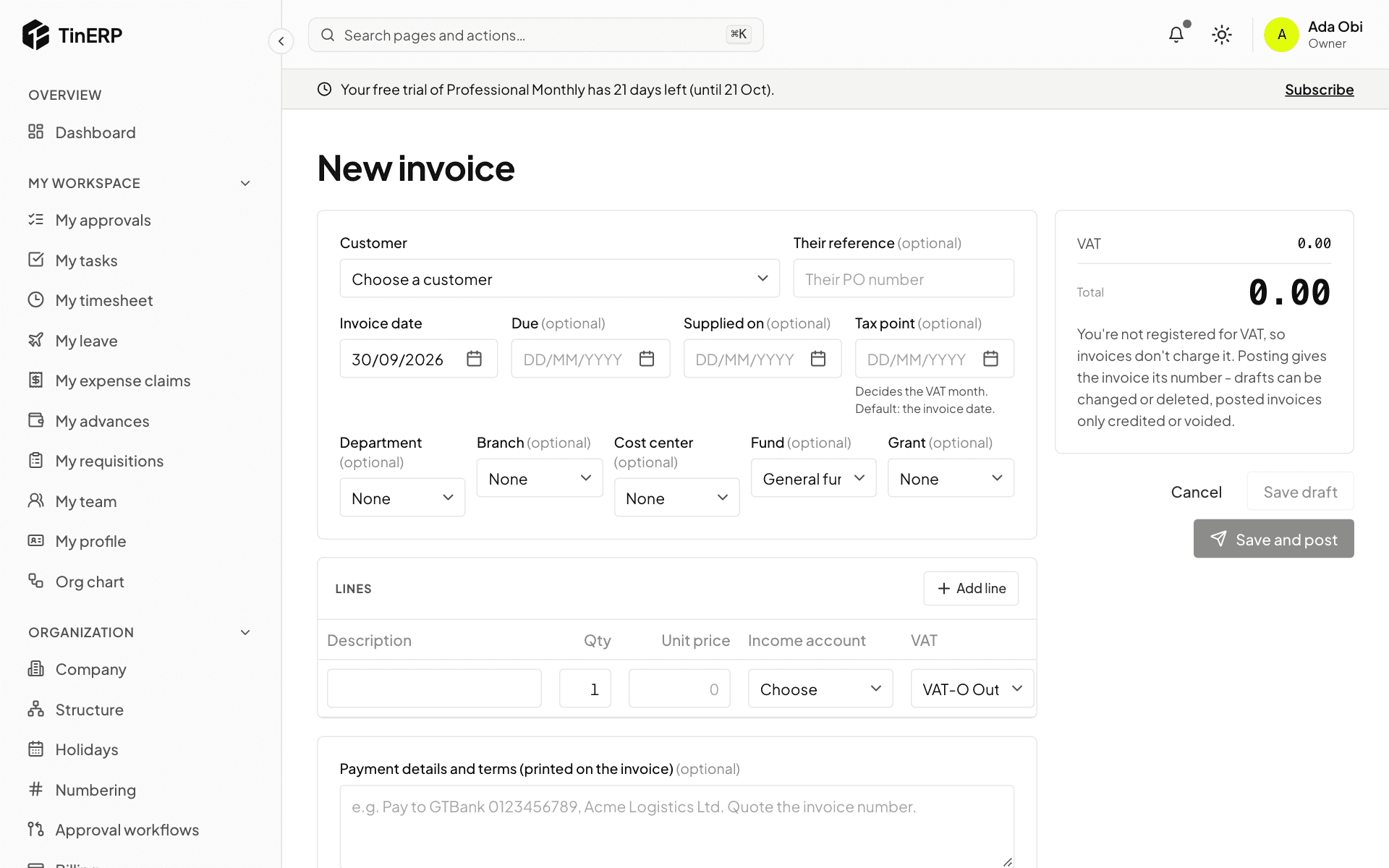
Go to Finance → Sales invoices and start a new one. Choose the customer, the dates - the Tax point date decides the VAT month - and add the lines: description, quantity, unit price and income account. VAT comes from each line's code.
Add Payment details and terms (your bank account, for example). Save draft, or Save and post to give it its number and post it.
The new invoice form: customer, dates, lines and payment details
3. Send it, and follow it
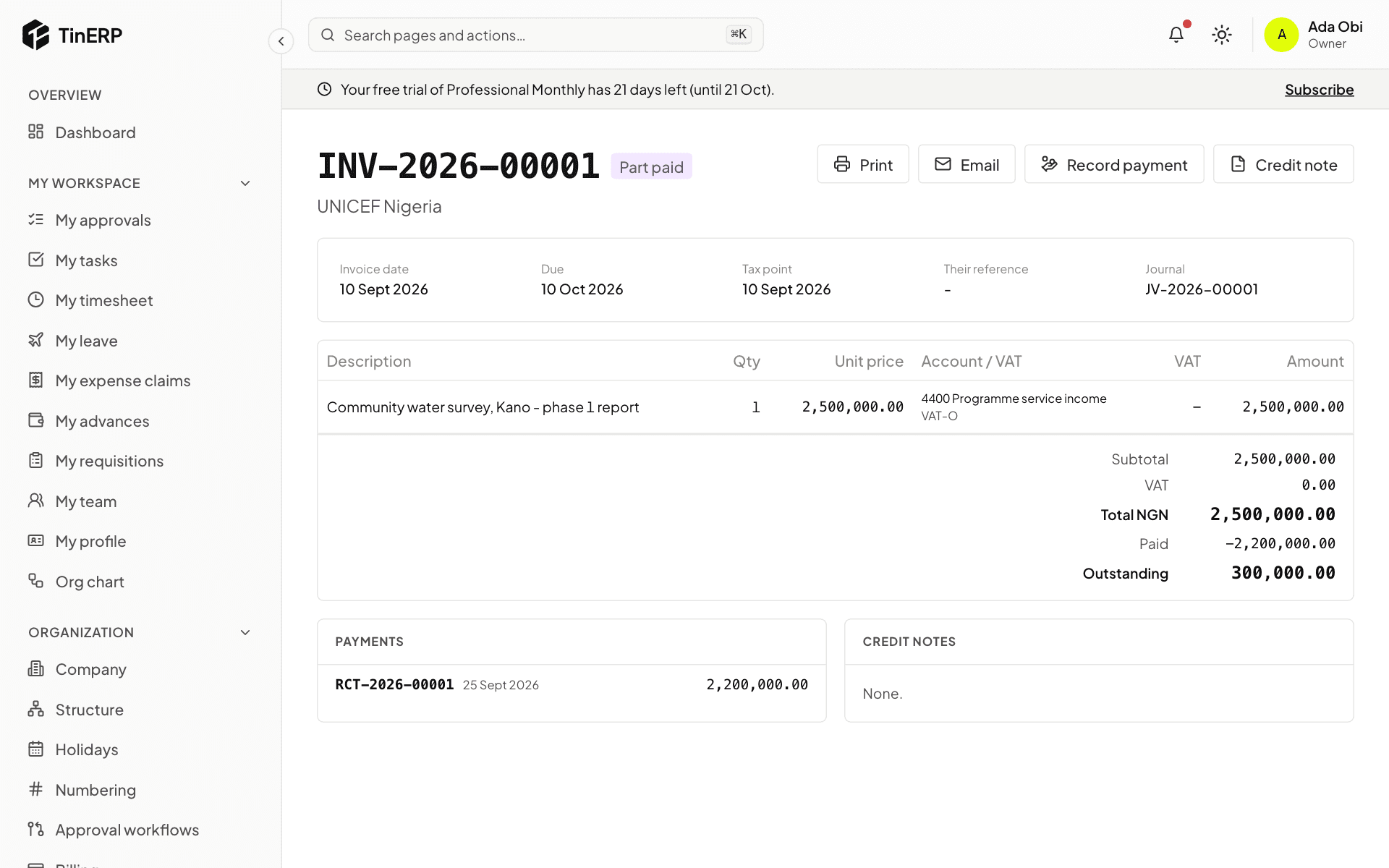
On the invoice, Print it on your letterhead or Email it to the customer. It shows what's been paid and what's outstanding.
To correct a posted invoice, issue a Credit note - for everything or chosen lines. Void is only for an invoice nothing has been paid or credited on; the number stays used.
A posted invoice, part paid, with Print, Email, Record payment and Credit note
4. Record what they pay
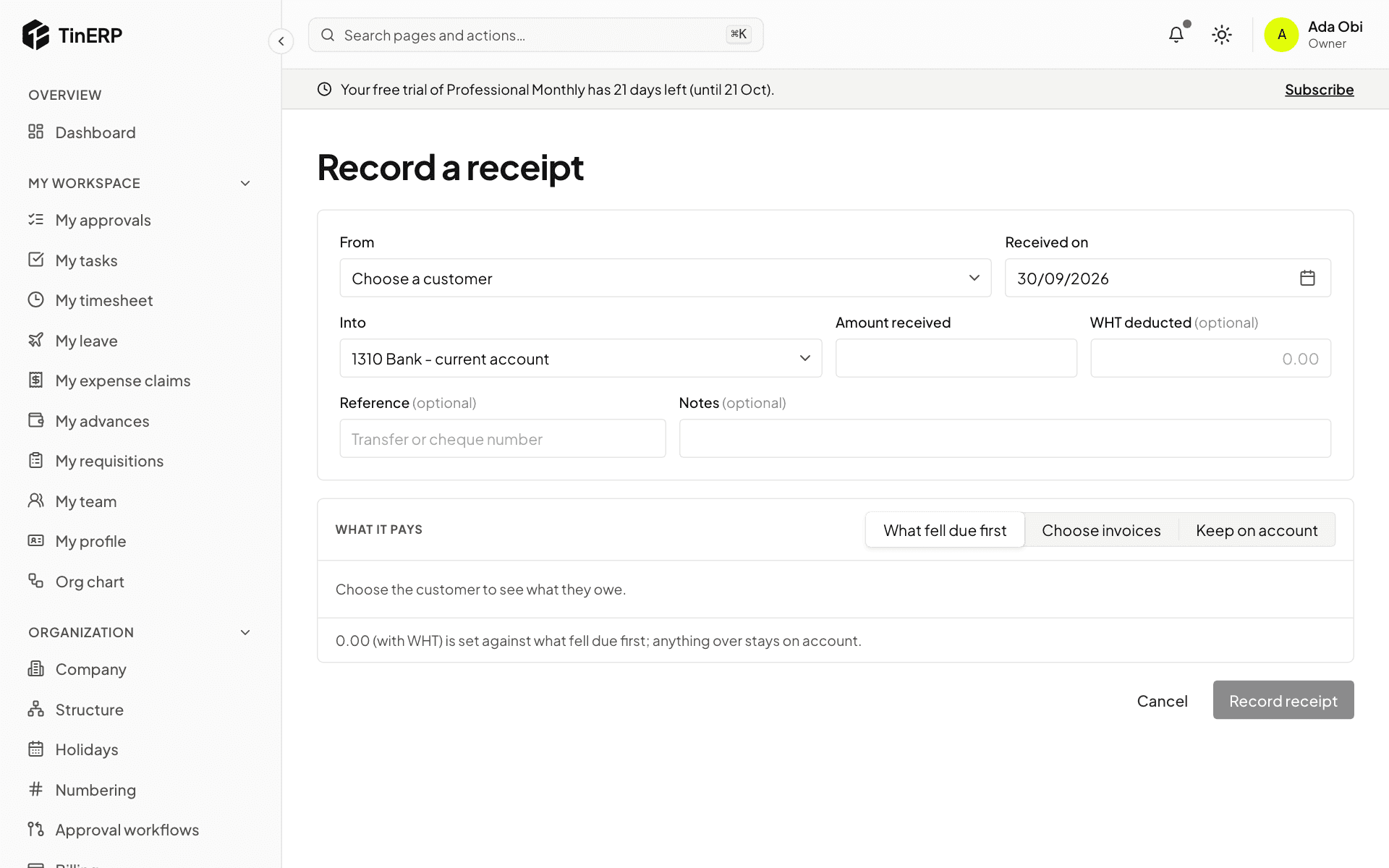
Select Record payment on the invoice, or go to Finance → Receipts. Enter the date, the bank account it came into, the amount, and any WHT deducted by the customer - it pays the invoice too.
Choose what it pays: What fell due first, Choose invoices, or Keep on account for later.
Record a receipt: customer, account, amount, WHT deducted and what it pays
5. See who owes what
Finance → Aged receivables shows what each customer owes on any date - not yet due, then 1-30, 31-60, 61-90 and over 90 days late. A customer's page has their statement for any period.
Finance · Accountants · about 6 min
Bills and payments
Bills are vendors' invoices. With Procurement, invoices approved there arrive here as posted bills by themselves; you enter other bills - rent, utilities, professional fees - directly.
1. Enter a bill
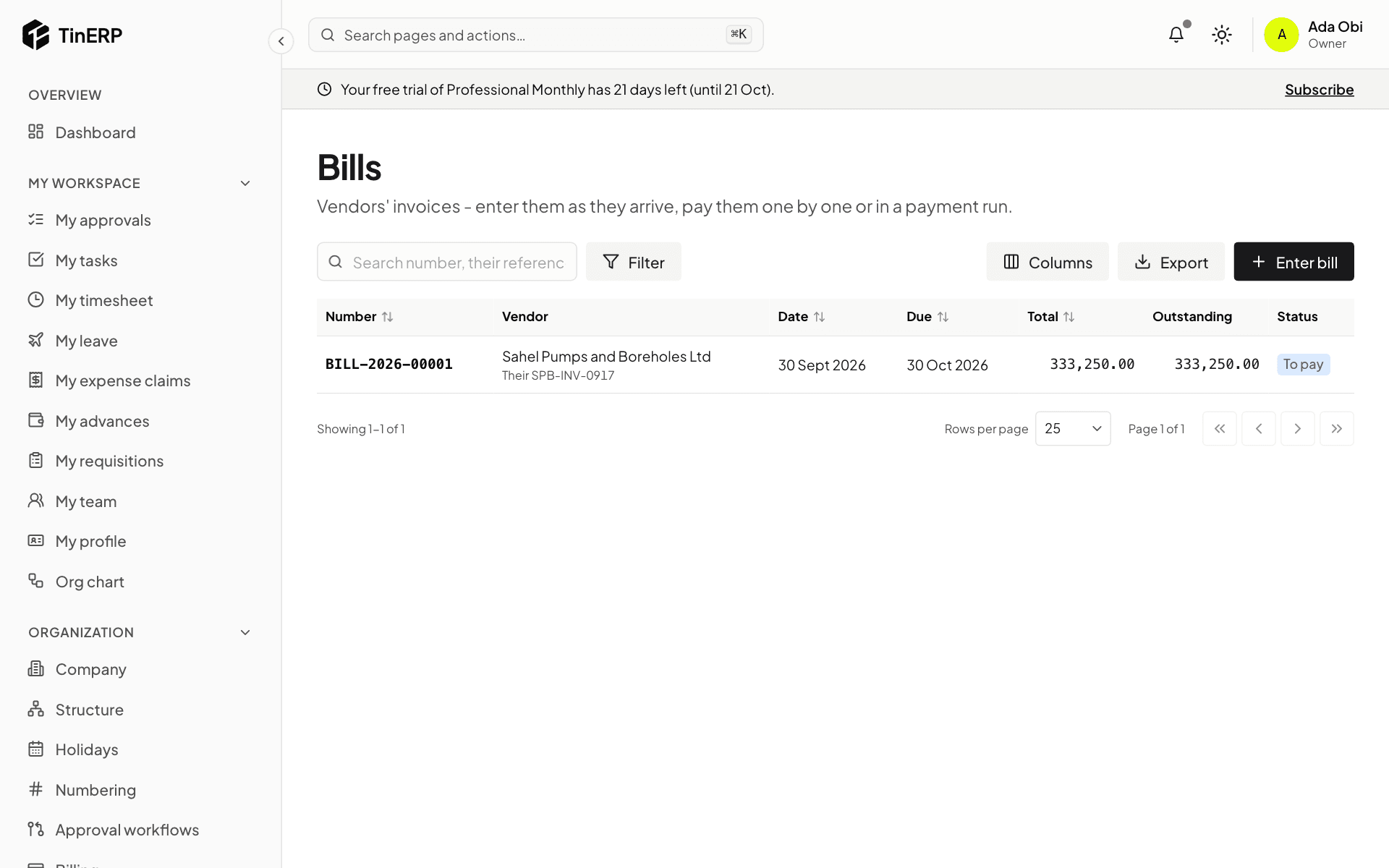
Go to Finance → Bills and start a new one: the vendor, their invoice number (TinERP refuses the same number twice for a vendor, so nothing is paid twice), the dates, and the lines with an expense or asset account and the VAT code.
Post it. To correct a posted bill, record a Debit note against it; Void is for one entered by mistake.
Bills: the pump parts bill that came from Procurement, posted and unpaid
2. Pay a vendor
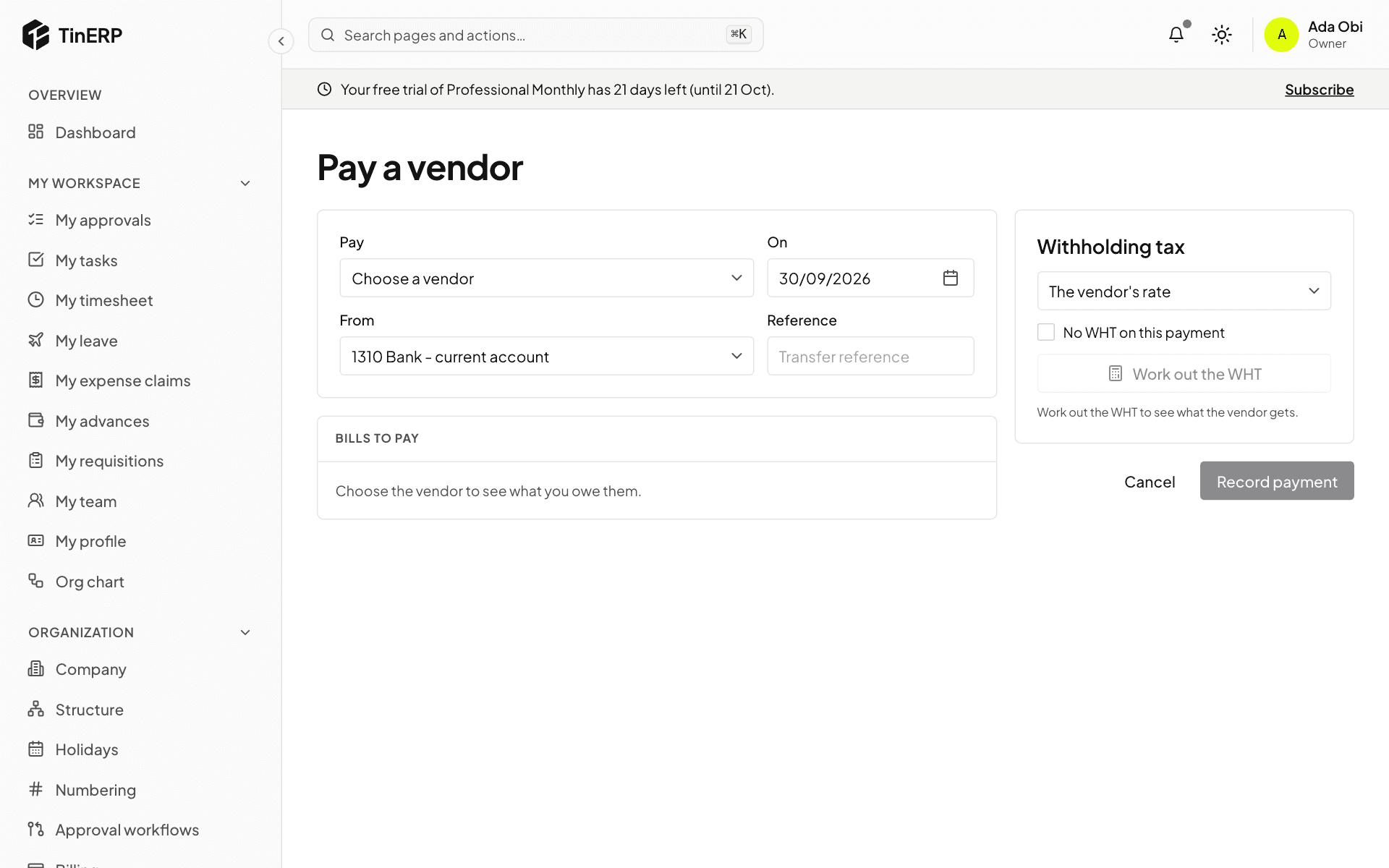
Go to Finance → Payments and pay a vendor: choose them, the date, the bank account and the transfer reference; their unpaid bills are listed - tick what this pays.
Select Work out the WHT: it's worked out on the amount before VAT at the vendor's rate, doubled if they have no TIN. You can change the rate, or tick No WHT on this payment and say why (an exemption certificate). Then Record payment.
Pay a vendor: vendor, date, bank account, bills to pay and the withholding tax
Tip: A payment is held while a change to the vendor's bank details is waiting for approval - a common fraud is changing an account just before a payment.
3. Pay many at once
Finance → Payment runs takes every posted bill due by a date, with WHT per vendor, from one bank account. It goes for approval - never by whoever created it. Once approved, download the Bank file for your bank, and someone who neither created nor approved the run selects Execute to record the payments.
4. See what you owe
Finance → Aged payables shows what's owed to each vendor by how late it is; a vendor's page has their statement.
Finance · Accountants and petty cash custodians · about 6 min
Banking and reconciliation
Every bank account, cash box and petty cash float is set up in Finance → Banking, over its ledger account.
1. Your accounts and transfers
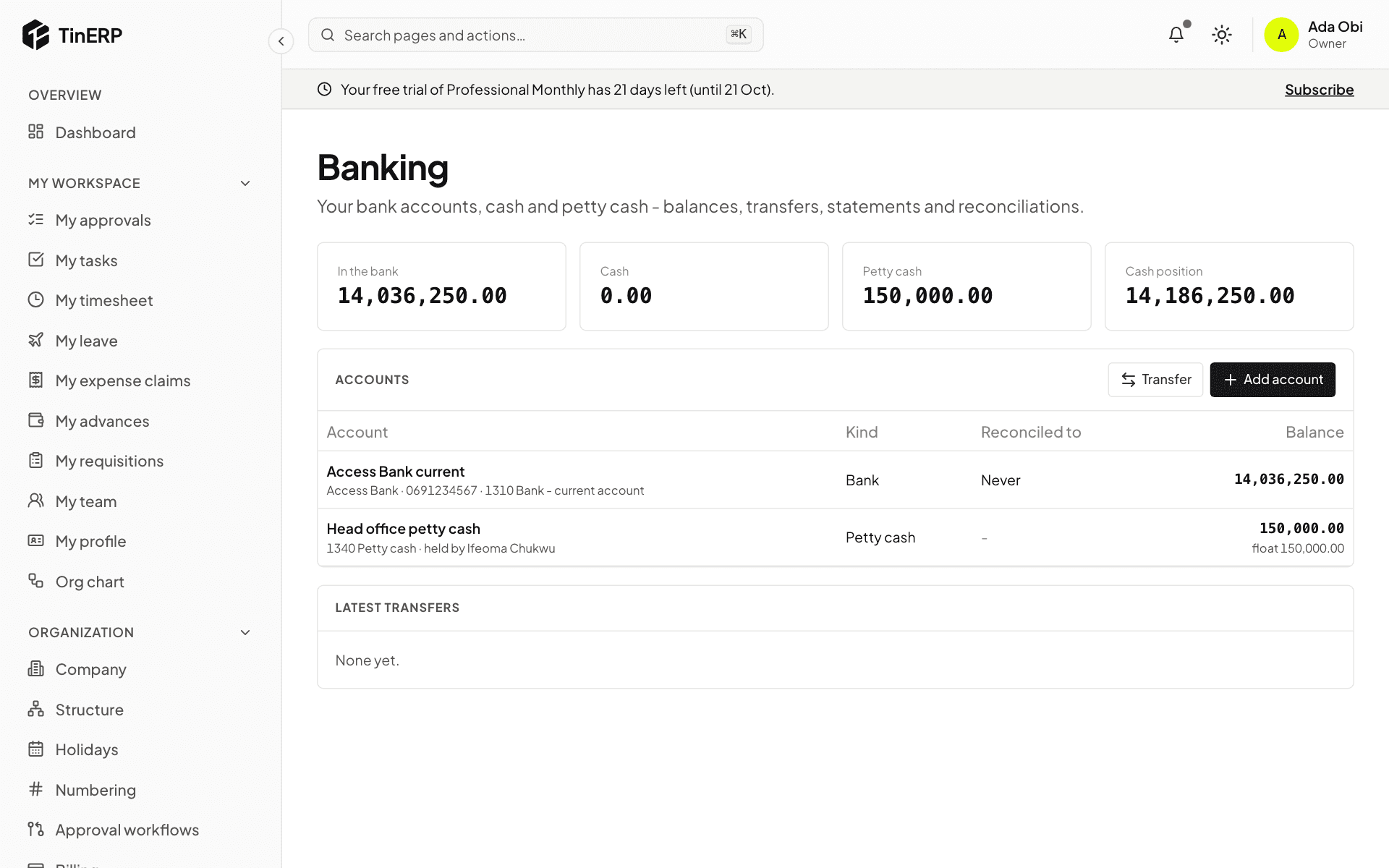
Go to Finance → Banking. The top shows what's in the bank, in cash and in petty cash - your cash position. Add account sets up a bank account, cash, or petty cash (with its custodian, float and the bank account it's topped up from).
Transfer moves money between them - for example cash withdrawn to the petty cash box.
Banking: the cash position, the bank and petty cash accounts, and Transfer
2. Petty cash
Open the petty cash account. The custodian selects Record spending for each payment, with the expense account - keep the receipt with the voucher number on it. Count the box regularly; any difference from the books must be explained. Top up asks for approval to refill it from the bank.
3. Import the bank statement
Open the bank account and select Import statement, with the CSV file from your bank. The first time, match its columns - TinERP remembers them. The lines must add up from the opening to the closing balance, so a file read the wrong way round is refused.
4. Reconcile
Select Reconcile. Match each statement line with what's in the books - TinERP suggests matches with the same amount within a week. For what the books don't have yet, such as bank charges, stamp duty or interest, say what it is and choose the account: the entry is made and matched in one go.
When every line is explained and the Difference is zero, select Finish and lock.
Finance · Accountants · about 5 min
VAT and WHT returns
Every tax amount on a posted invoice, bill and payment goes into the tax ledger. Returns are built from it, month by month - due by the 21st of the next month.
1. See what's due
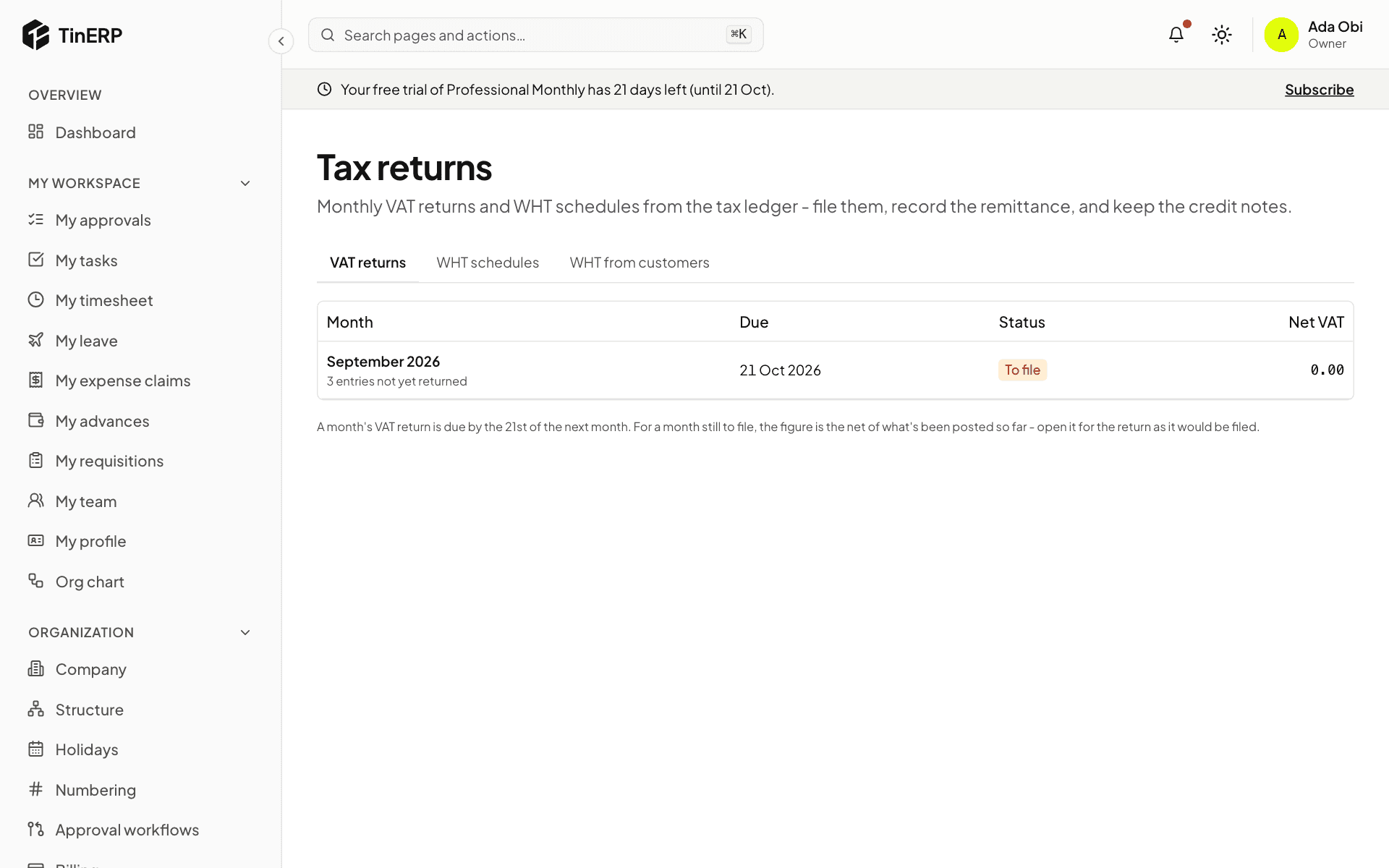
Go to Finance → Tax returns. VAT returns lists each month with tax, its due date and status - To file, Filed, Paid - and flags any overdue. Open a month for the return as it would be filed: sales by type, output VAT, recoverable input VAT, and the net due or carried forward.
Tax returns: September's VAT return to file by 21 October
2. File and pay
Once the month is over, file the return on the NRS system, then record it here with the date and acknowledgement. When you pay, Record payment with the Remita or receipt reference. Part payments are allowed.
3. WHT schedules and credit notes
WHT schedules lists what you withheld from vendors, per tax authority - companies' to the NRS, individuals' to their state. File and pay them the same way, and record each vendor's WHT credit note once issued.
WHT from customers lists what customers withheld from you. When their credit note arrives, record it and use it against income tax - or, for organizations that pay none, such as most NGOs, write it off to an expense.
Finance · Finance staff who pay people · about 5 min
Pay expense claims and advances
Employees claim and request in My workspace; their manager approves. Finance then pays, reviews what was spent against advances, and settles the difference. (How employees claim is in Claim expenses and request advances.)
1. Pay an approved claim
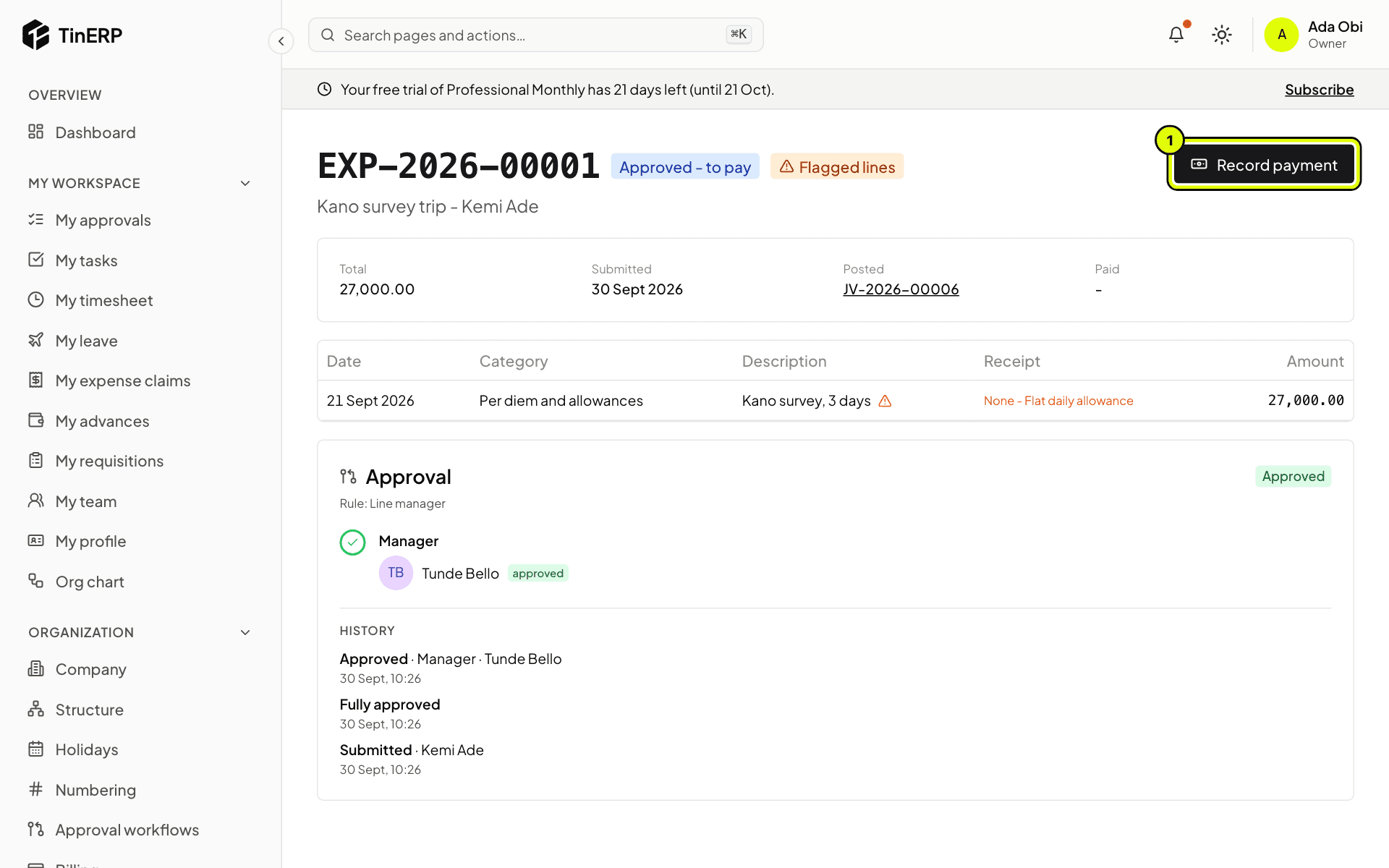
Go to Finance → Expense claims and filter Approved - to pay. Open a claim, check the lines and receipts - flagged lines have no receipt, with the reason - then select Record payment (1): the date, the bank or cash account and the transfer reference. The claimant is told.
Kemi's claim, approved and waiting to be paid, with Record payment marked 1
2. Pay an advance
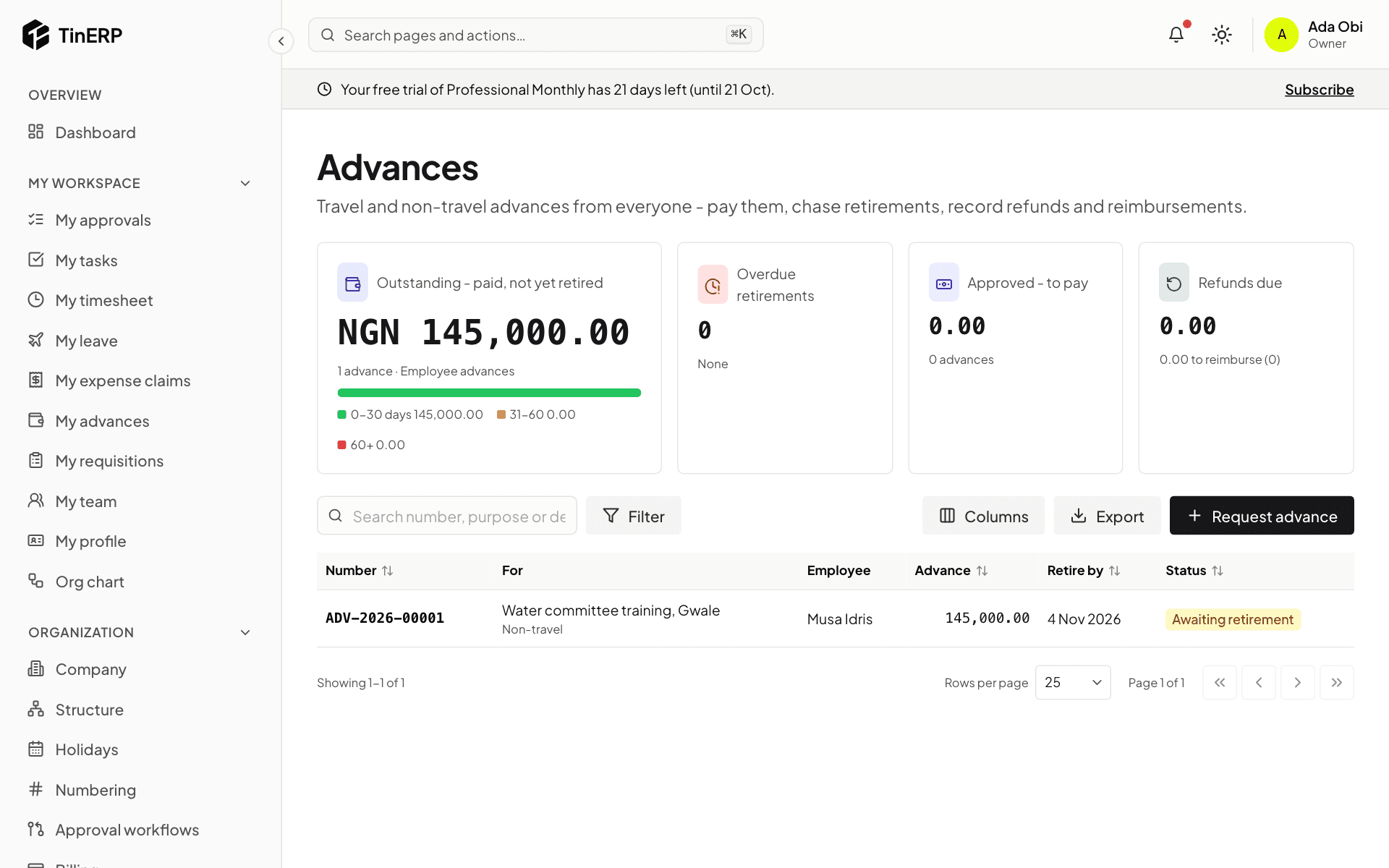
Finance → Advances shows what's outstanding by age, what's overdue, what's approved to pay and what's to settle. Open an approved advance and select Record payment. The employee is told when they must retire it by.
Finance → Advances: outstanding by age, and the list of advances
3. Review the retirement
When they're back, the employee retires the advance: actual dates, what each line cost with receipts, proof of travel, and anything extra. For each line you can accept it, Reduce it, Reject it, or - if the trip ran longer - Refuse the extra days, each with a reason they see. Save decisions, then approve in the approval panel. Whoever paid the advance doesn't approve its retirement.
4. Settle the difference
If they spent less, select Record refund received when the money comes back. If they spent more, select Pay reimbursement. The advance then closes.
Tip: TinERP reminds people before a retirement is due, tells them and their manager when it's overdue, and tells finance a week later. An overdue retirement stops them getting another advance.
Questions
Where are the per diem rates and advance rules?
In Finance → Finance settings → Advances and per diems: rates by destination (and grade), what the per diem covers, how travel days count, how much is paid upfront, the limits, and the documents rules - a supporting document above an amount, proof of travel on retirement. Add an Other destinations rate for places without their own.
Finance · Finance managers · about 6 min
Budgets and grant budgets
A budget is what you plan to earn and spend each month. TinERP compares it with what's posted and what's committed, and can flag - or stop - spending that would go over.
1. Make a budget
Go to Finance → Budgets and select New budget: the financial year, a name (Original), and start from A blank grid, A copy of another budget or A year's actuals - raised by a percentage if you like. The year's first budget is active.
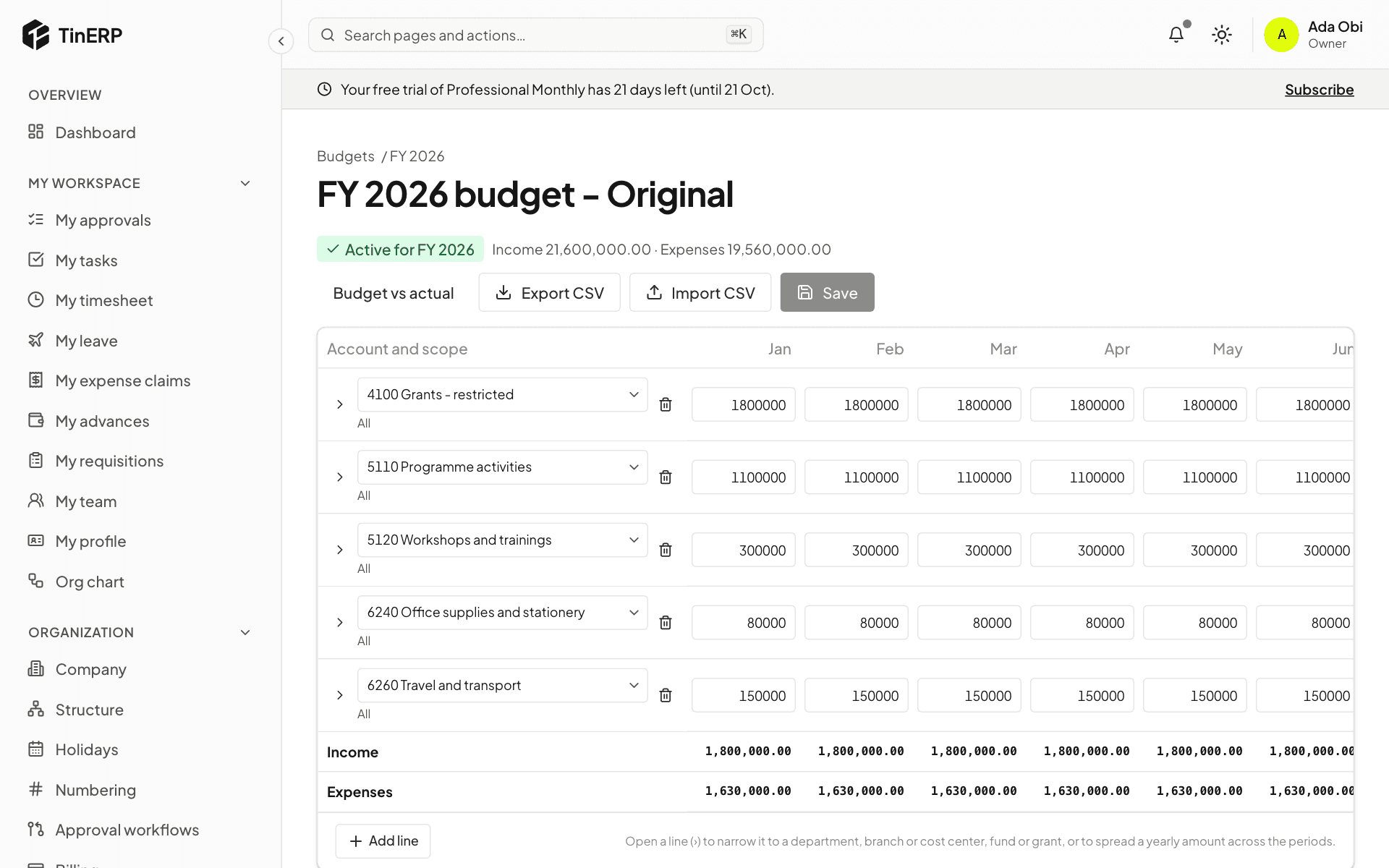
The grid has a line per income or expense account, with an amount for each month. Open a line (›) to narrow it to a department, branch, cost center, fund or grant, or to spread a yearly amount across the months. Save saves the whole grid; Export CSV and Import CSV work with a spreadsheet.
The FY 2026 budget grid: grant income, programme activities, trainings, office supplies and travel
Tip: Later, make a Revised version and Make active when it's agreed - the old one stays for comparison.
2. Compare with what's spent
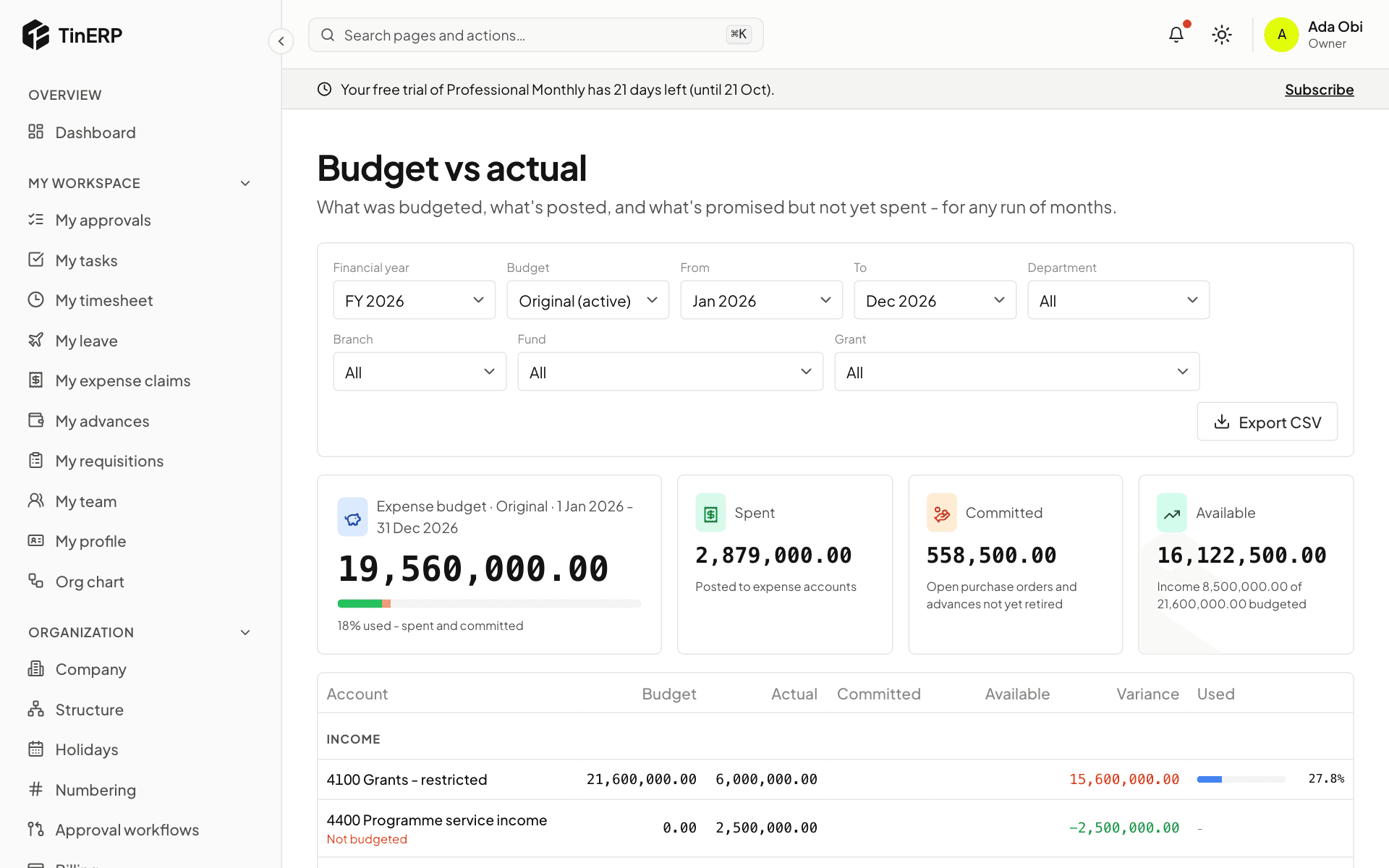
Finance → Budget vs actual shows, for any run of months, each line's budget, what's posted (Actual), what's Committed - open purchase orders and advances not yet retired - what's Available, and how much is used. Accounts with spending but no budget line show as Not budgeted.
Budget vs actual for FY 2026: the expense budget, spent, committed and available
3. Choose budget control
On the Budgets page, Budget control decides what happens when a claim, advance or purchase order would spend more than is left: Off (nothing), Warn (it goes ahead, marked over budget for the approver - approval rules can route those to someone else), or Block (it can't be submitted). Accounts with no budget line aren't checked.
4. NGOs: follow each grant's budget
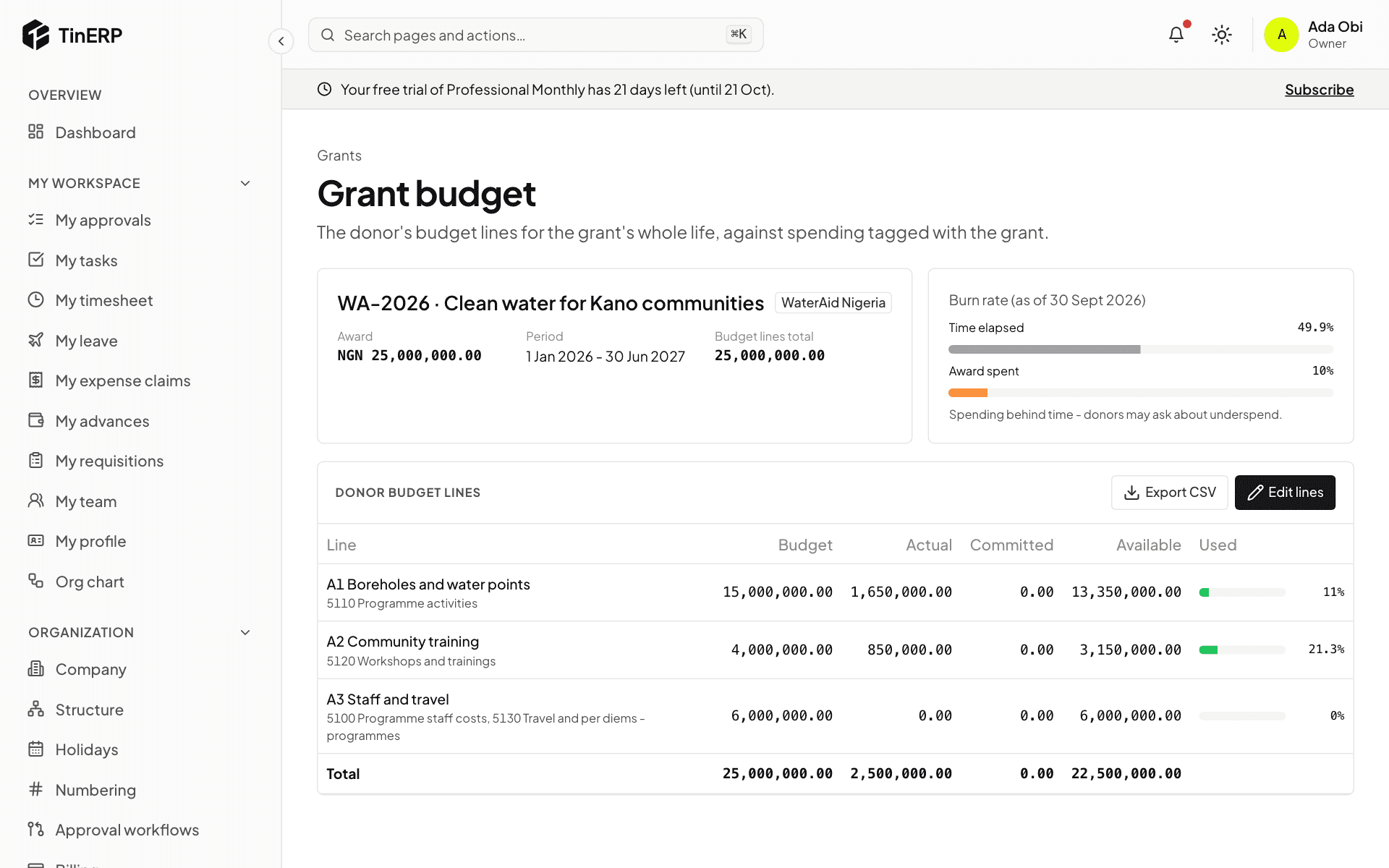
From Finance settings → Grants, open a grant's donor budget and select Edit lines: the donor's own lines, each with the expense accounts that count against it. The page shows each line's actual, committed and available, spending on the grant outside the lines, and the burn rate - time elapsed against the award spent. Export CSV for the donor report.
The WaterAid grant budget: three donor lines, and the burn rate
Finance · Accountants · about 3 min
Prepayments and deferred income
Insurance paid for a year, rent paid for six months, a software licence - or income received before it's earned. A schedule releases it month by month, by itself.
1. Create a schedule
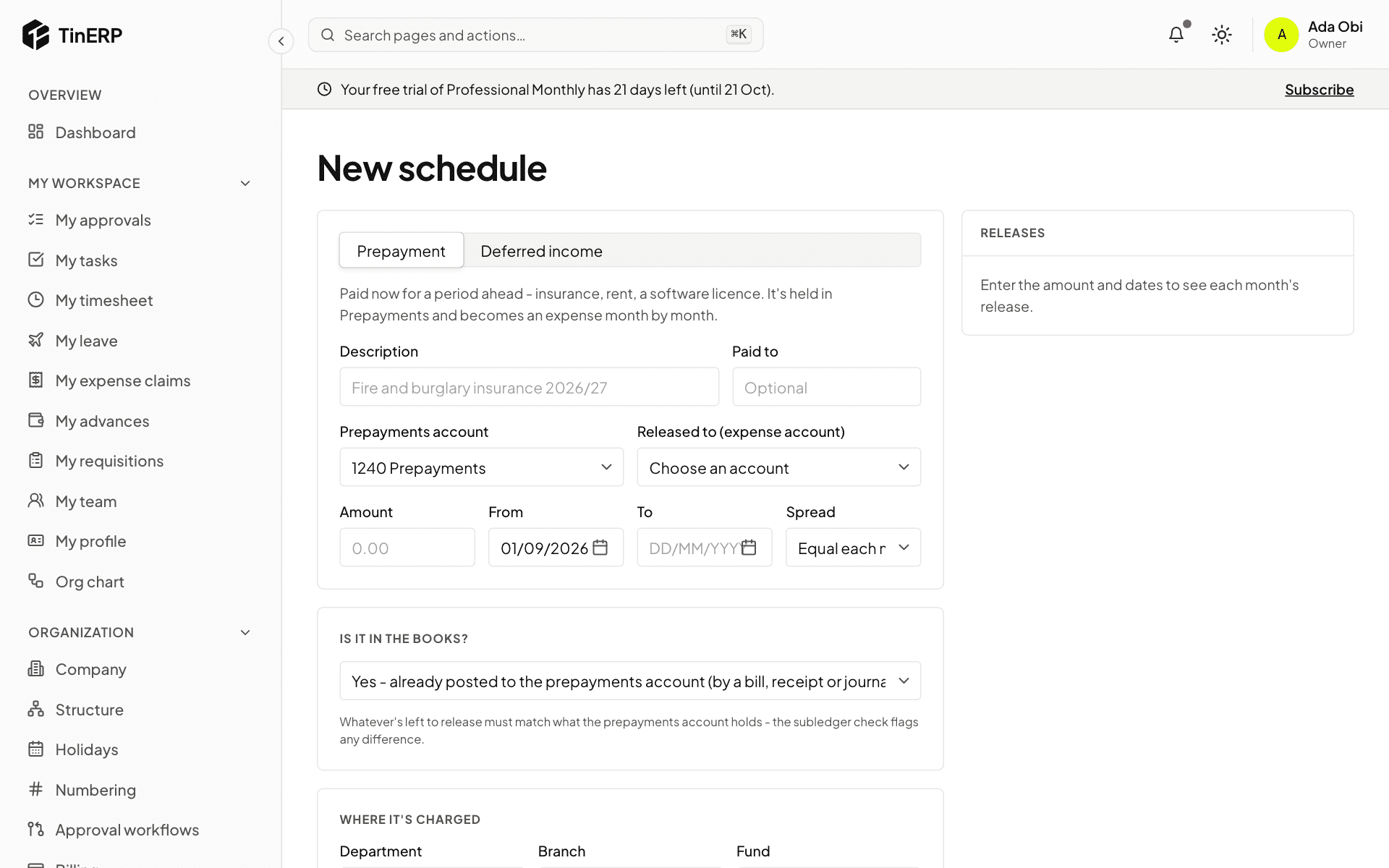
Go to Finance → Prepayments and deferrals and start a new schedule. Choose Prepayment or Deferred income, describe it, and choose the account it's held in and the account it's released to. Enter the amount, the dates, and how it's spread - equally each month, or by days.
Is it in the books? Usually yes - a bill or payment already put it in Prepayments. If not, the schedule can post it now. The releases are shown before you save.
A new prepayment schedule: description, accounts, amount, dates and spread
2. Let it run
Each month's release posts by itself on the month's last day. If one can't (the month is closed, say), the schedule shows why and it's tried again. To stop a schedule early, cancel it with a date and reason: what's left is cleared in one entry.
Finance · Finance teams and management · about 4 min
Reports and financial statements
Every report comes straight from the posted journals - there's nothing to prepare or refresh.
1. The trial balance
Finance → Trial balance lists every account's opening balance, movements and closing balance between two dates, and confirms the books balance. Filter by department, branch, cost center, fund or grant. Select an account for its ledger, with the balance after each line.
Below it, Subledgers checks each control account against its detail - receivables against unpaid invoices, payables against unpaid bills, and so on. They should always agree; a month can't be closed if one doesn't.
The trial balance, balanced, from 1 January to 30 September
2. The financial statements
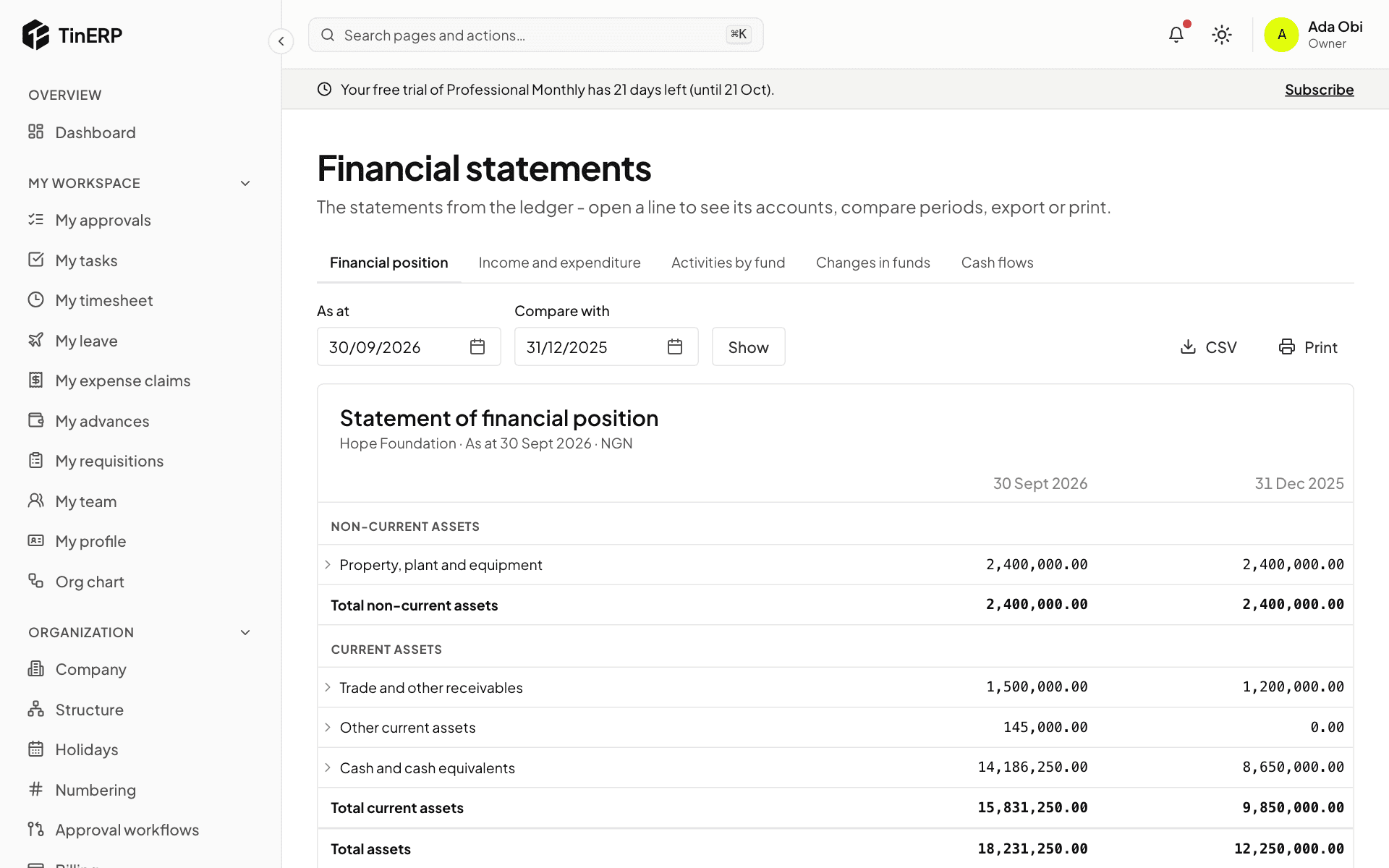
Finance → Financial statements has the Financial position at a date (compared with the end of last year), Profit or loss - for NGOs Income and expenditure - for any dates compared with a year earlier, changes in equity (NGOs: Changes in funds), and Cash flows. NGOs also get Activities by fund.
Open a line to see its accounts. CSV exports it; Print puts it on your letterhead, to print or save as PDF.
The statement of financial position at 30 September, compared with 31 December
Finance · Finance managers · about 4 min
Close a month and the year
Closing a month stops anything more being posted into it, so the figures you've reported stay put. See Month-end for everything to do first.
1. Close and lock months
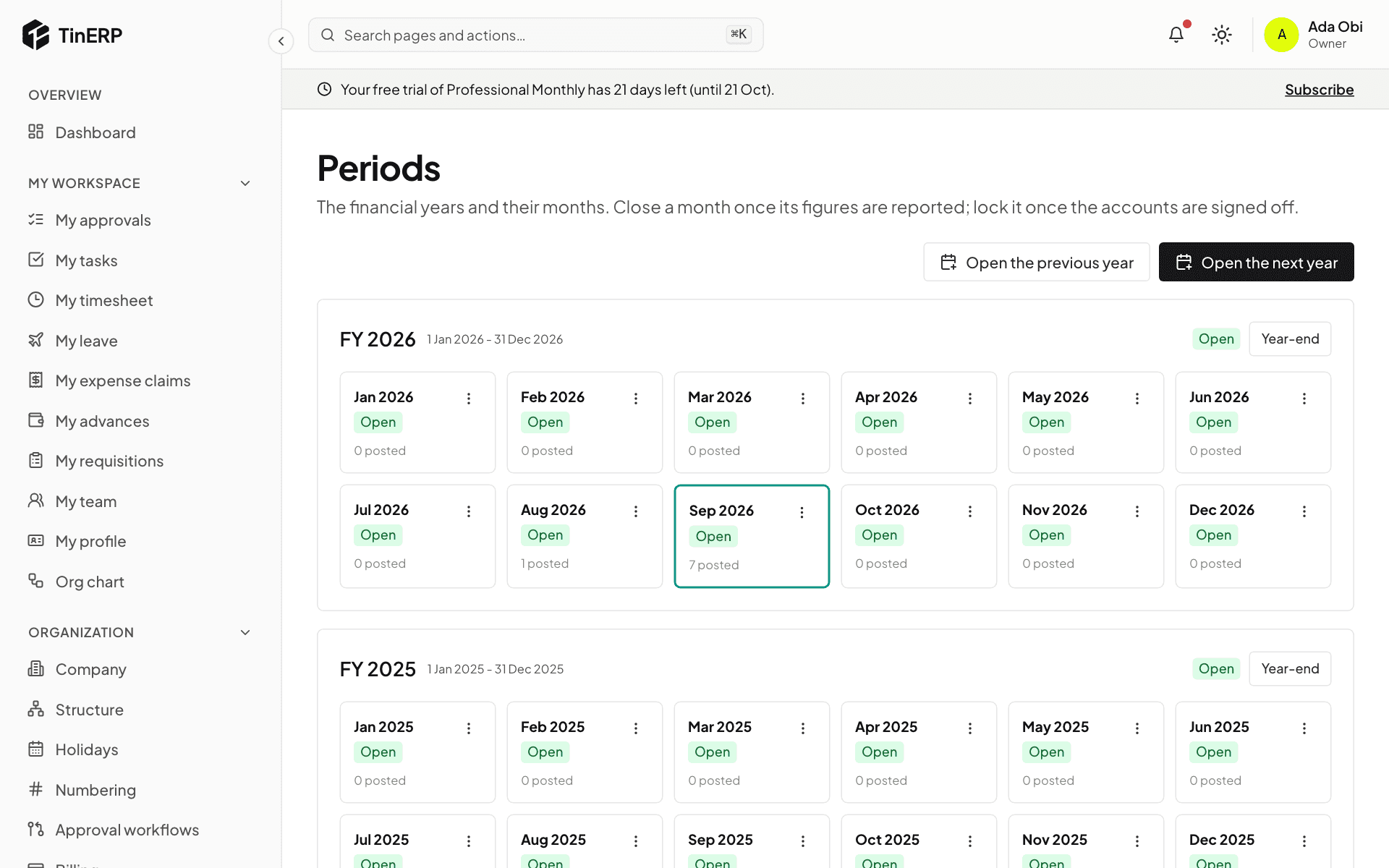
Go to Finance → Periods. Each month shows its status and how many journals are posted in it. Use a month's menu to Close it once its figures are reported - not while journals in it wait for approval, or a control account disagrees with its detail.
Reopen needs its own permission and a reason; it changes nothing already posted, it only lets a correction in. Lock a closed month once the accounts are signed off - locked is final.
Periods: FY 2026's twelve months, with September current
2. Close the year
Select Year-end on the year. You see each income and expense account's balance, the result - for NGOs, each fund's - and anything that stops the close (an earlier year still open, journals waiting, a locked last month).
Give a reason and Close: one closing journal on the year's last day brings income and expenses to zero and puts the result into retained earnings, or each fund's balance. Then the year and its months are closed. It can be reopened (with the permission and a reason) for an audit adjustment, and locked once signed off.