5 guides ready to print - choose Save as PDF in the print window for a handout. Back to the help centre
TinERP user guide
Projects
Project managers · Projects and their task boards, how timesheets work, and following hours against budget.
Printed 3 October 2026 · the latest version is always in the help centre online
Contents
Projects
How Projects works
Start a project
Plan the work on the board
Set up timesheets
Follow progress and hours
Projects · Project managers · about 3 min
How Projects works
Projects keeps things simple: each project has members and a task board, and people log their time against projects on a timesheet their manager approves.
1. Who does what
Everyone works from My tasks and My timesheet. Managers and Admins can start projects and have the Projects menu: Overview, Projects, Team timesheets and Reports.
Whoever manages a project runs it - its details, members and tasks. Admins see every project and choose how timesheets work.
2. Your projects
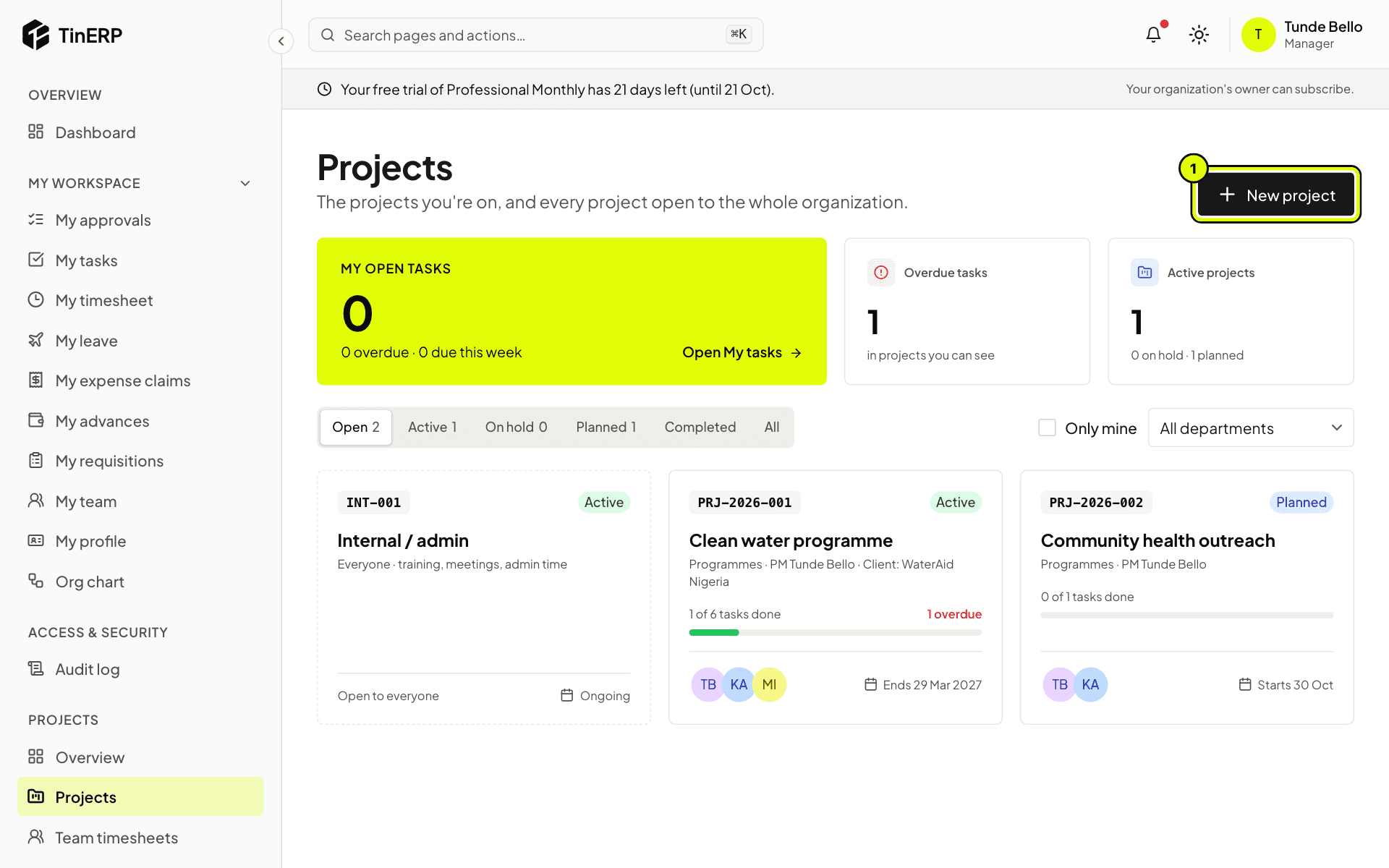
Go to Projects → Projects. Each card shows the project's code, status, tasks done, members and dates. Filter by status, tick Only mine, or choose a department. Your own open and overdue tasks are at the top.
The Projects page with three projects and New project marked 1
3. Time that isn't project work
For training, meetings and admin, create an internal project (like INT-001 Internal / admin). Everyone can log time to it, and it has no task board.
Projects · Project managers · about 4 min
Start a project
Select New project on the Projects page.
1. Fill in the project
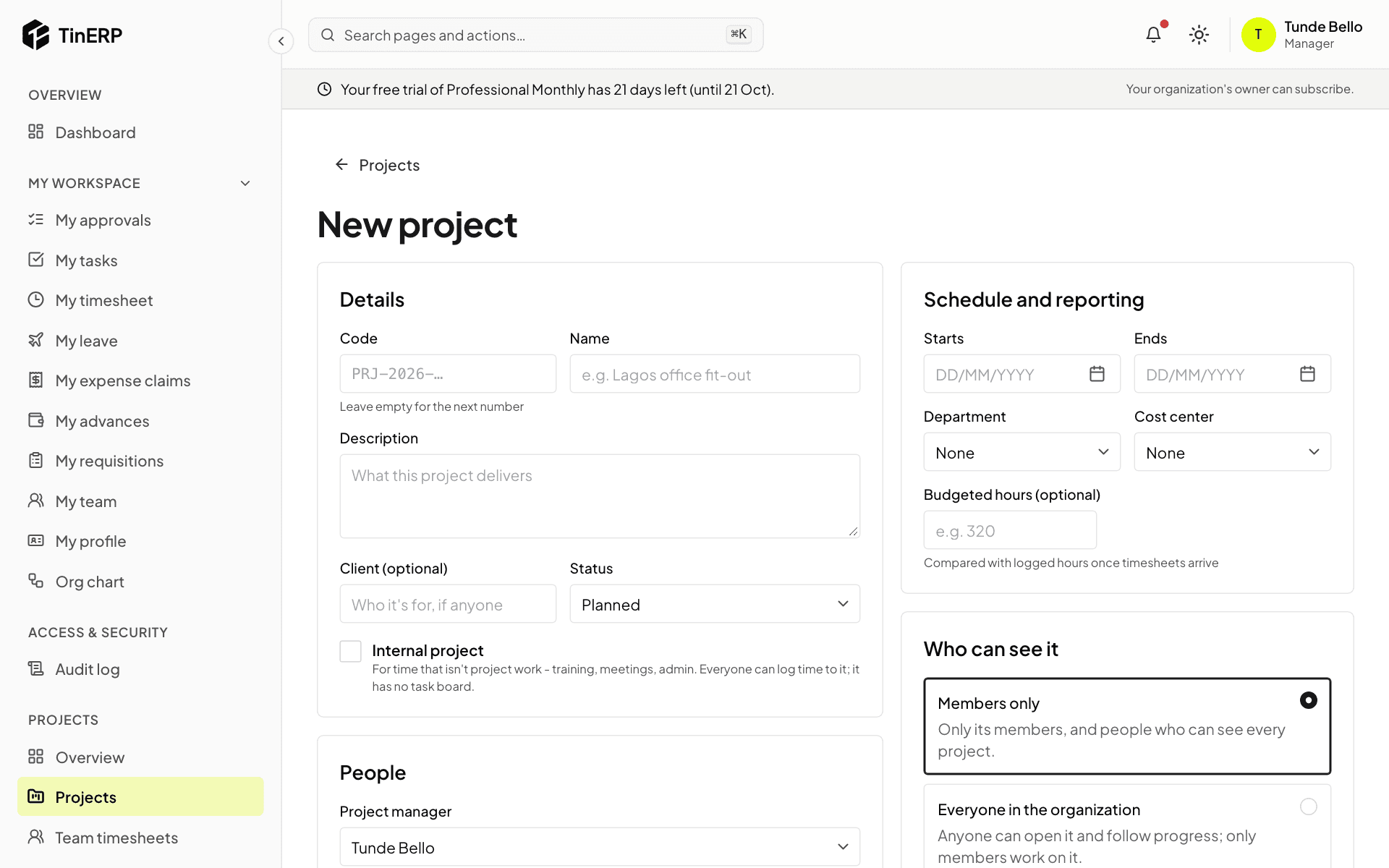
Details: leave Code empty for the next number (such as PRJ-2026-003) or type your own; add a name, a description, the client if there is one, and the status - Planned or Active.
Schedule and reporting: the dates, department, cost center and Budgeted hours, which logged hours are compared with. People: the project manager and members. Who can see it: Members only, or Everyone in the organization - everyone can follow it, only members work on it.
The New project form: details, schedule and reporting, people, and who can see it
2. Manage members
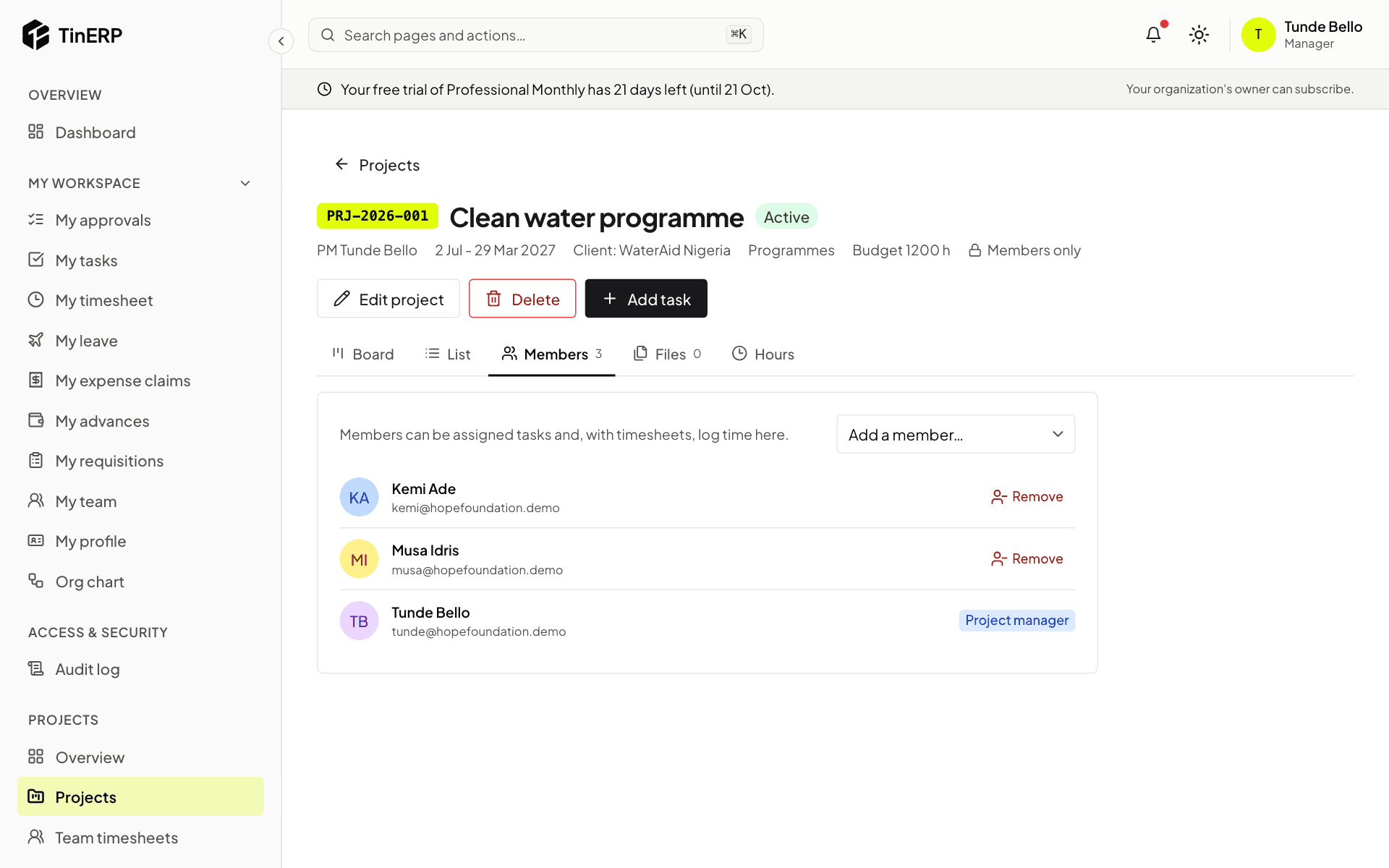
On the project, Members lists who can be given tasks and log time. Add a member, or remove one - their open tasks on the project are unassigned. The project manager can't be removed. People are told when they're added.
The Members tab of the Clean water programme
3. Change or close it
Edit project changes its details and status - Active, On hold, Completed or Cancelled. Completed and cancelled projects take no new tasks or time.
Delete removes a project for good - only while no time has been logged on it. After that, complete or cancel it instead, so the hours stay on record.
Projects · Project managers and members · about 4 min
Plan the work on the board
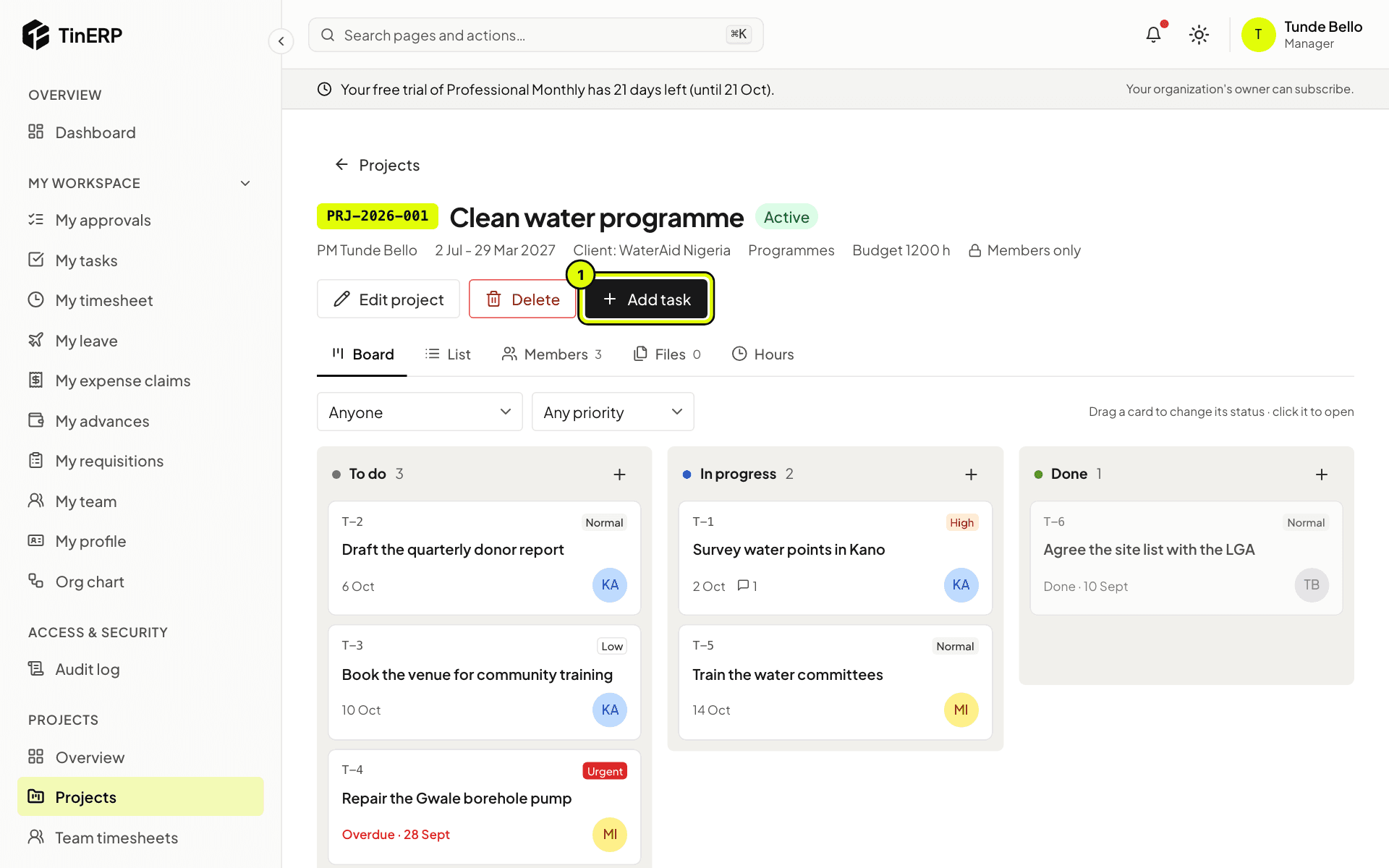
Every project (except internal ones) has a task board with three columns: To do, In progress and Done.
1. Add tasks
Select Add task (1), or the + at the top of a column. Give it a title, an assignee (one of the members), a due date and a priority - low, normal, high or urgent. The assignee is told.
The Clean water programme's board with tasks in To do, In progress and Done, and Add task marked 1
2. Follow the board
Drag a card to another column to change its status. Filter by assignee or priority. Overdue tasks are marked in red.
Select a card to open it: the task panel has its details, files, comments and history.
Tip: Assignees are reminded the day before a task is due, and again when it's overdue.
3. Or use the list
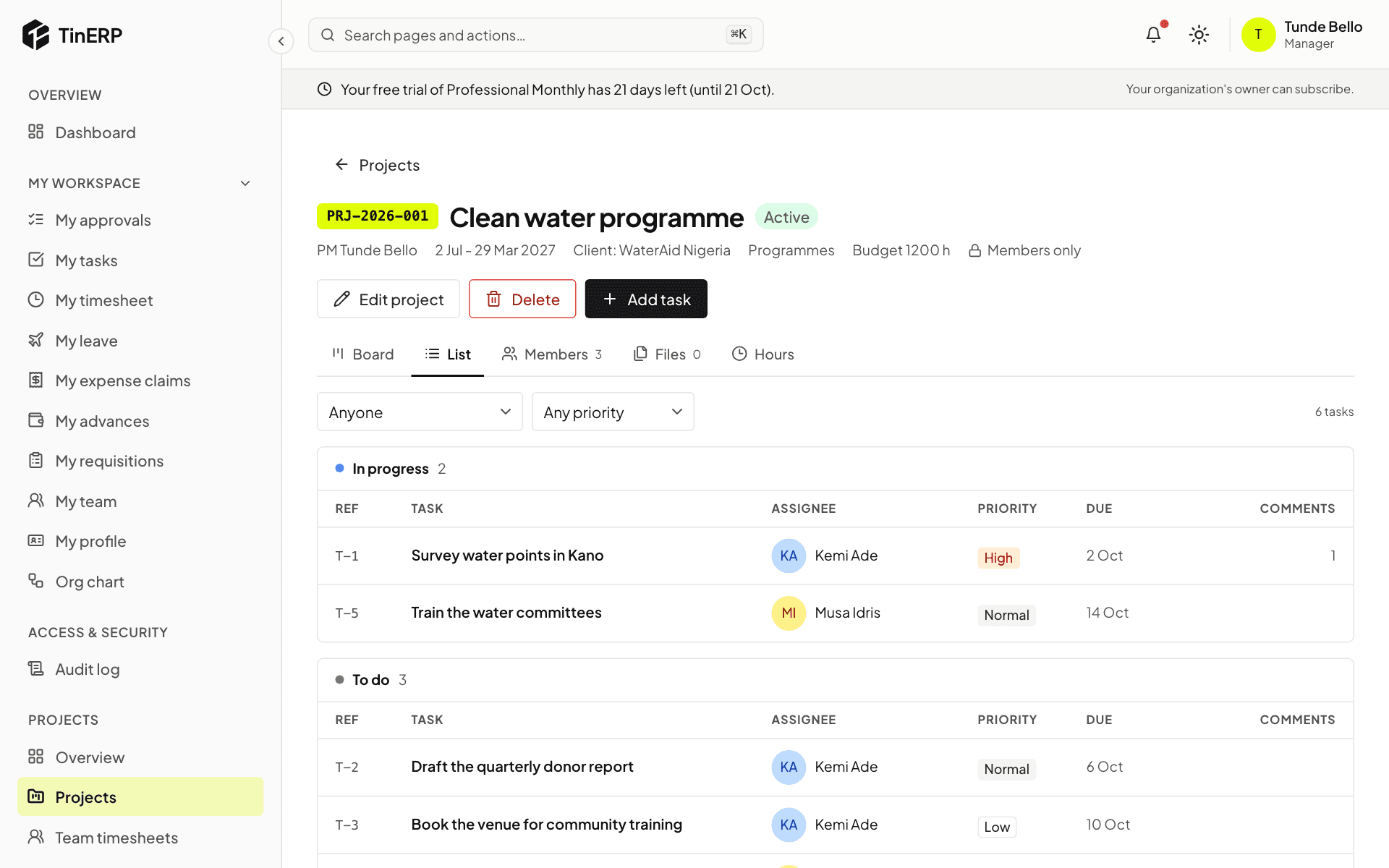
List shows the same tasks grouped by status, with their assignee, priority, due date and comments.
The project's tasks as a list, grouped by status
Projects · Admins · about 4 min
Set up timesheets
These settings apply to everyone's timesheets. Leave (from HR), public holidays and weekends are filled in on everyone's timesheet by themselves.
1. Choose the period
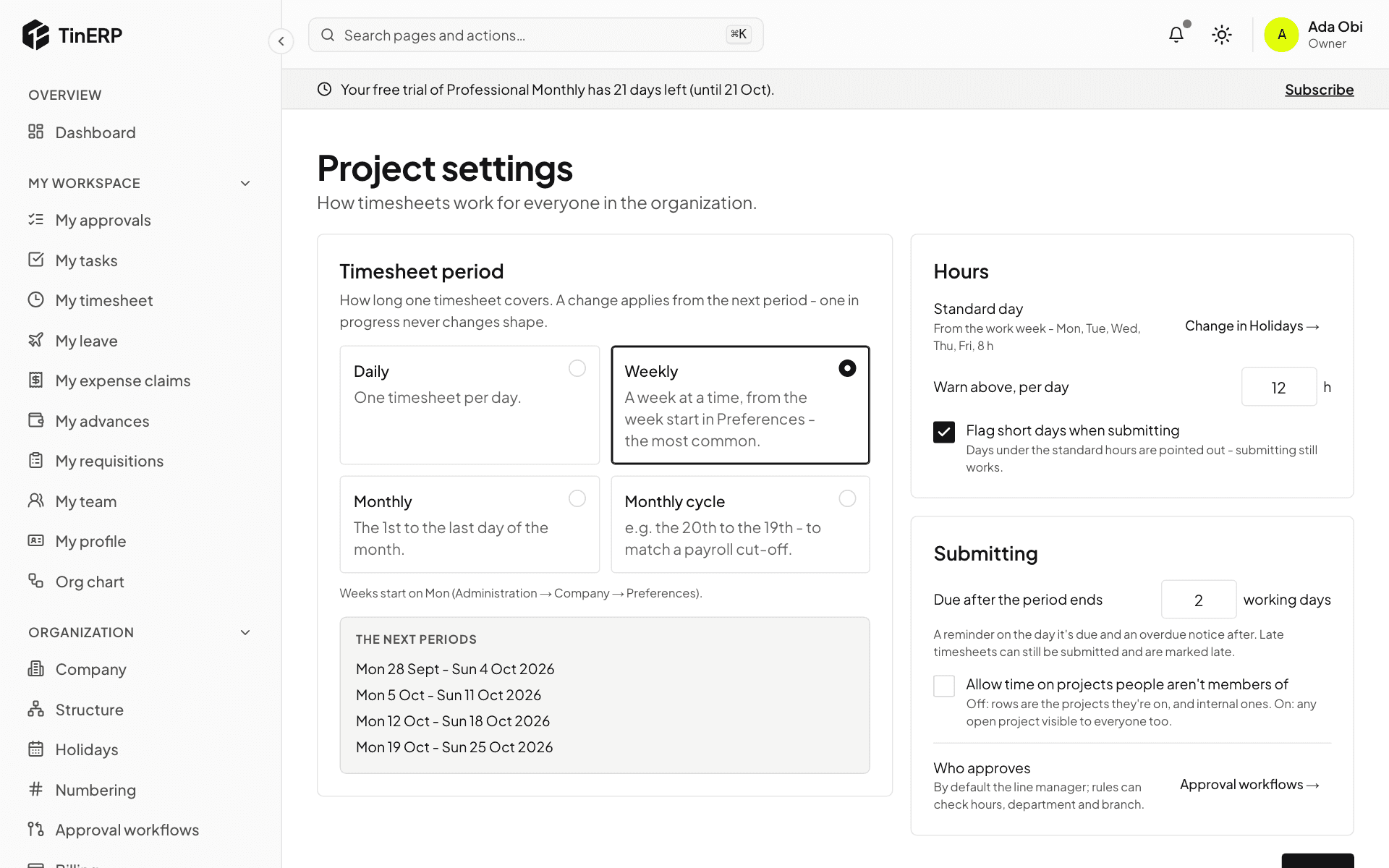
Go to Projects → Project settings. Under Timesheet period, choose Daily, Weekly, Monthly or Monthly cycle - for example the 20th to the 19th, to match a payroll cut-off. The next periods shows what people will see.
A change applies from the next period; one in progress never changes shape.
Project settings: the timesheet period, hours and submitting
2. Set the hours rules
The standard day comes from your work week, set in Organization → Holidays. Choose when to warn about long days (Warn above, per day), and whether to Flag short days when submitting.
3. Deadline and approval
Under Submitting, choose how many working days after a period ends timesheets are due. People get a reminder on the day and an overdue notice after; late timesheets can still be submitted and are marked late.
Tick Allow time on projects people aren't members of if you want people to log time freely. Who approves links to Approval workflows - by default, each person's line manager.
Projects · Project managers · about 4 min
Follow progress and hours
Hours come from timesheets: approved ones, and - where you choose - those still waiting for approval.
1. Start from the overview
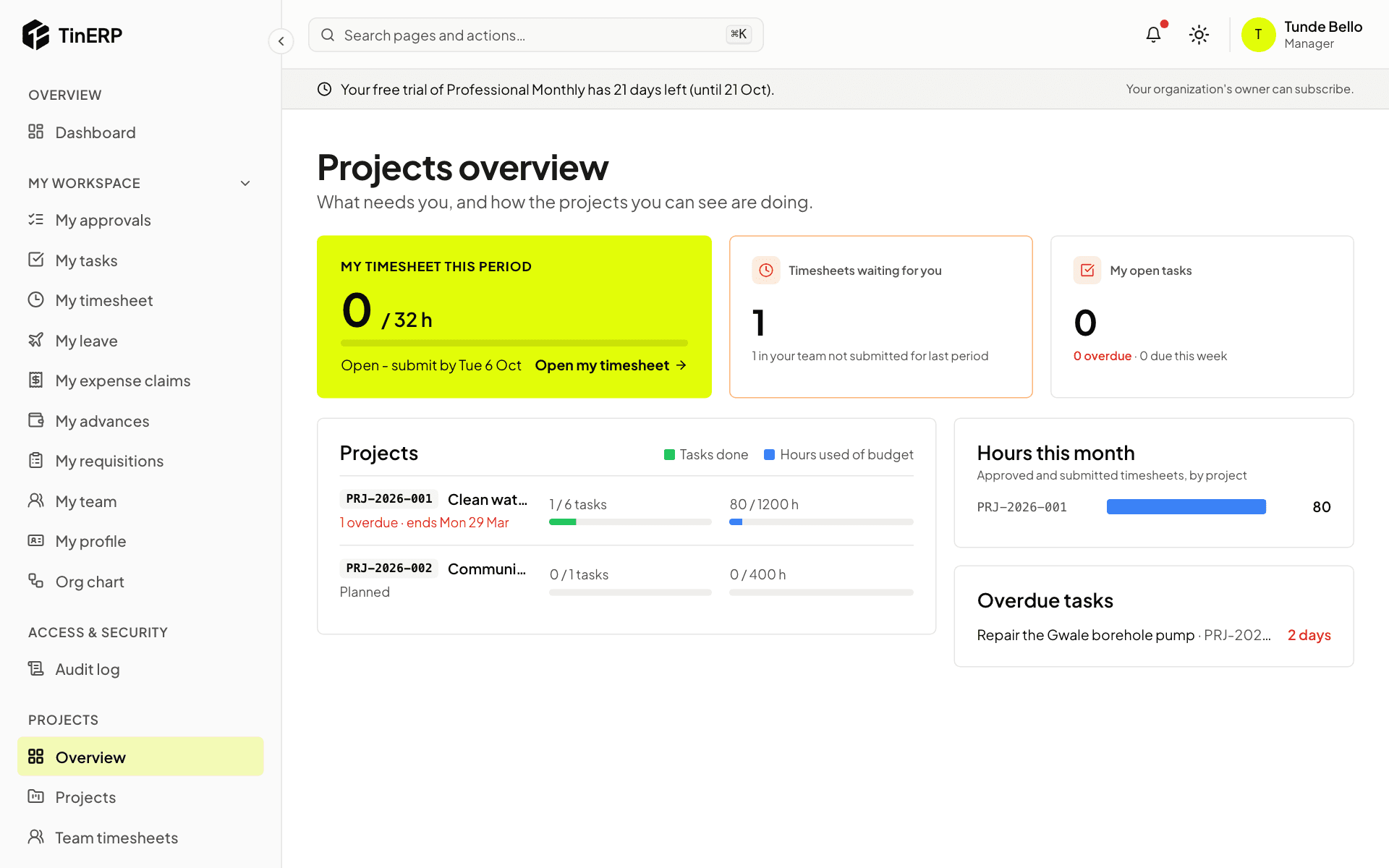
Projects → Overview shows your timesheet this period, timesheets waiting for you, your open tasks, and each open project's tasks done and hours used of budget - red above 90%. Hours this month and overdue tasks are alongside.
The Projects overview: my timesheet, timesheets waiting, projects with tasks done and hours used of budget
2. A project's hours
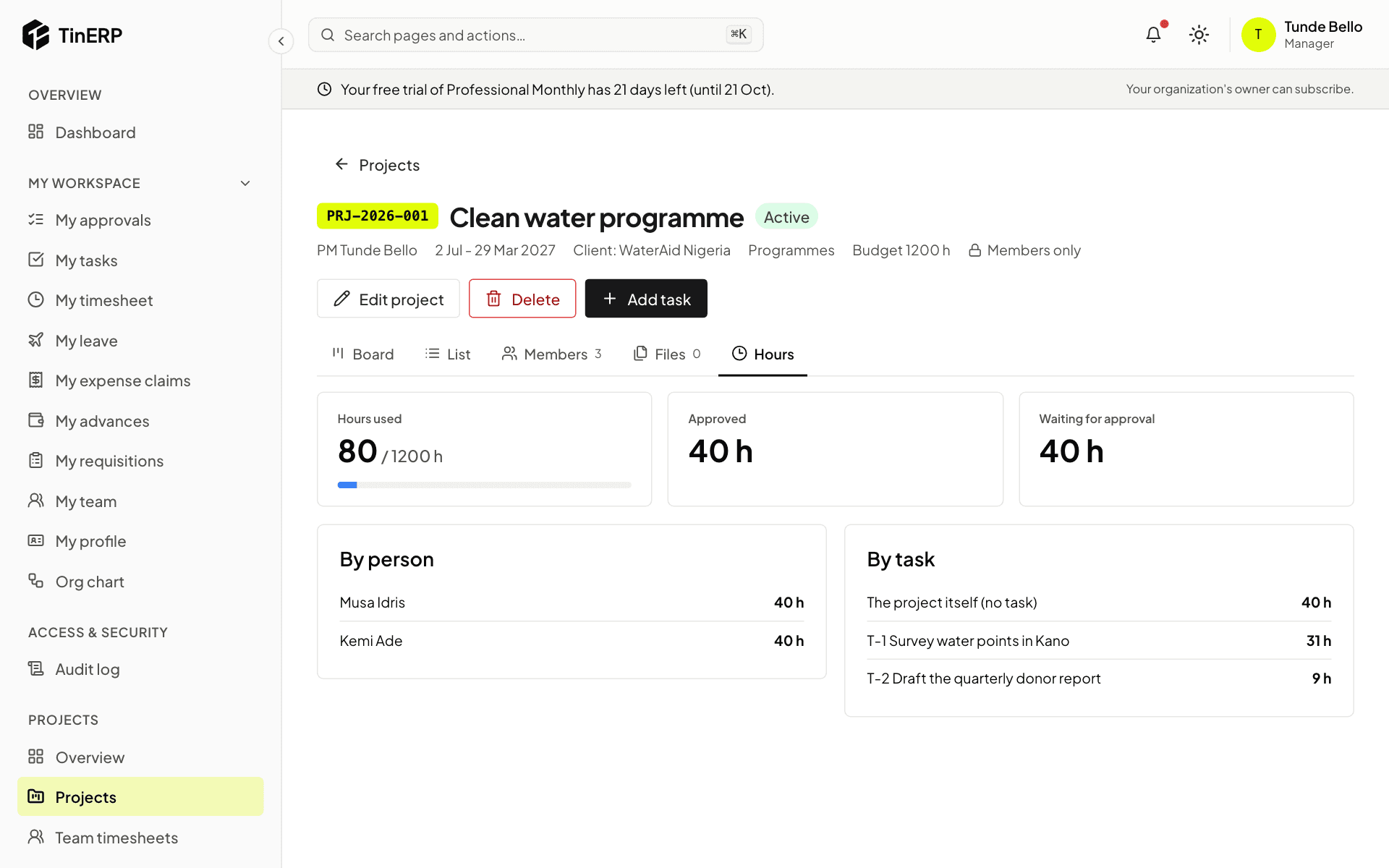
On a project, Hours shows approved and waiting hours against its budget, by person and by task.
The Hours tab of the Clean water programme
3. Reports
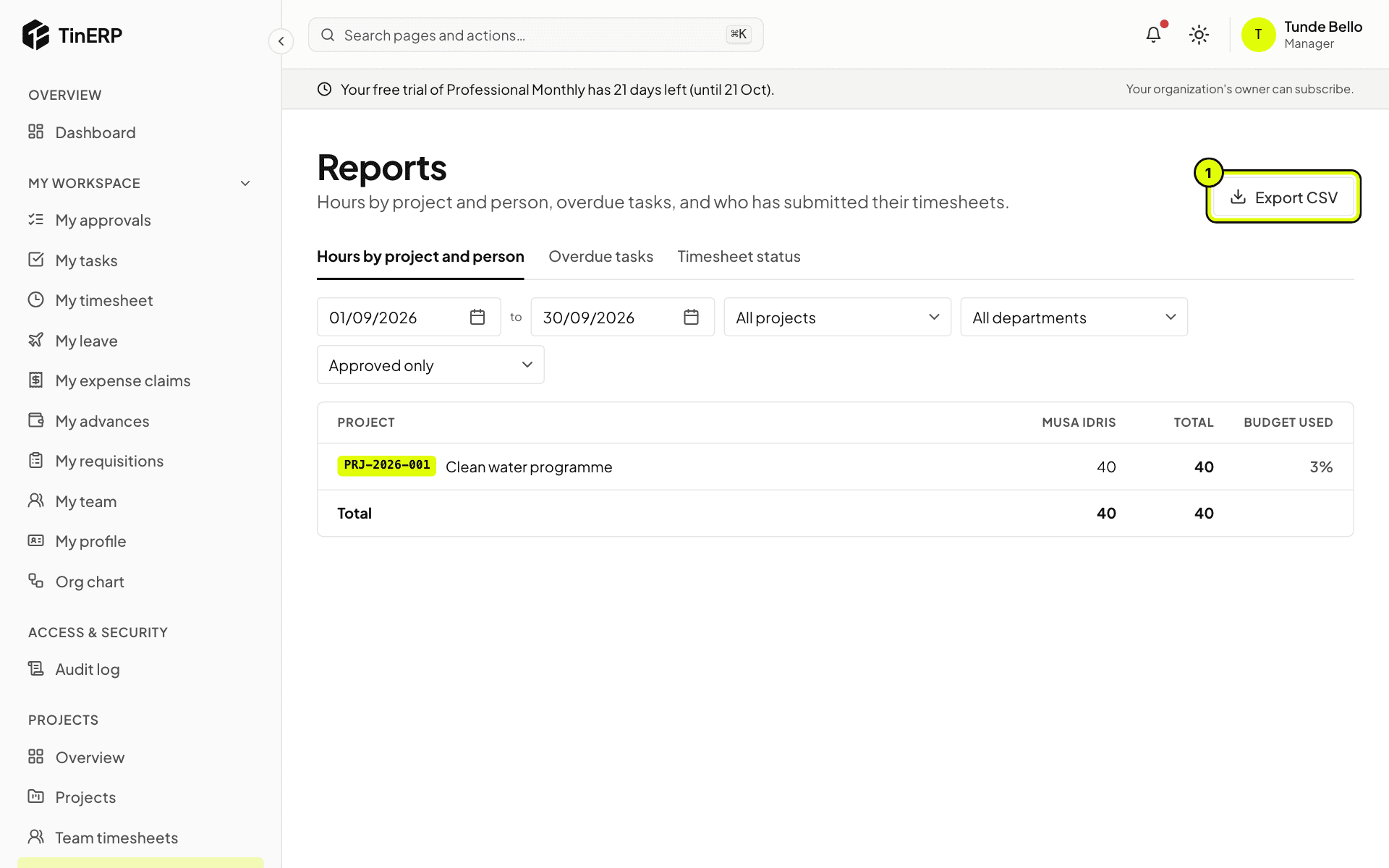
Go to Projects → Reports. Hours by project and person covers any dates - approved only, or with those waiting - with each project's budget used. Export CSV (1) downloads it.
Overdue tasks lists them by project and assignee. Timesheet status shows who has submitted each period, and who is missing once the deadline has passed.
Projects reports: hours by project and person, with Export CSV marked 1