3 guides ready to print - choose Save as PDF in the print window for a handout. Back to the help centre

TinERP user guide

Walk-throughs

Everyone involved · Whole processes across modules, step by step - who does what, and where.

Printed 3 October 2026 · the latest version is always in the help centre online

Contents

Walk-throughs

  1. Buying, from request to payment
  2. Month-end
  3. An NGO grant, from award to donor report

Walk-throughs · Everyone involved in buying · about 6 min

Buying, from request to payment

Here's one real purchase in the Hope Foundation demo - spare parts for a borehole pump - through every step, with who does each. The detail of each step is in its own guide.

1. 1. Kemi asks for the parts

Kemi, a programme officer, raises a requisition in My workspace → My requisitions: what's needed, why, by when, and a rough price for each part. She submits it for approval.
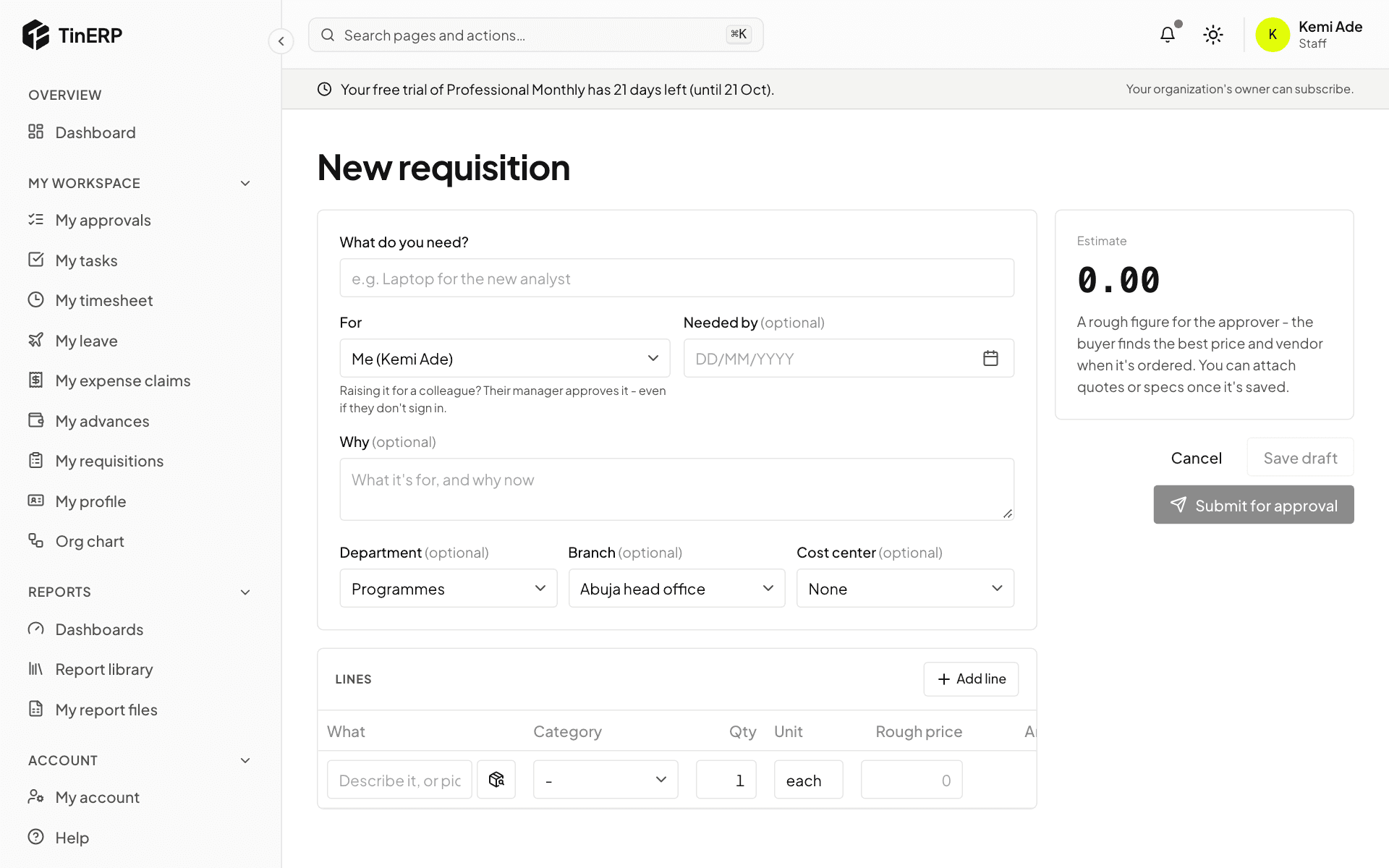
The New requisition form

2. 2. Tunde approves it

Tunde, her manager, sees it in My approvals and approves it. The lines now wait in Procurement → To order.

3. 3. Ada orders them

Ada, the buyer, ticks the lines in To order, chooses Sahel Pumps - an approved vendor - and creates the order. It's under ₦1,000,000, so it's approved at once; she sends it to the vendor. (For a larger or contested purchase, she'd get quotations first.)
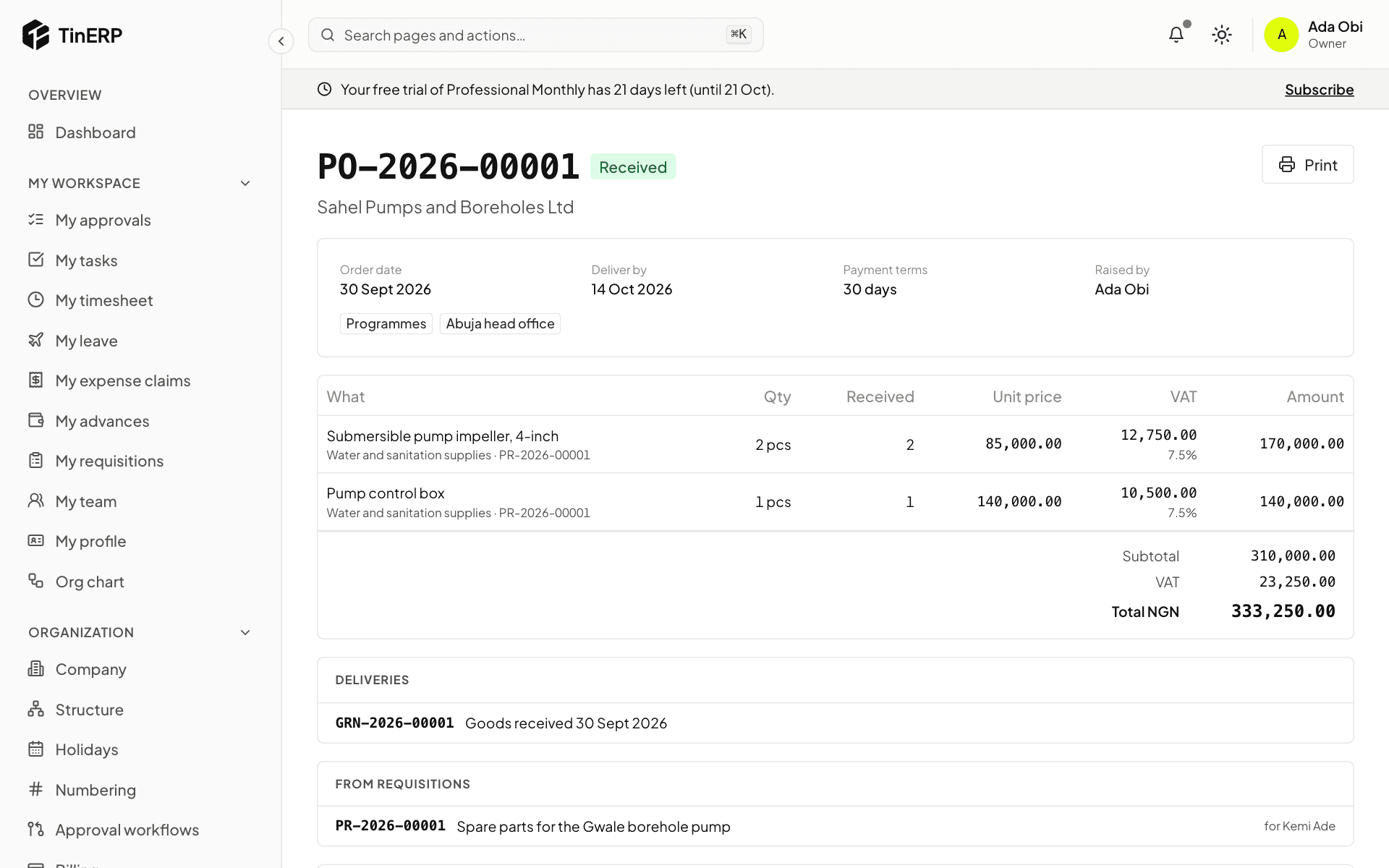
The purchase order for the pump parts

4. 4. Femi receives the delivery

When the parts arrive, Femi, the store keeper, records them in Procurement → Receiving with the vendor's delivery note. Ada raised the order, so she couldn't receive it herself.
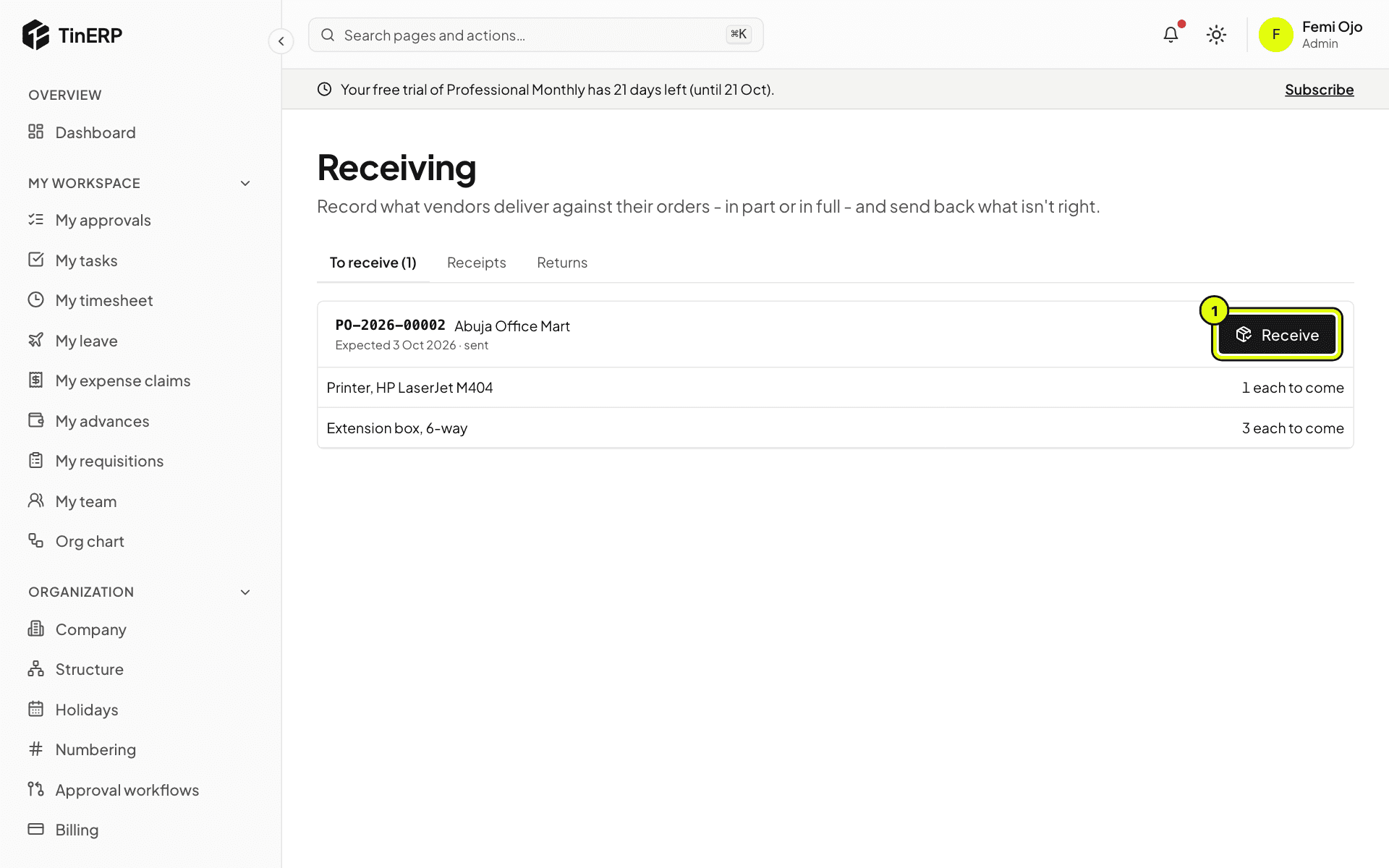
Receiving
Receiving

5. 5. The invoice is matched and approved

Sahel's invoice arrives. Ada enters it against the order; it matches what was ordered and received. Ifeoma, in finance, approves it for payment - neither Ada (who submitted it) nor Femi (who received the goods) could. It becomes a bill in Finance.
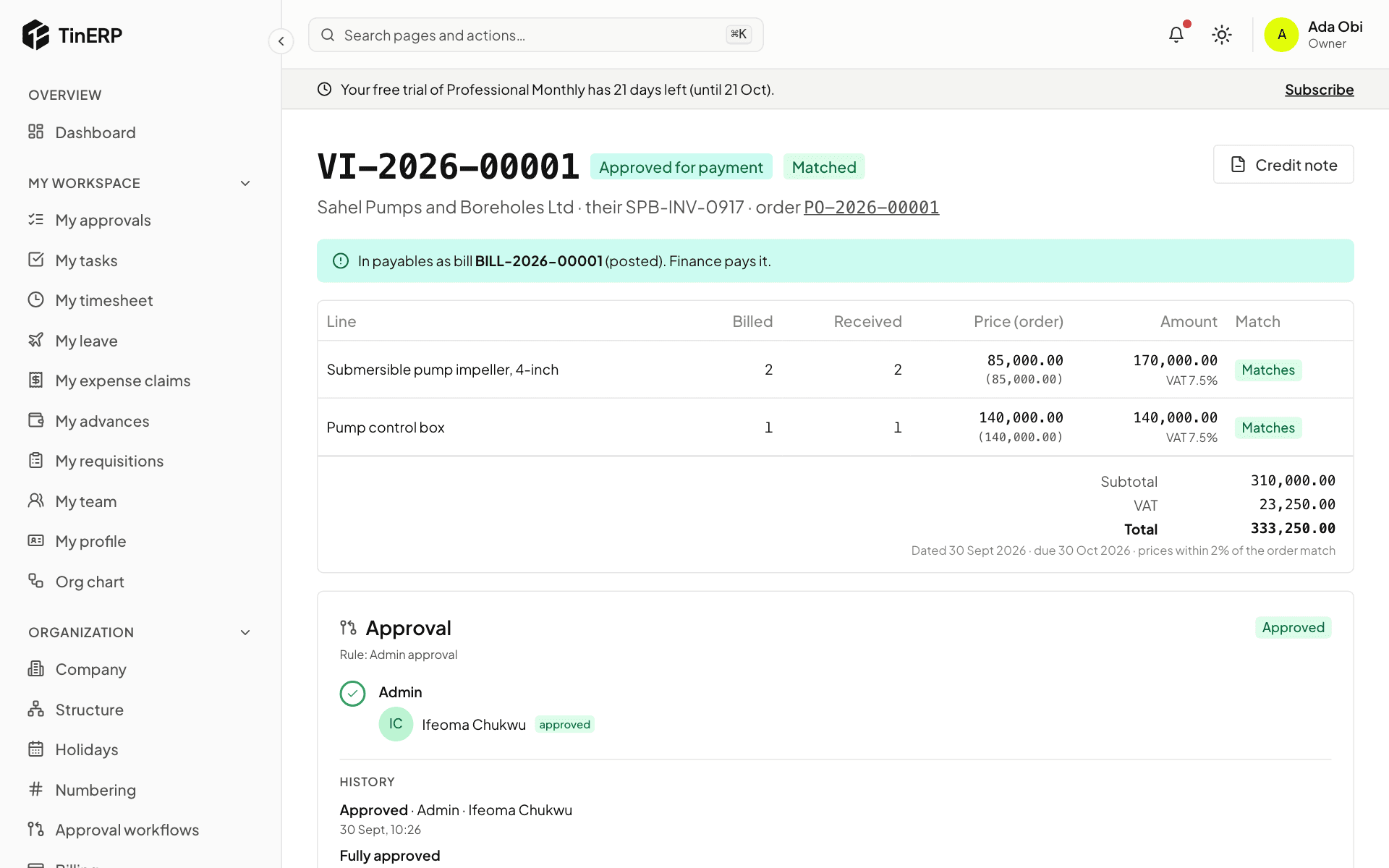
The matched vendor invoice, approved and passed to payables

6. 6. Finance pays

Ifeoma pays the bill in Finance → Payments - or in the next payment run - with WHT worked out. The vendor invoice shows paid, and the cost sits against the programme's budget and grant.
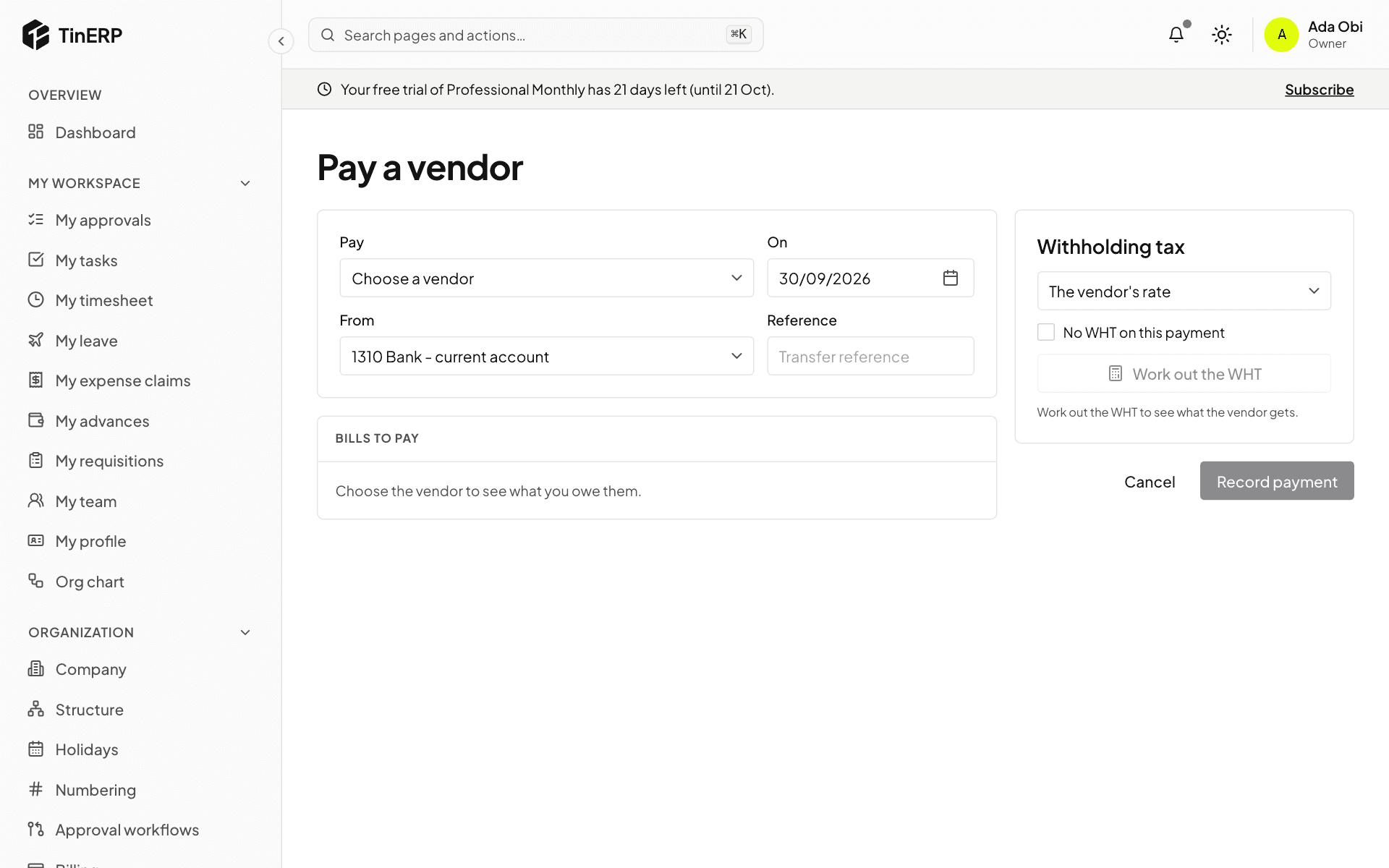
Pay a vendor
Pay a vendor

Walk-throughs · Finance teams · about 6 min

Month-end

Do these in the first days of the new month, then close the old one. Once it's closed, your reported figures stay put.

1. 1. Reconcile the bank

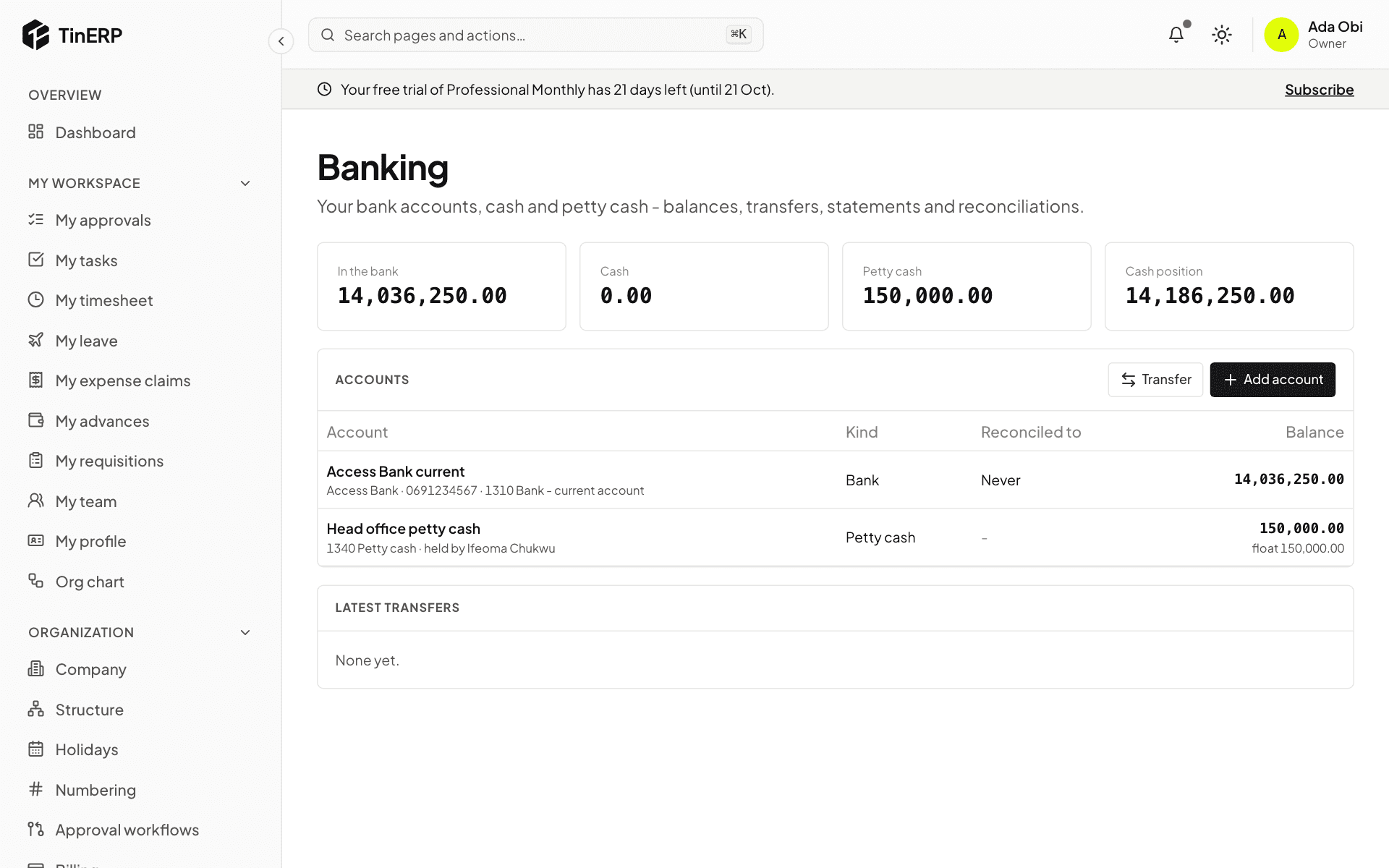
For each bank account, import the month's statement and reconcile it in Finance → Banking - recording bank charges and interest as you go. Count petty cash.

Banking
Banking

2. 2. Catch up on documents

Post the month's sales invoices and bills. Check Procurement → Reports → Received, not invoiced: anything delivered but not yet billed is a cost of this month - post an Accrual journal for it (it reverses itself next month).

Pay approved expense claims, and chase advances whose retirements are overdue.

3. 3. Let the schedules run

Prepayment and deferred income releases post by themselves. Recurring journals - rent, depreciation - too. Check Finance → Journals for drafts left waiting.

4. 4. Check the books agree

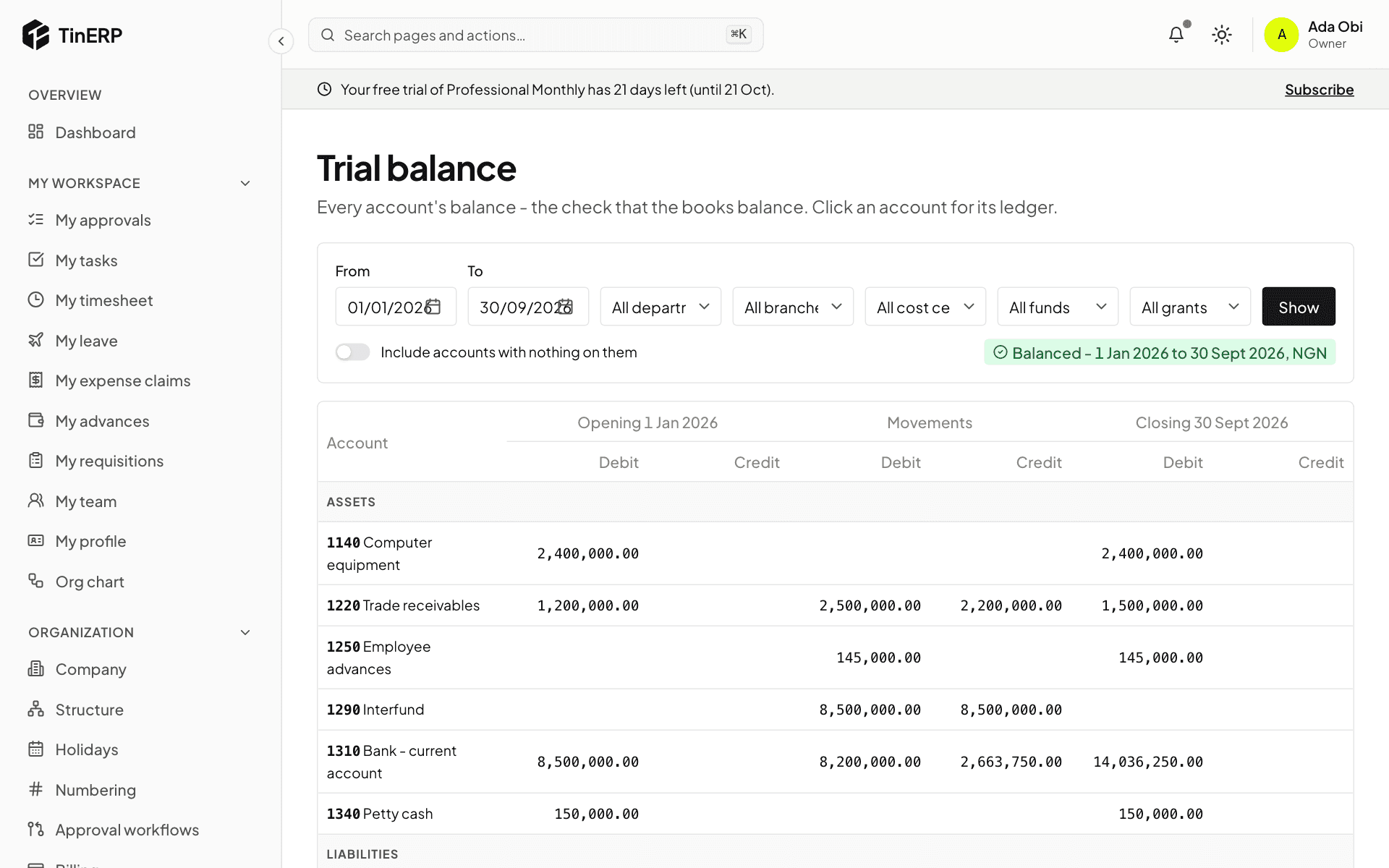
Run the Trial balance for the month and check Subledgers says All agree. Look at Budget vs actual for anything unexpected.

The trial balance
The trial balance

5. 5. Tax

The month's VAT return and WHT schedules are due by the 21st. File them, pay them, and record both in Finance → Tax returns.

6. 6. Close the month

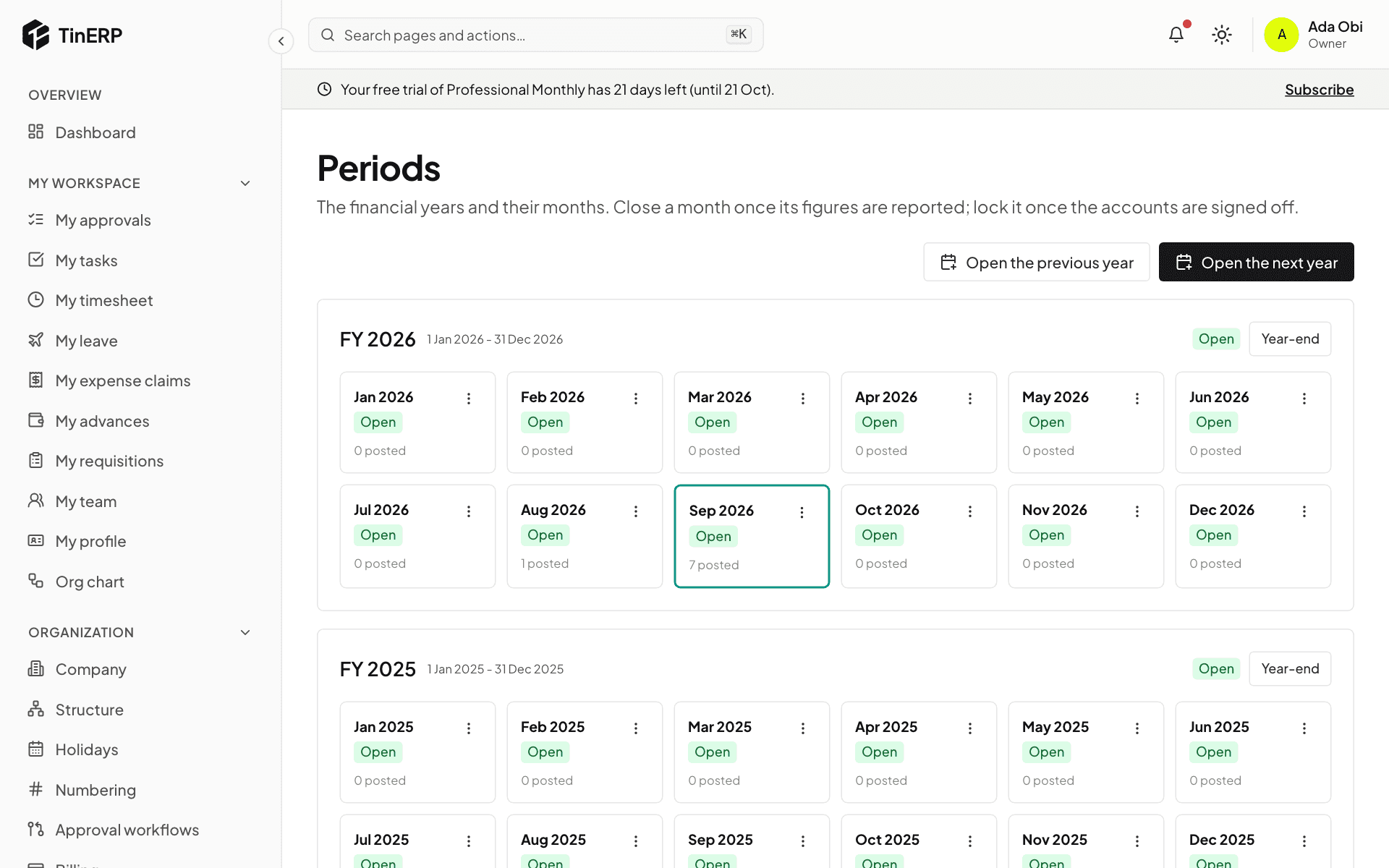
In Finance → Periods, Close the month. Then produce the month's Financial statements - for NGOs, activities by fund and each grant's budget for the donors.

Periods
Periods

Walk-throughs · NGO finance and programme teams · about 7 min

An NGO grant, from award to donor report

Here's WaterAid Nigeria's ₦25m grant to the Hope Foundation demo for clean water in Kano, from the award letter to the donor report. The key habit: every naira received or spent on the grant carries the grant on its line - then every report comes straight from the books.

1. 1. Set up the fund and the grant

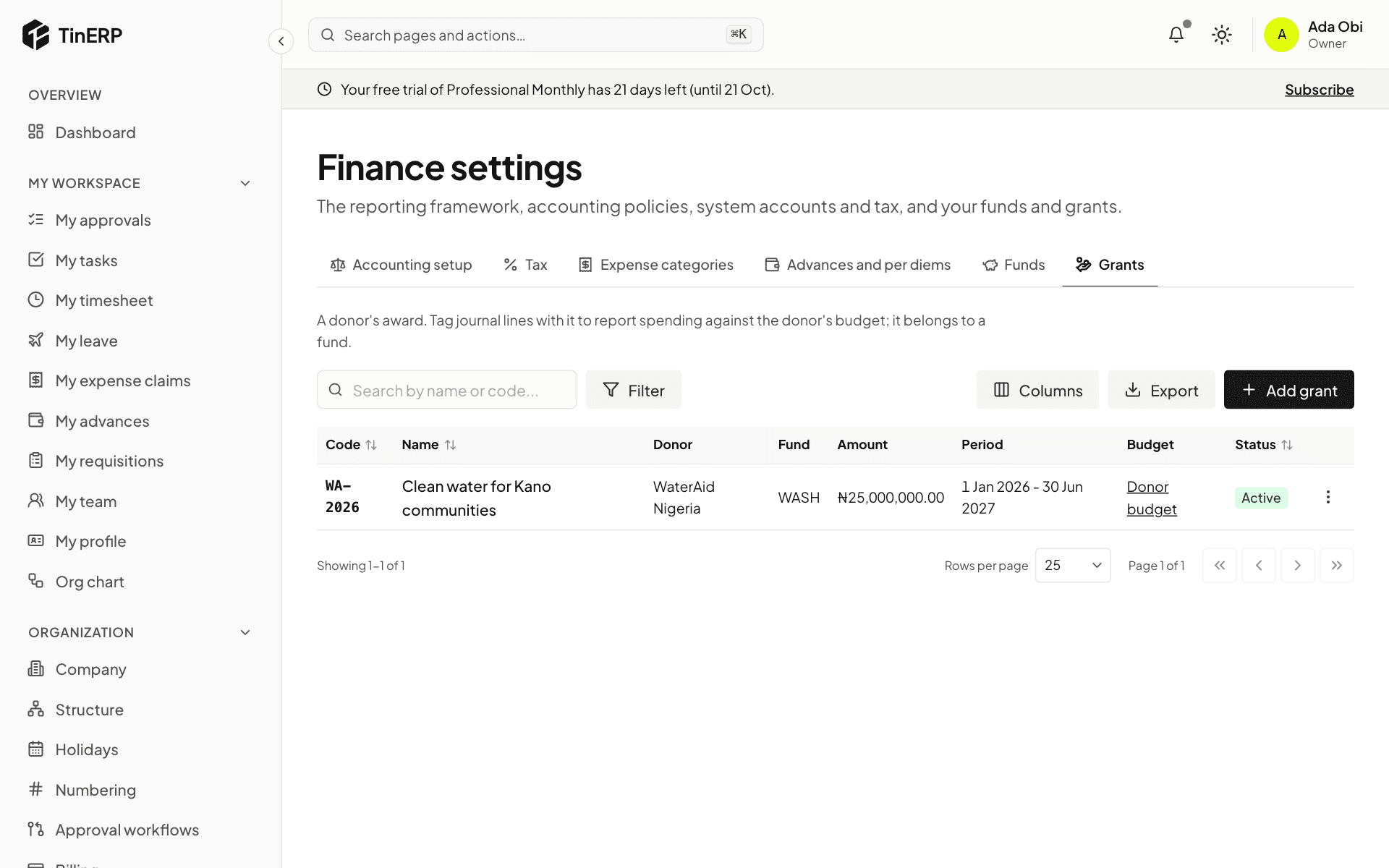
The award is restricted to clean water, so Ifeoma, the finance officer, adds a restricted fund - Water, sanitation and hygiene - in Finance → Finance settings → Funds, then the grant under Grants: donor, reference, the fund, ₦25,000,000, and its dates.

Finance settings → Grants: WA-2026, WaterAid Nigeria, in the WASH fund

2. 2. Enter the donor's budget

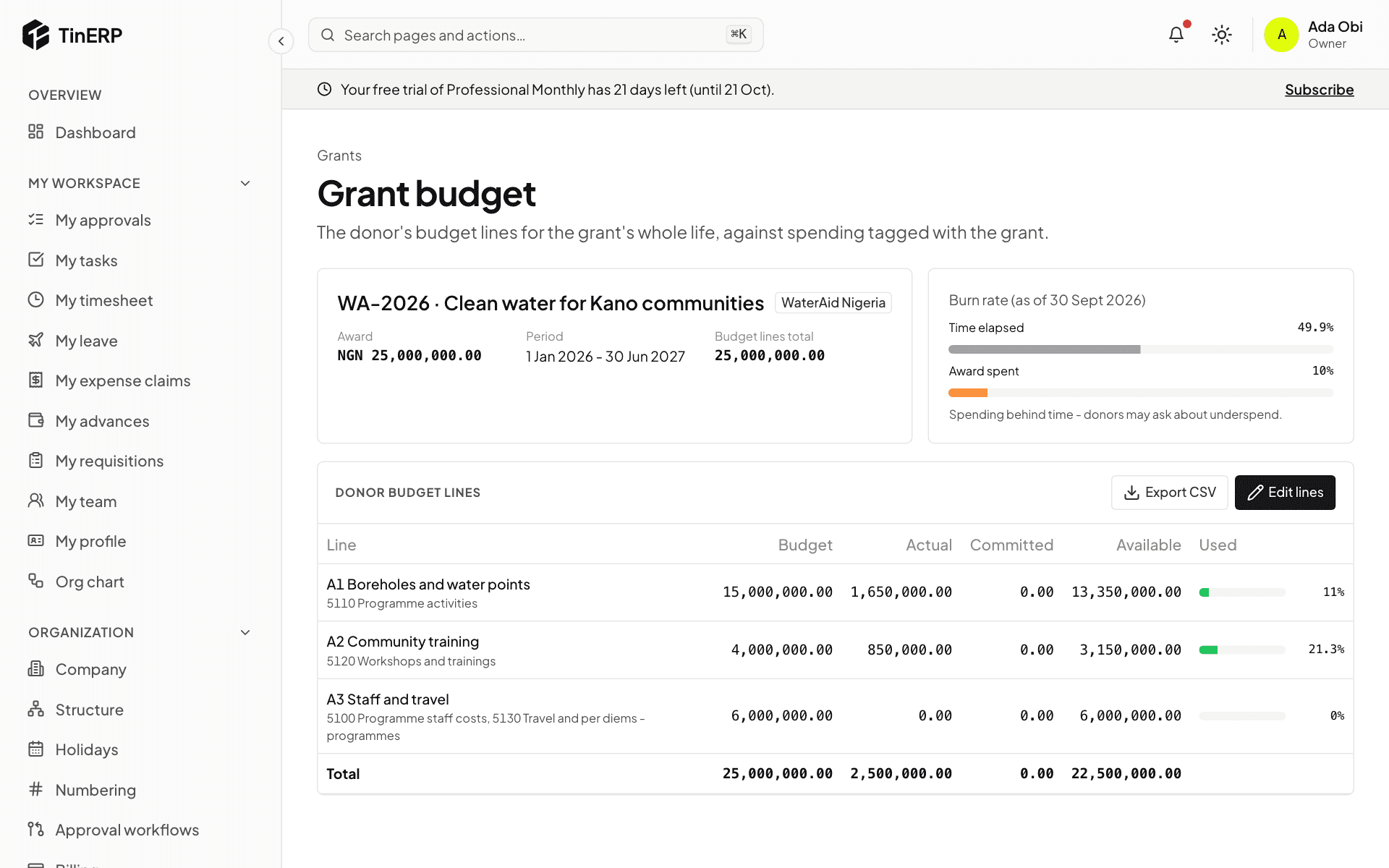
From the grant, she opens its Donor budget and enters the donor's own lines - boreholes, community training, staff and travel - with the accounts that count against each. That's the budget the donor will report against, for the grant's whole life.

3. 3. Tag the money in

When the first ₦6,000,000 tranche arrives, it's recorded to Grants - restricted income with the grant on the line - by a receipt against an invoice to the donor, or a journal. In the NGO chart, restricted grant income can't be posted without a grant.

4. 4. Tag every cost

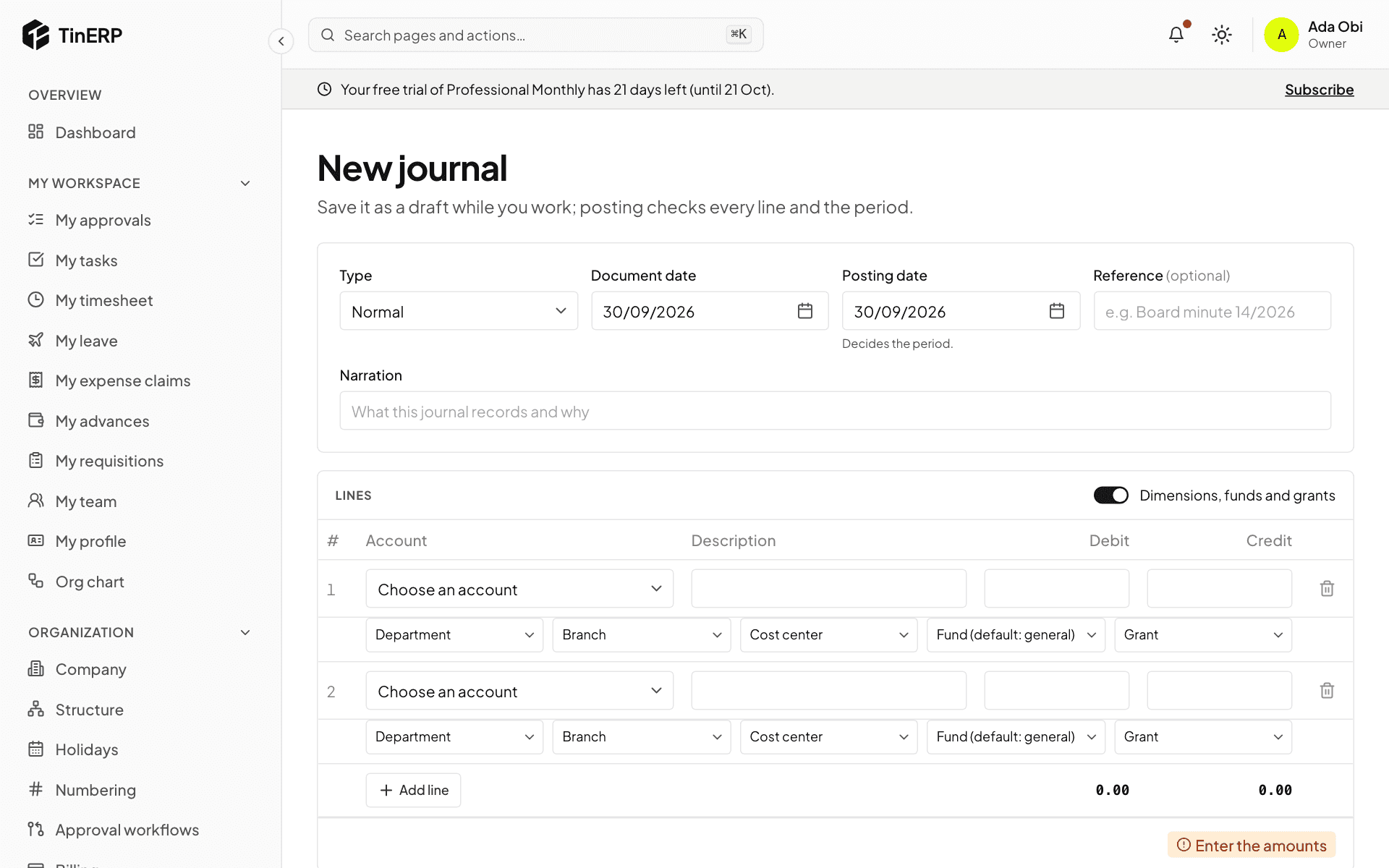
Every cost of the programme carries the grant: journal lines (turn on Dimensions, funds and grants), and the fund and grant on bills, expense claims and advances. Where the money comes from the general bank account, TinERP adds the interfund lines itself.

A new journal with dimensions, funds and grants on each line

5. 5. Follow the burn rate

The donor budget now shows each line's actual, committed and available, and the burn rate: time elapsed against the award spent. Here, half the grant's time has gone but only 10% of the money - spending behind time, which donors ask about. The programme team knows early.

The WaterAid grant budget with actuals on two lines and the burn rate

6. 6. Report to the donor

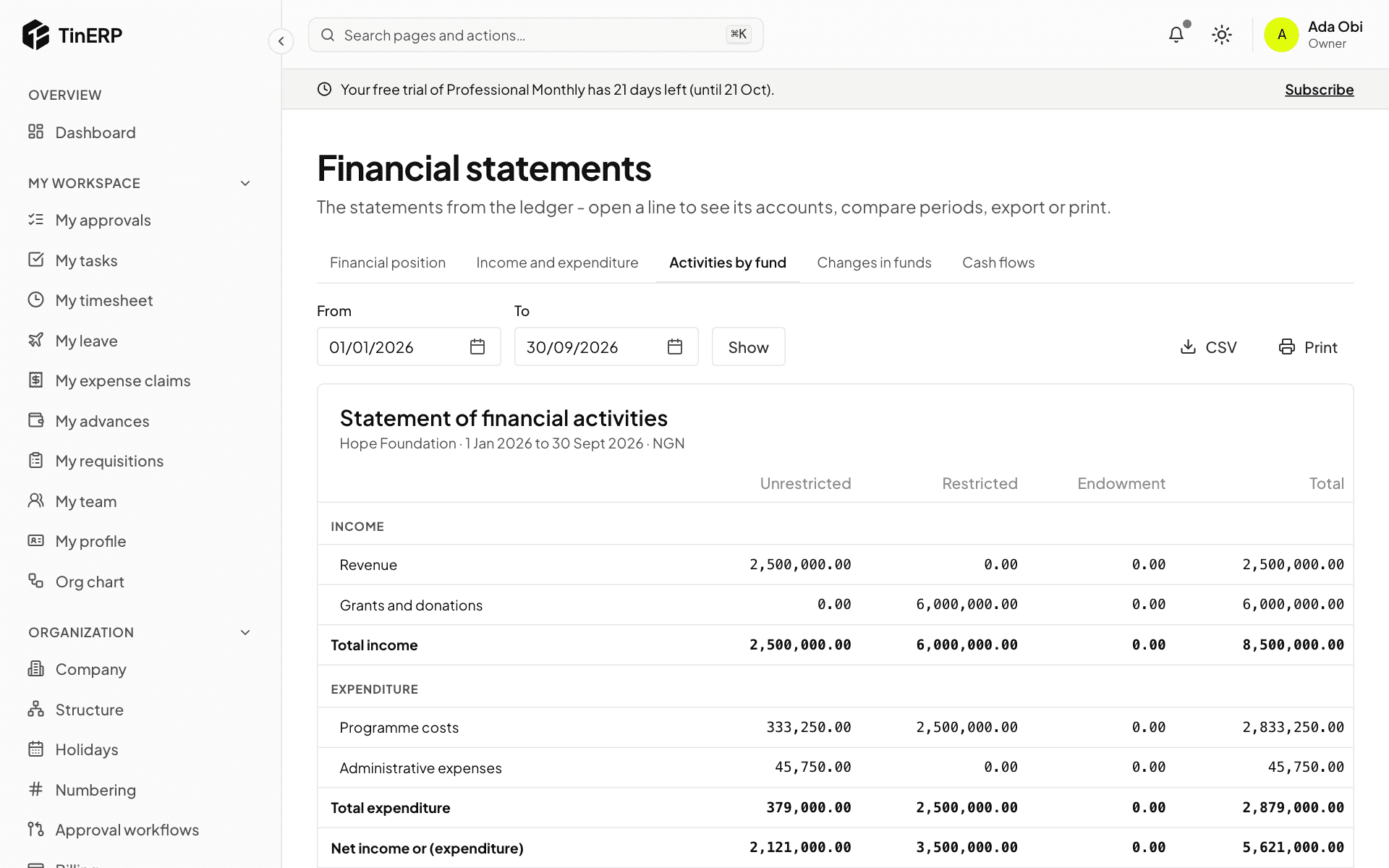
For the report, Ifeoma exports the grant budget as CSV (Export CSV), and prints Financial statements → Activities by fund, which separates restricted and unrestricted money. The Trial balance, filtered by the grant, lists every account it touched; each line opens its entries.

The statement of financial activities: restricted grant income and programme costs, by fund

Tip: When the grant closes, its fund's balance should be what's left to return or reallocate - the donor's agreement says which.