Projects · Project managers · about 4 min
Follow progress and hours
Hours come from timesheets: approved ones, and - where you choose - those still waiting for approval.
1. Start from the overview
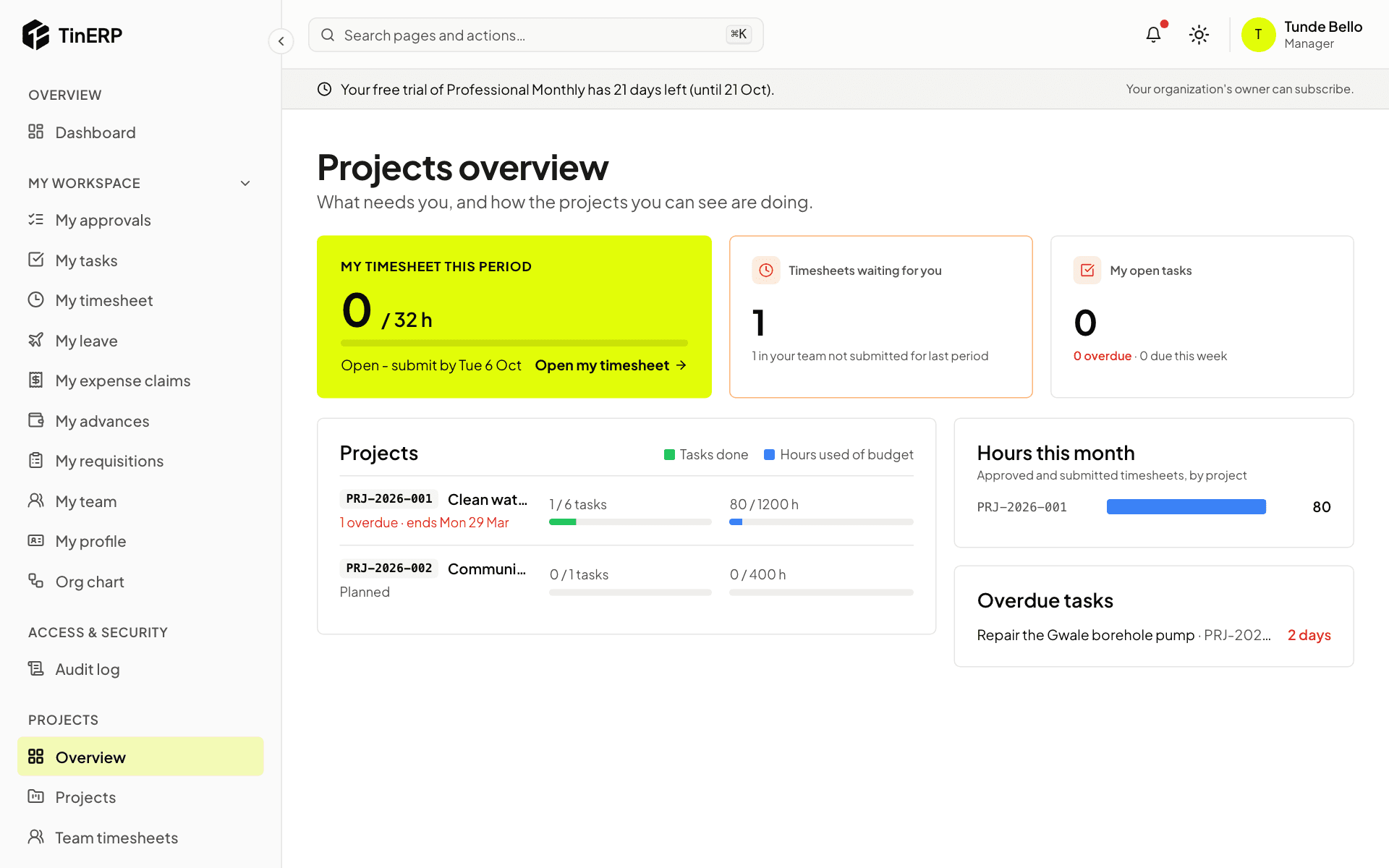
Projects → Overview shows your timesheet this period, timesheets waiting for you, your open tasks, and each open project's tasks done and hours used of budget - red above 90%. Hours this month and overdue tasks are alongside.
2. A project's hours
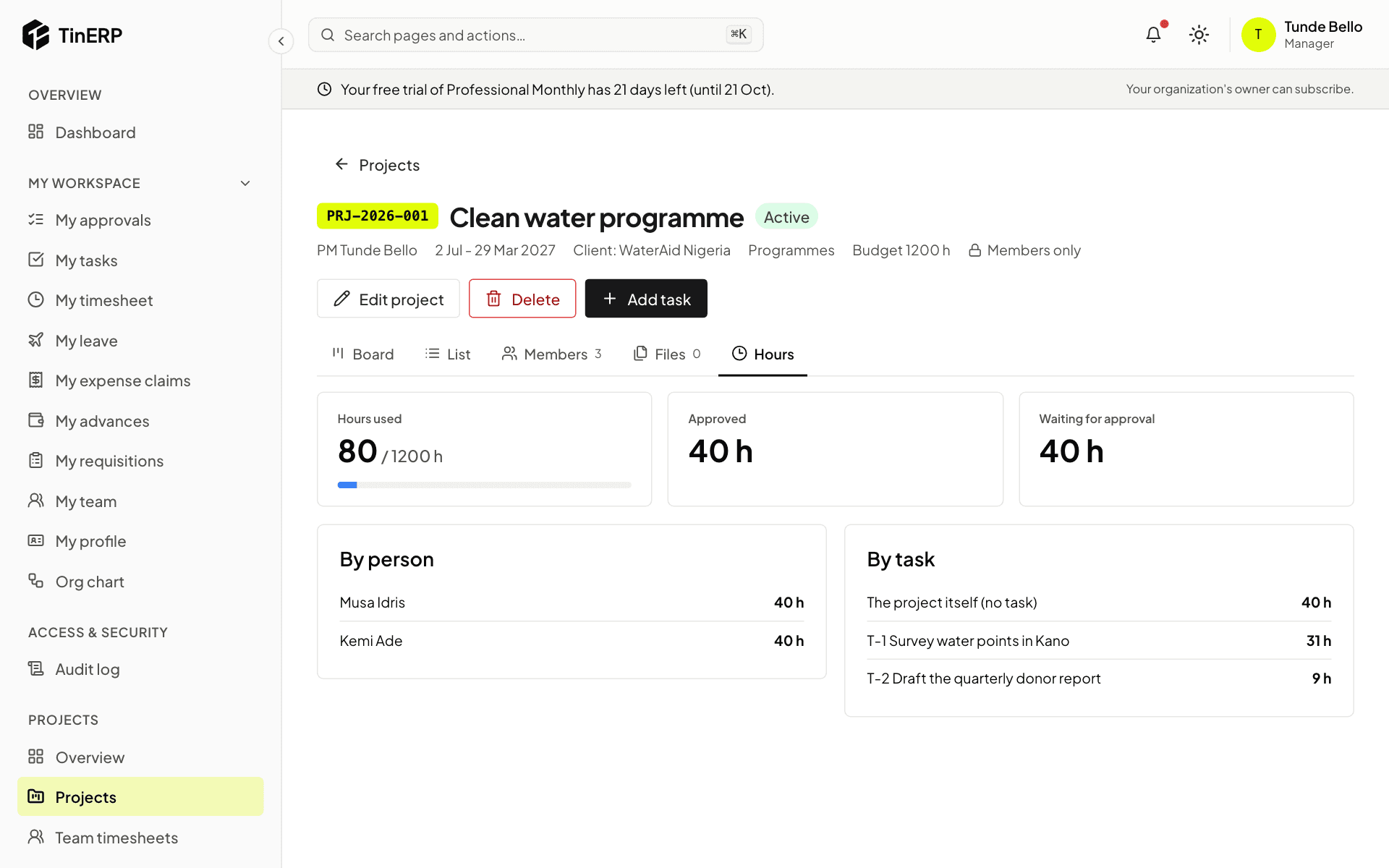
On a project, Hours shows approved and waiting hours against its budget, by person and by task.
3. Reports
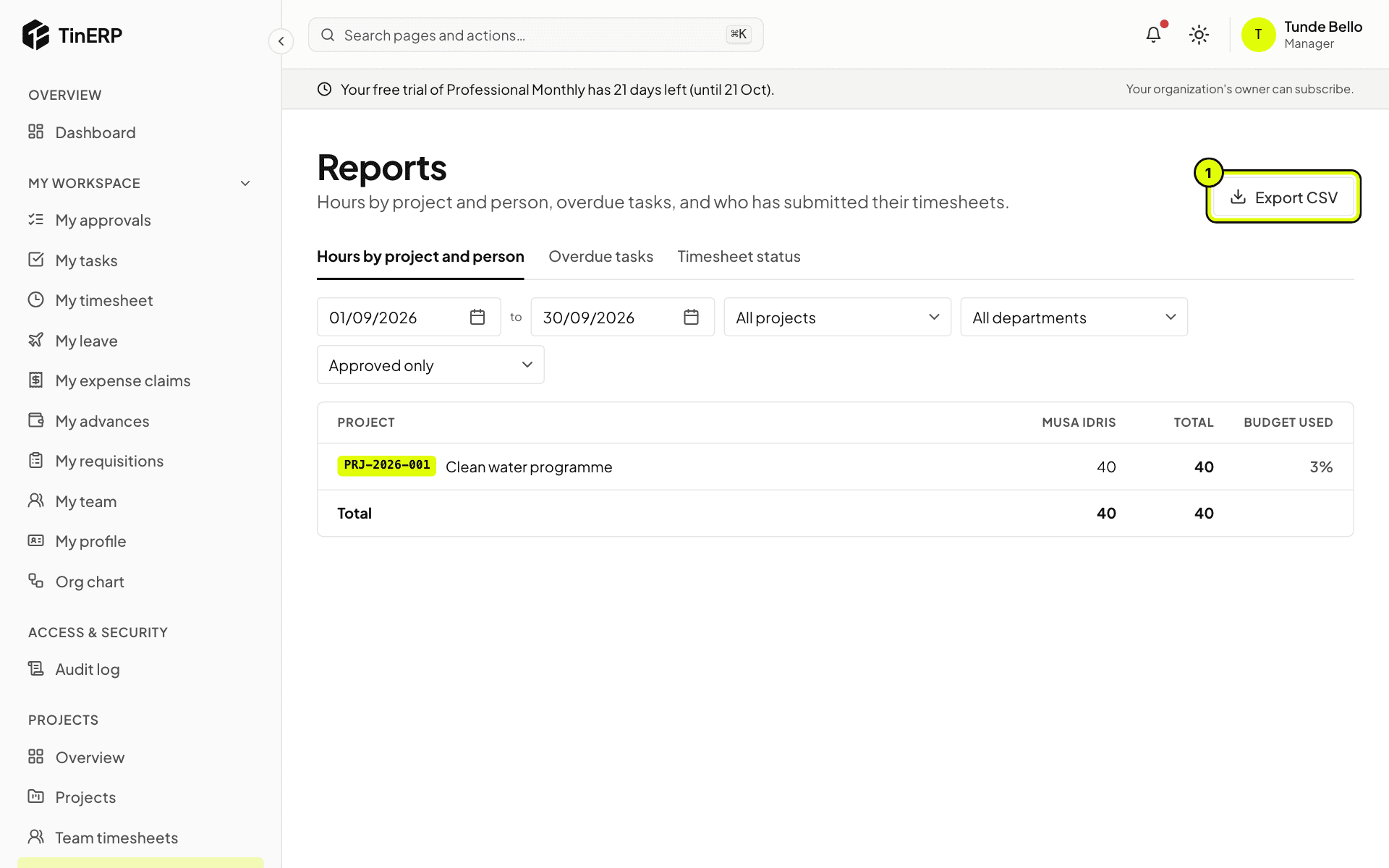
Go to Projects → Reports. Hours by project and person covers any dates - approved only, or with those waiting - with each project's budget used. Export CSV (1) downloads it.
Overdue tasks lists them by project and assignee. Timesheet status shows who has submitted each period, and who is missing once the deadline has passed.