Add an employee
Add everyone you employ - including people who will never sign in.
- 1
Start a record
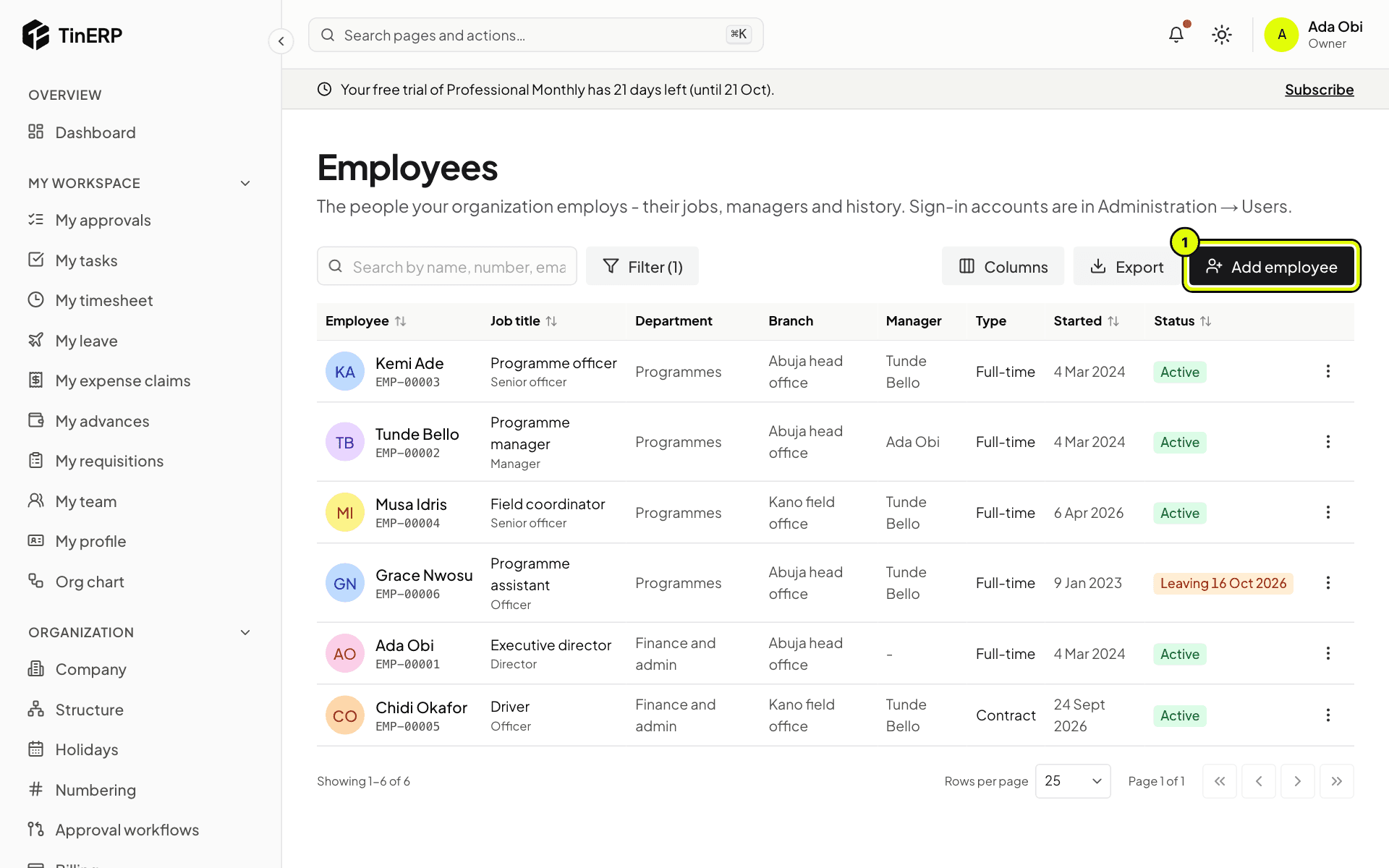
Go to HR → Employees and select Add employee (1).
Full size
HR → Employees with Add employee marked 1 - 2
Fill in their details
Personal details - their name, contacts, date of birth and statutory IDs: NIN, TIN, pension PIN and administrator, and NHF number.
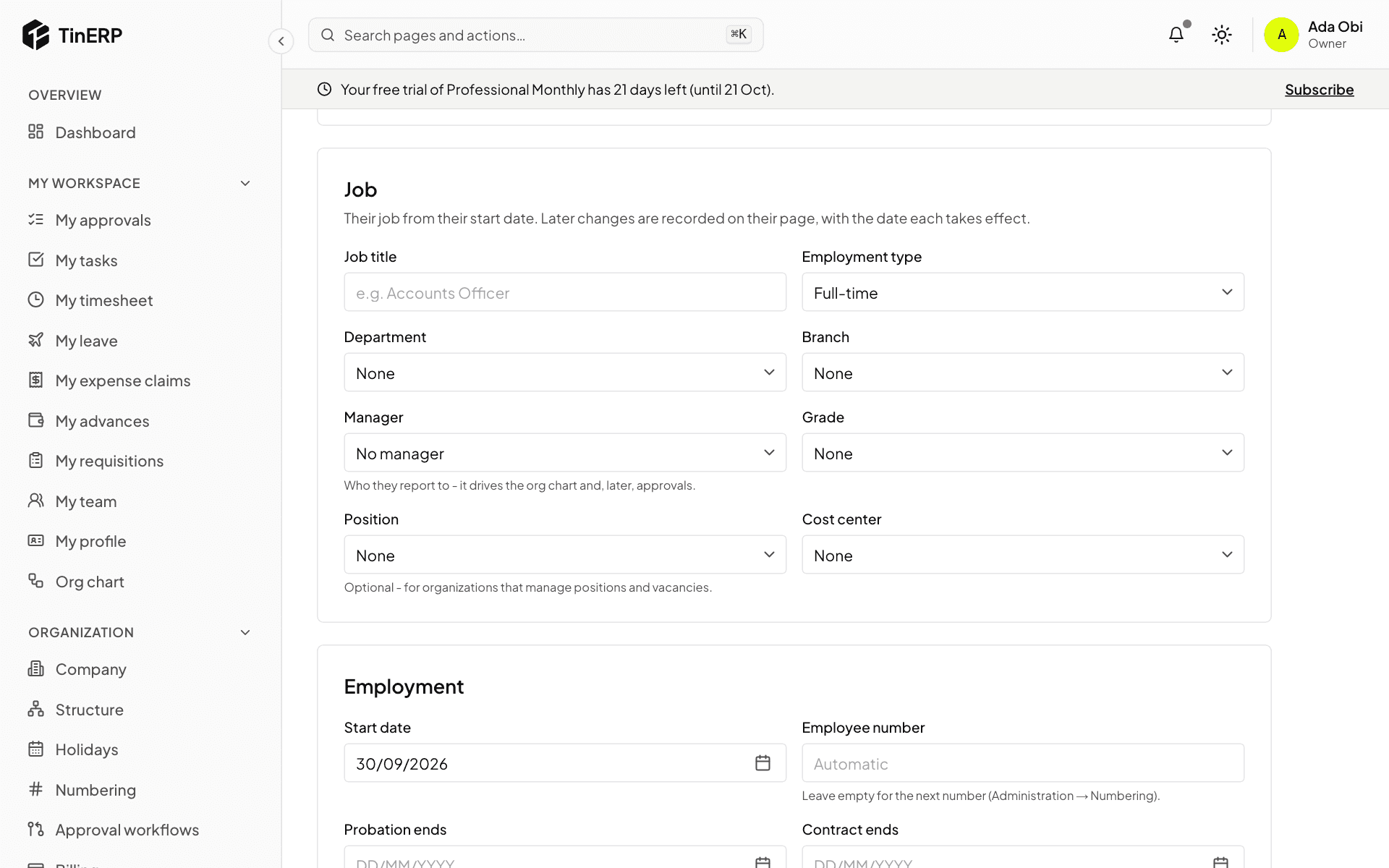
Job - job title, employment type, department, branch, manager, grade and position. Employment - their start date, and when probation and any contract end. The employee number is given automatically, or type your own (from your old system, for example). Select Add employee.
Full size
The Job and Employment sections of the Add an employee form - 3
Onboarding starts by itself
If their start date is less than 30 days ago or still to come, the default onboarding checklist starts, and everyone with a step is told. Follow it on their page and in HR → Joiners & leavers.
Tip: Loading your existing team? People who started more than 30 days ago don't get a checklist each - you can start one by hand from their page.
- 4
Give them a login
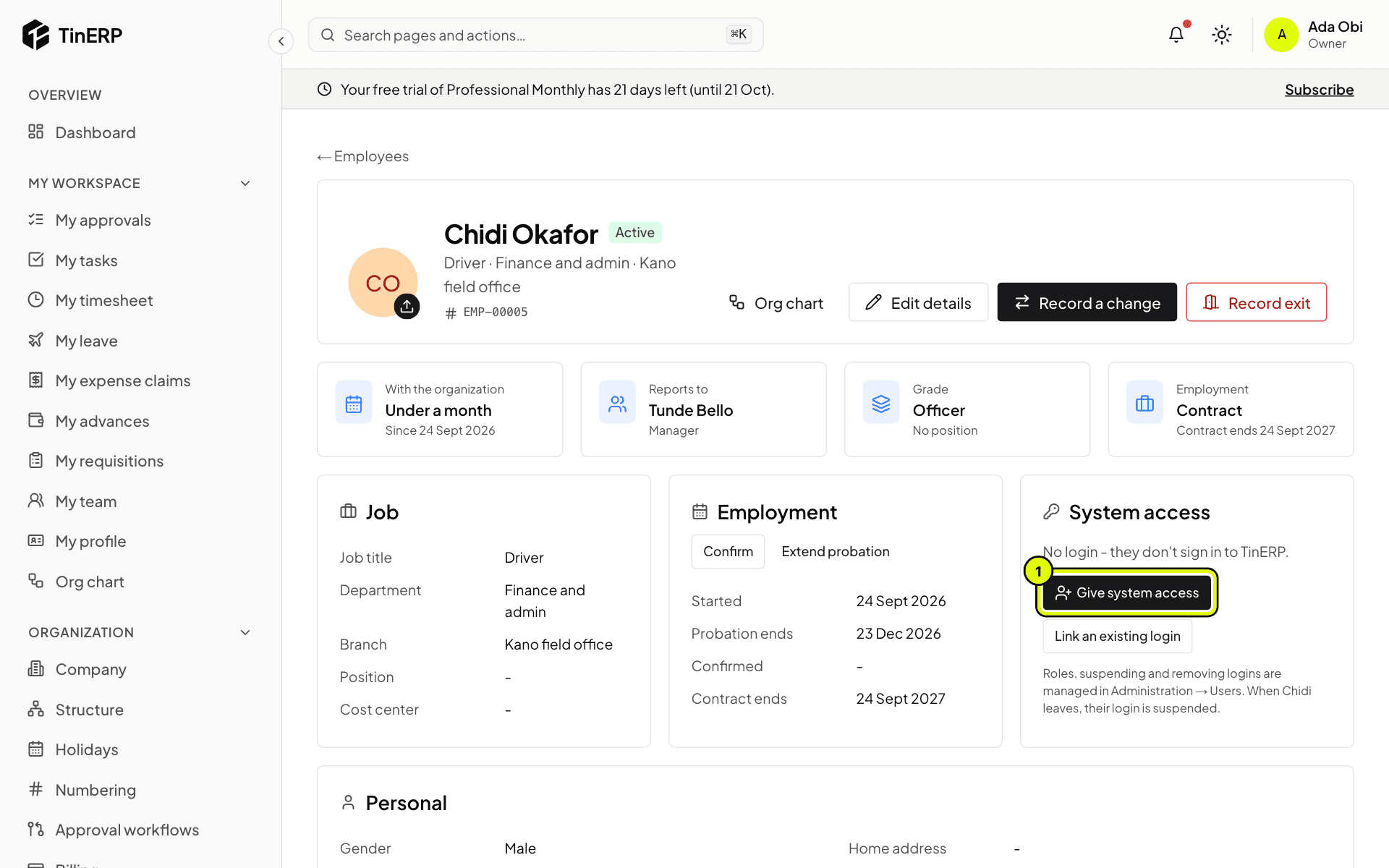
On their page, under System access, select Give system access (1) and choose their role. They get an email to set a password, and their login is linked to this record.
If they already have a login - someone you invited before adding their record - choose Link an existing login instead.
Full size
Chidi's page: no login yet, with Give system access marked 1