Approve requests
Everything waiting for your decision is in one place, oldest first - whatever kind of request it is.
- 1
Approve or reject
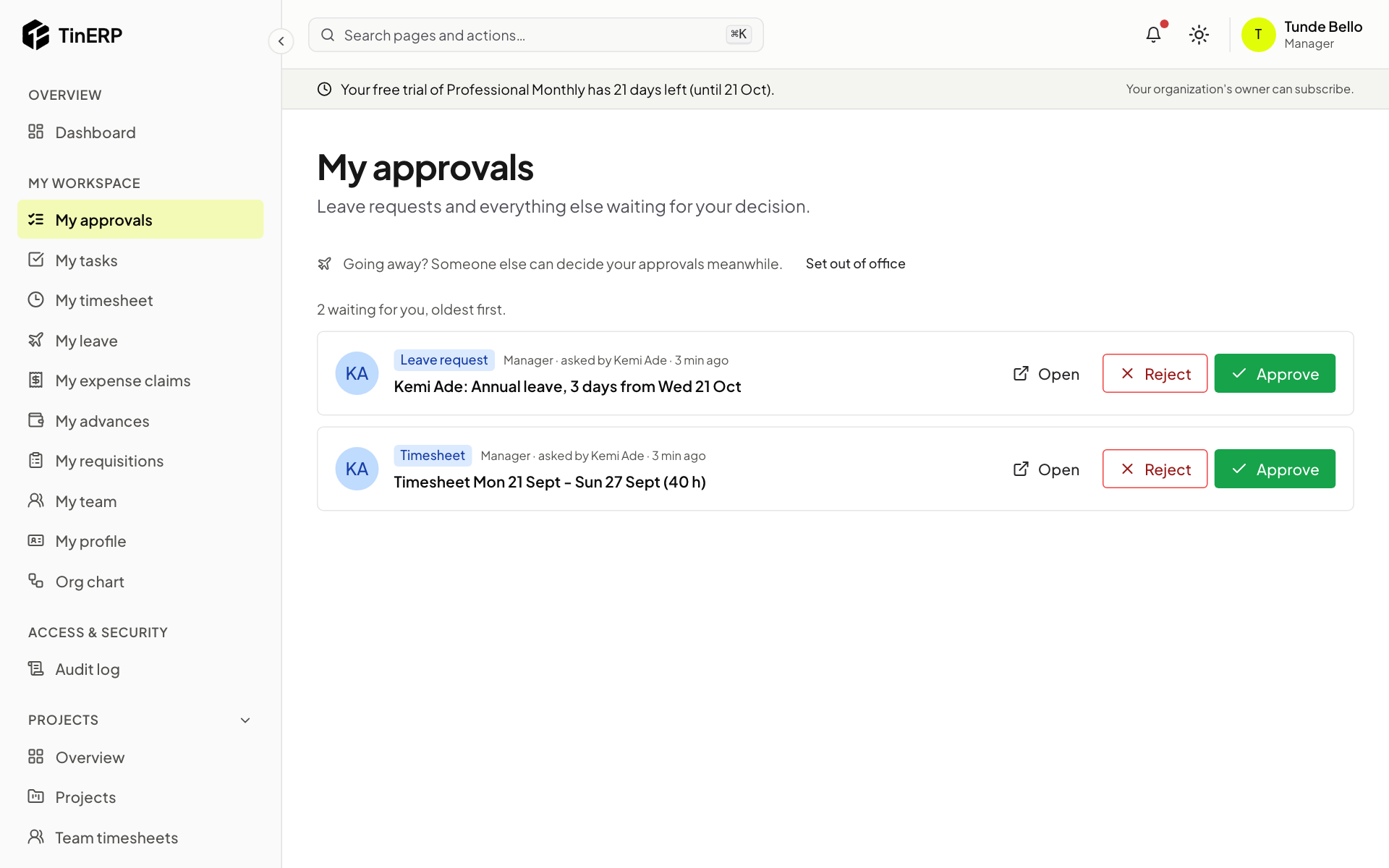
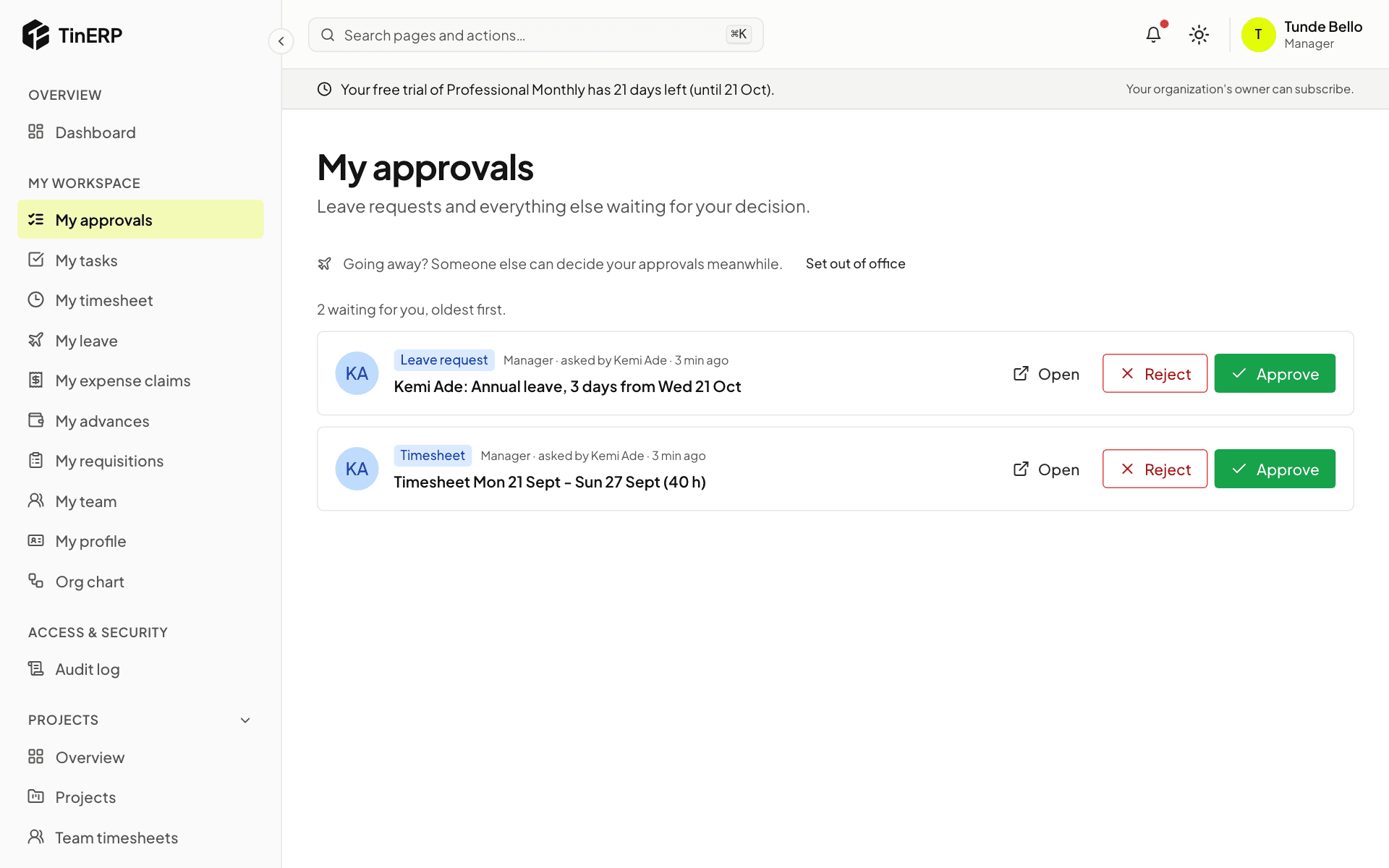
Go to My workspace → My approvals. Each request shows who asked and what for. Select Open for the details, or decide straight away with Approve or Reject - you'll be asked for a reason when you reject.
The person is notified, and if the request needs another step, it moves on to the next approver.
Full size
My approvals with Kemi's leave request and the Approve and Reject buttons - 2
Going away? Hand over your approvals
Select Set out of office and choose someone to decide for you while you're away. Requests go to them until you're back, and the record shows they decided on your behalf.