
Security settings
These settings apply to everyone in your organization. They can make TinERP stricter than its own limits, never looser.
- 1
Require two-factor sign-in
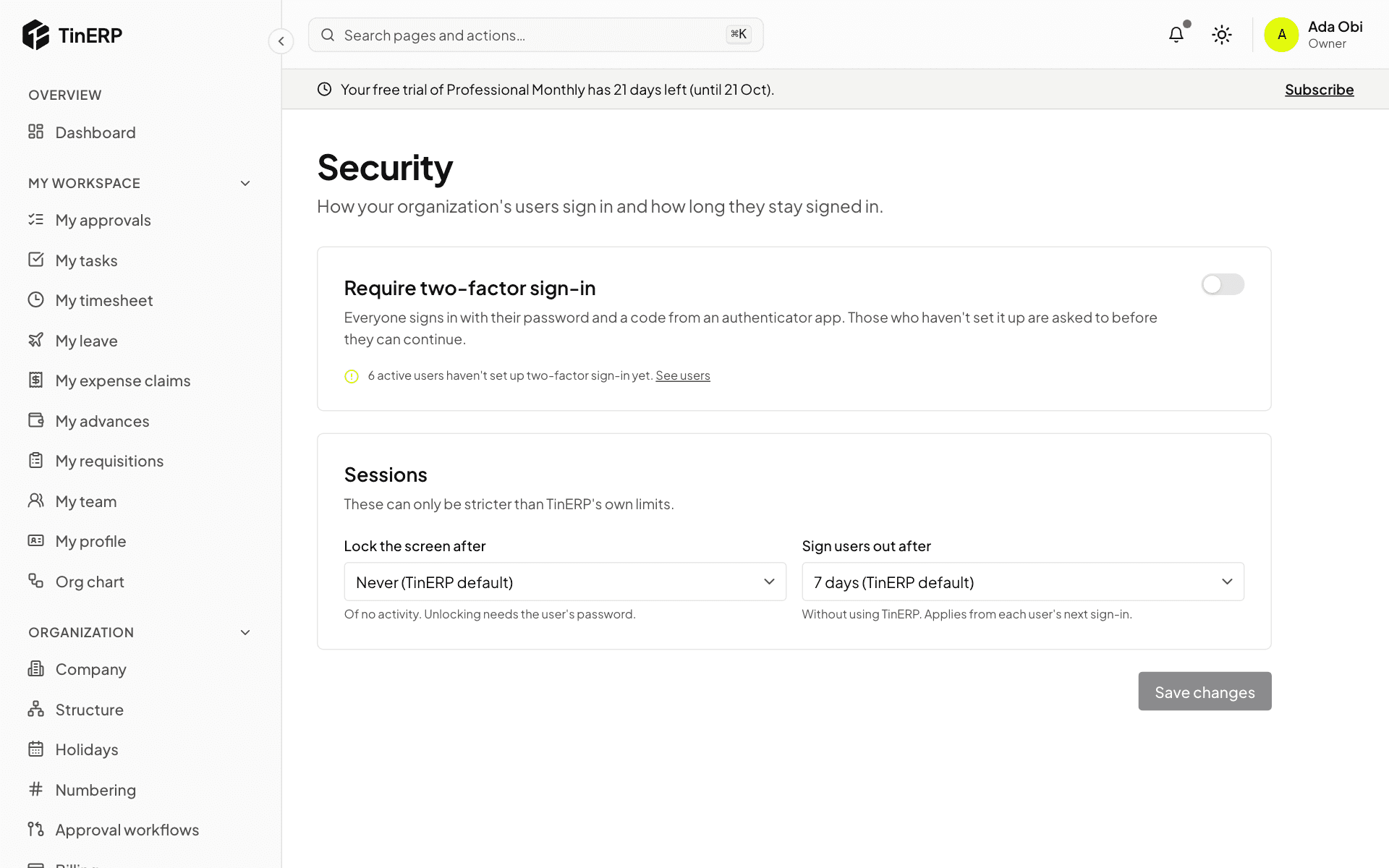
Go to Access & security → Security and turn on Require two-factor sign-in. Everyone then signs in with their password and a 6-digit code from an authenticator app. People who haven't set it up are asked to before they can continue.
Set it up on your own account first (My account). The page shows how many active users haven't set it up yet.
Full size
The Security page: Require two-factor sign-in, and the session settings - 2
Choose session limits
Lock the screen after - a time with no activity, after which the screen locks until the person enters their password.
Sign users out after - a time without using TinERP. It applies from each person's next sign-in. Select Save changes.
