Start a project
Select New project on the Projects page.
- 1
Fill in the project
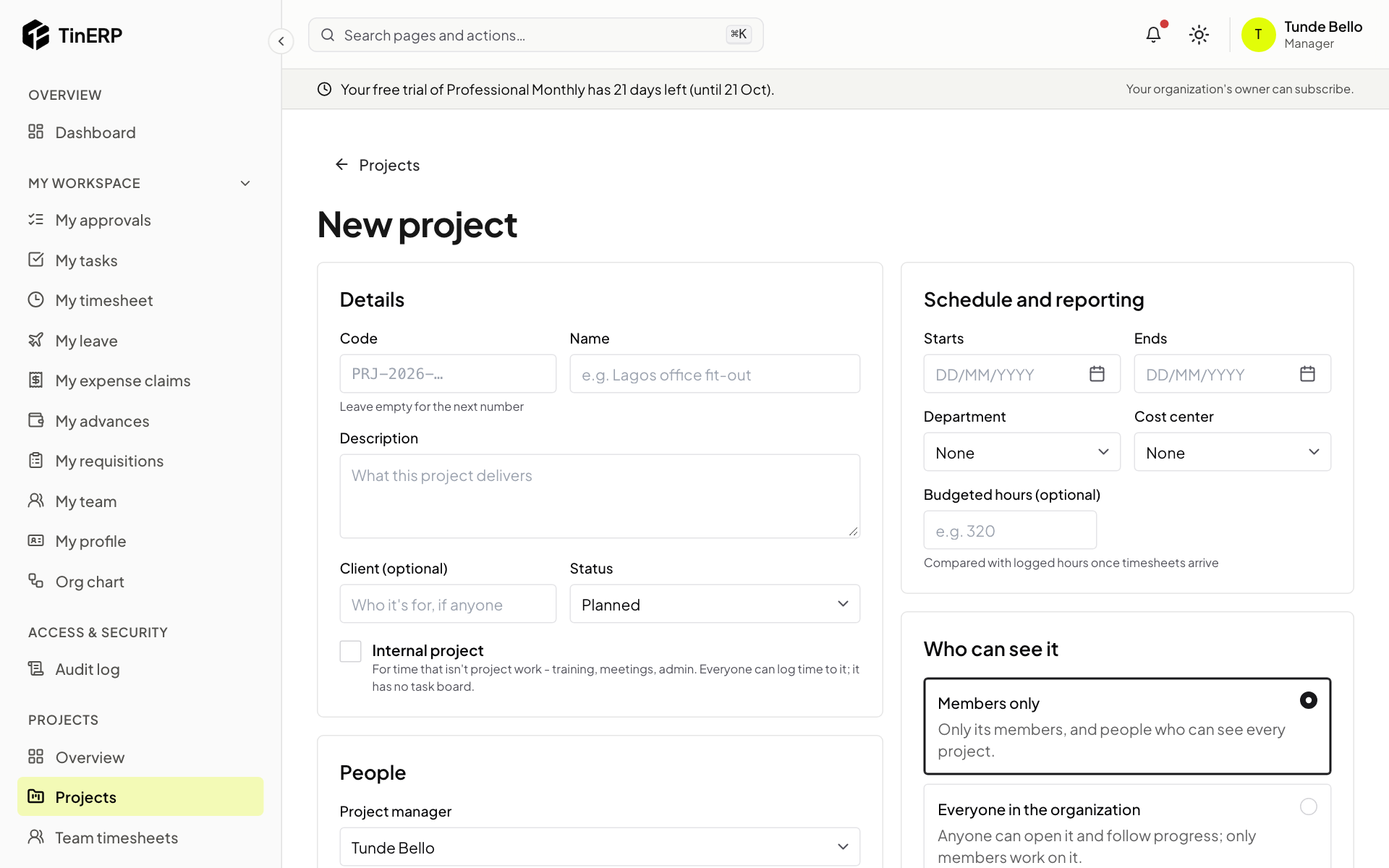
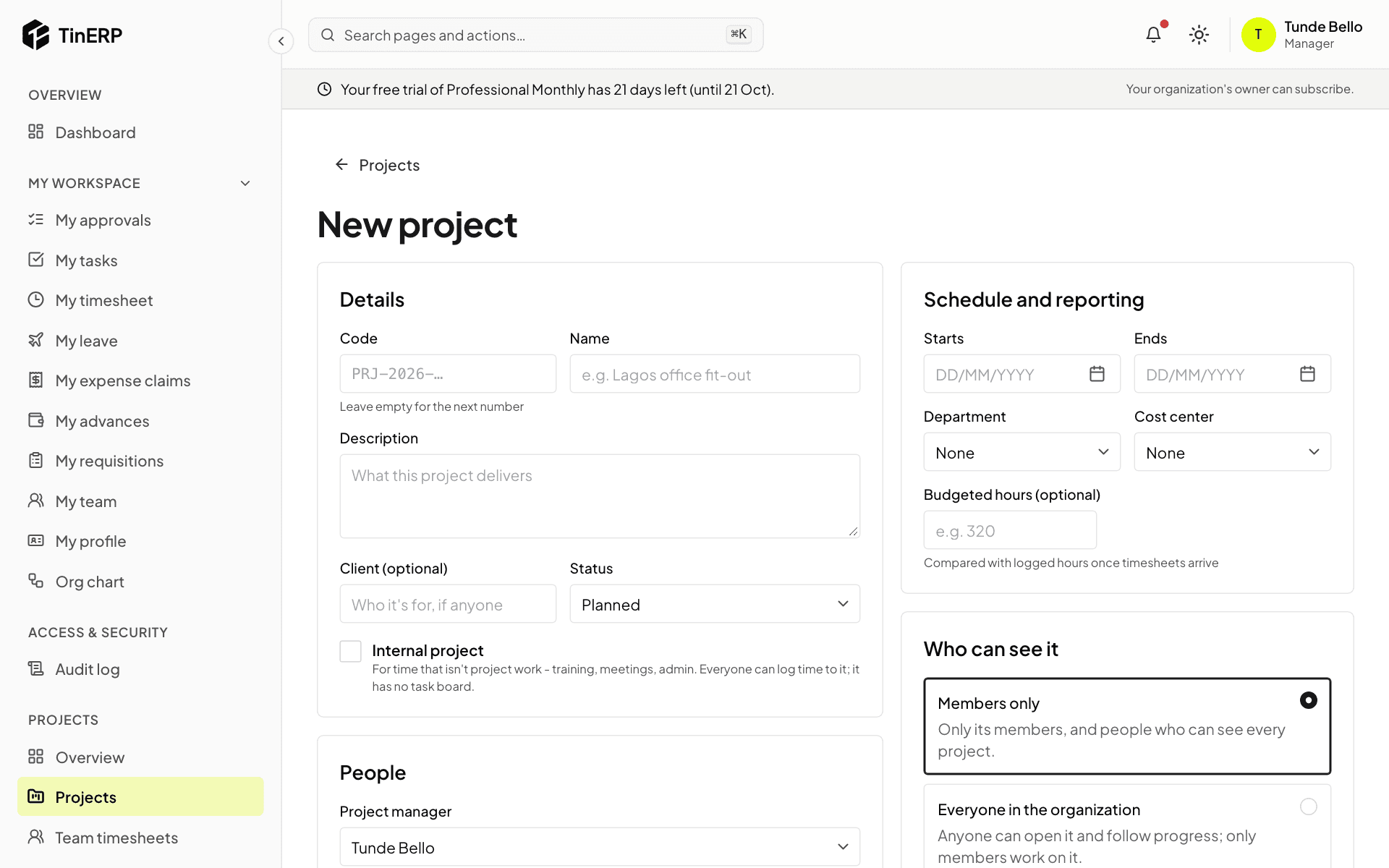
Details: leave Code empty for the next number (such as PRJ-2026-003) or type your own; add a name, a description, the client if there is one, and the status - Planned or Active.
Schedule and reporting: the dates, department, cost center and Budgeted hours, which logged hours are compared with. People: the project manager and members. Who can see it: Members only, or Everyone in the organization - everyone can follow it, only members work on it.
Full size
The New project form: details, schedule and reporting, people, and who can see it - 2
Manage members
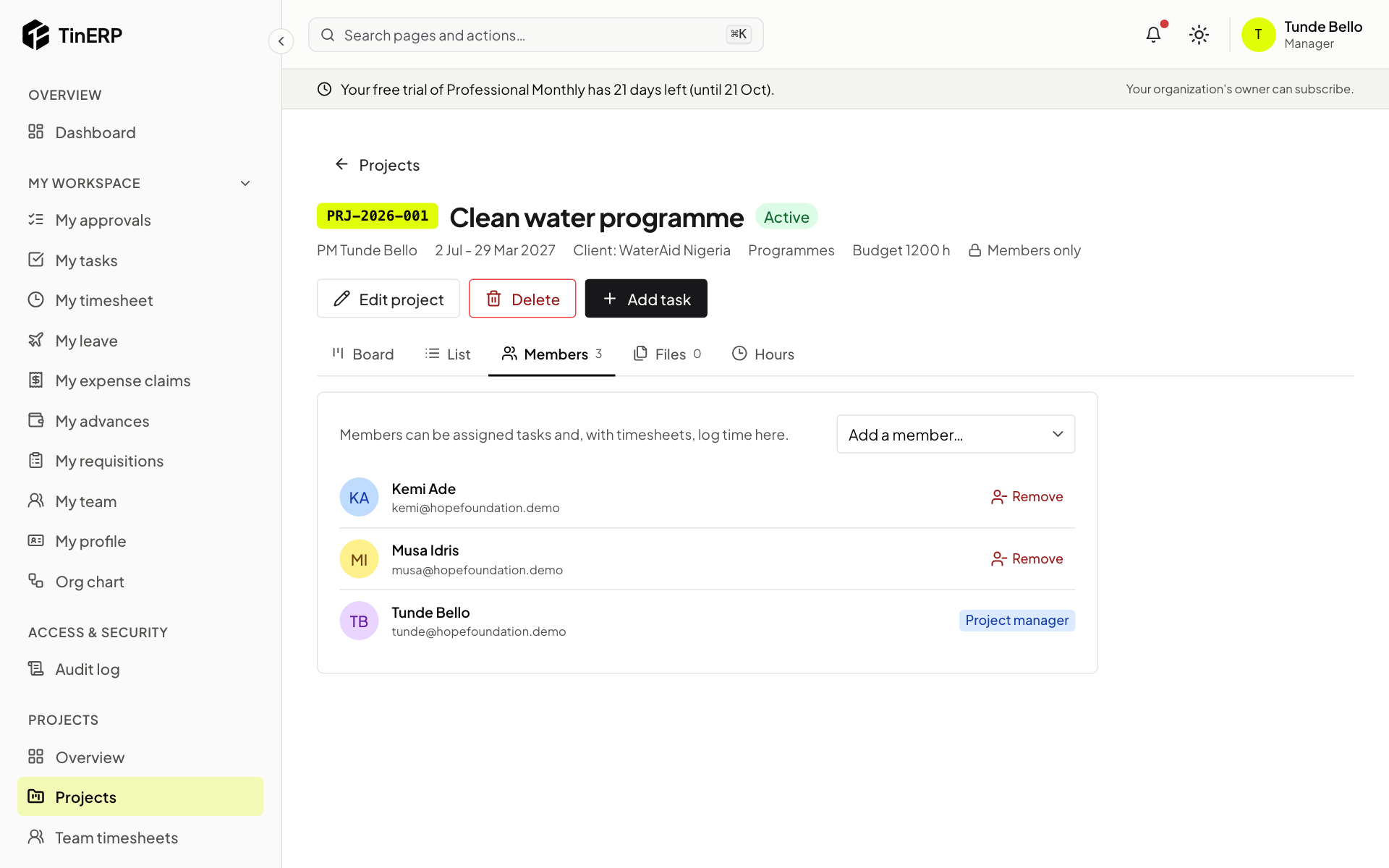
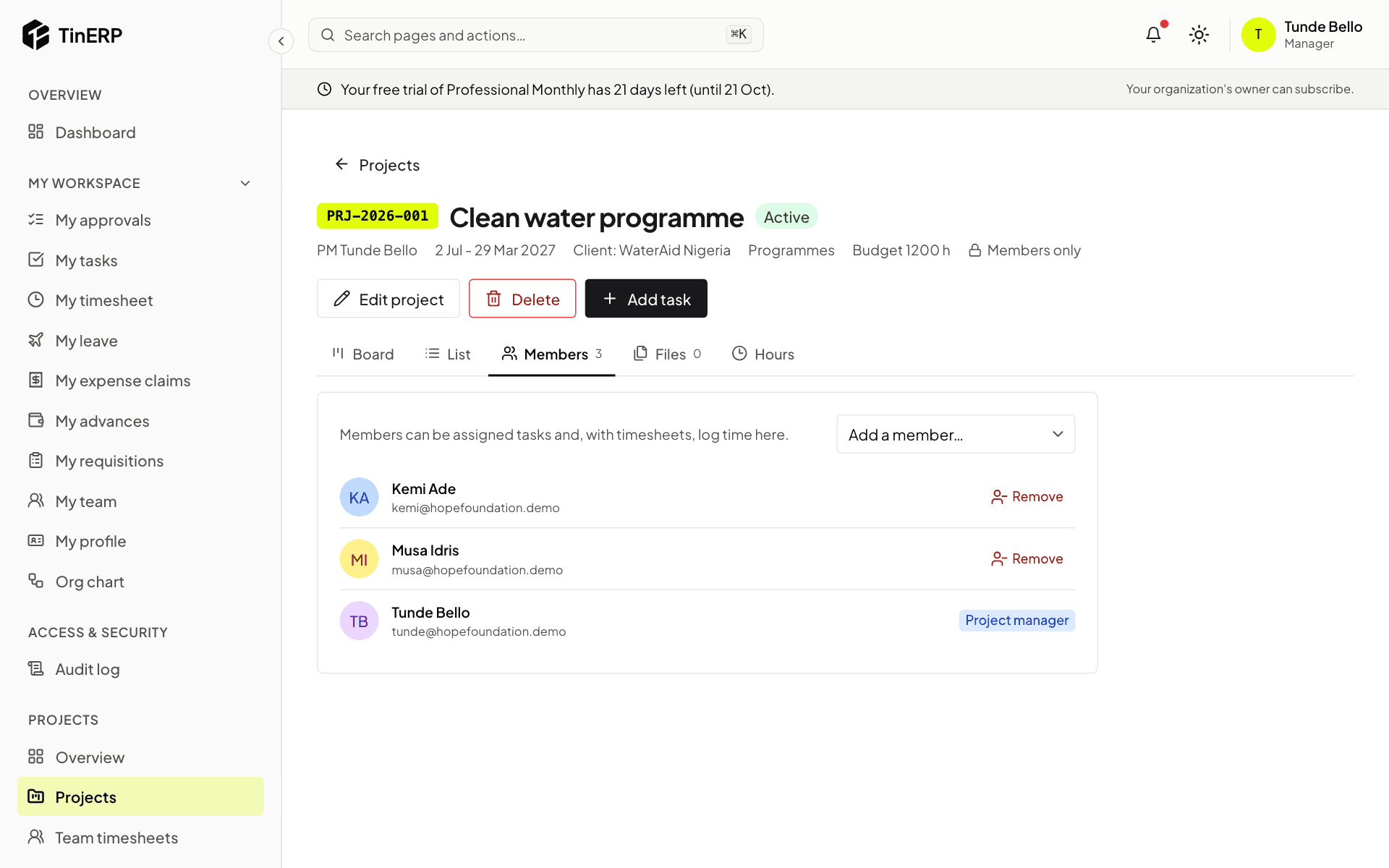
On the project, Members lists who can be given tasks and log time. Add a member, or remove one - their open tasks on the project are unassigned. The project manager can't be removed. People are told when they're added.
Full size
The Members tab of the Clean water programme - 3
Change or close it
Edit project changes its details and status - Active, On hold, Completed or Cancelled. Completed and cancelled projects take no new tasks or time.
Delete removes a project for good - only while no time has been logged on it. After that, complete or cancel it instead, so the hours stay on record.