Approve your team's timesheets
Timesheets go to each person's line manager, unless your organization's approval rules say otherwise. You're notified when one is submitted, and it waits for you in My approvals.
- 1
See who has submitted
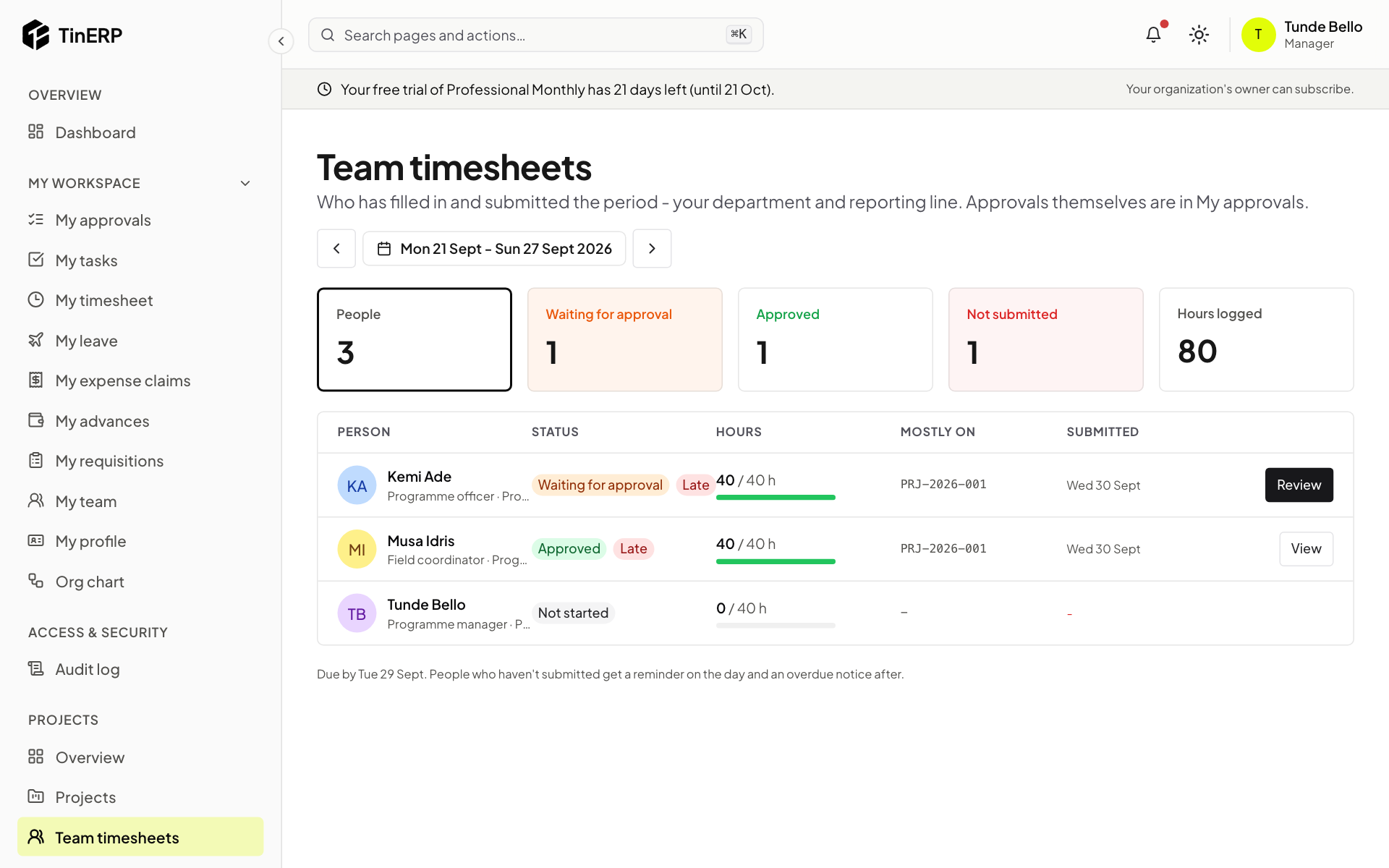
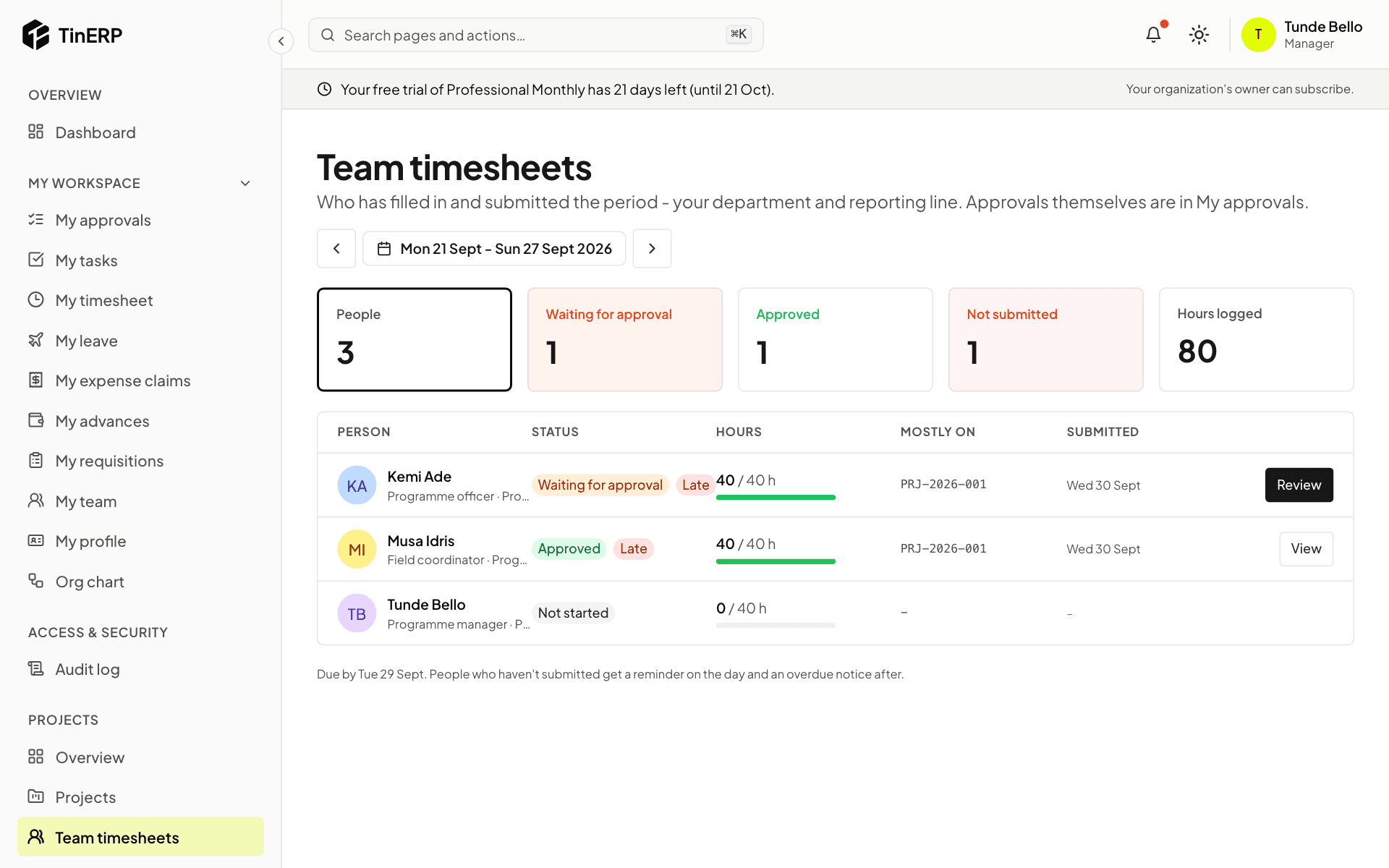
Go to Projects → Team timesheets. For each person you see the status of their timesheet, their hours against the hours expected of them, the projects they worked on most, and when they submitted. Late ones are marked.
Expected hours already allow for each person's approved leave and the holidays at their branch. Use the arrows to move between periods.
Full size
Team timesheets for last week: Kemi's waiting for approval and Musa's approved - 2
Check it and decide
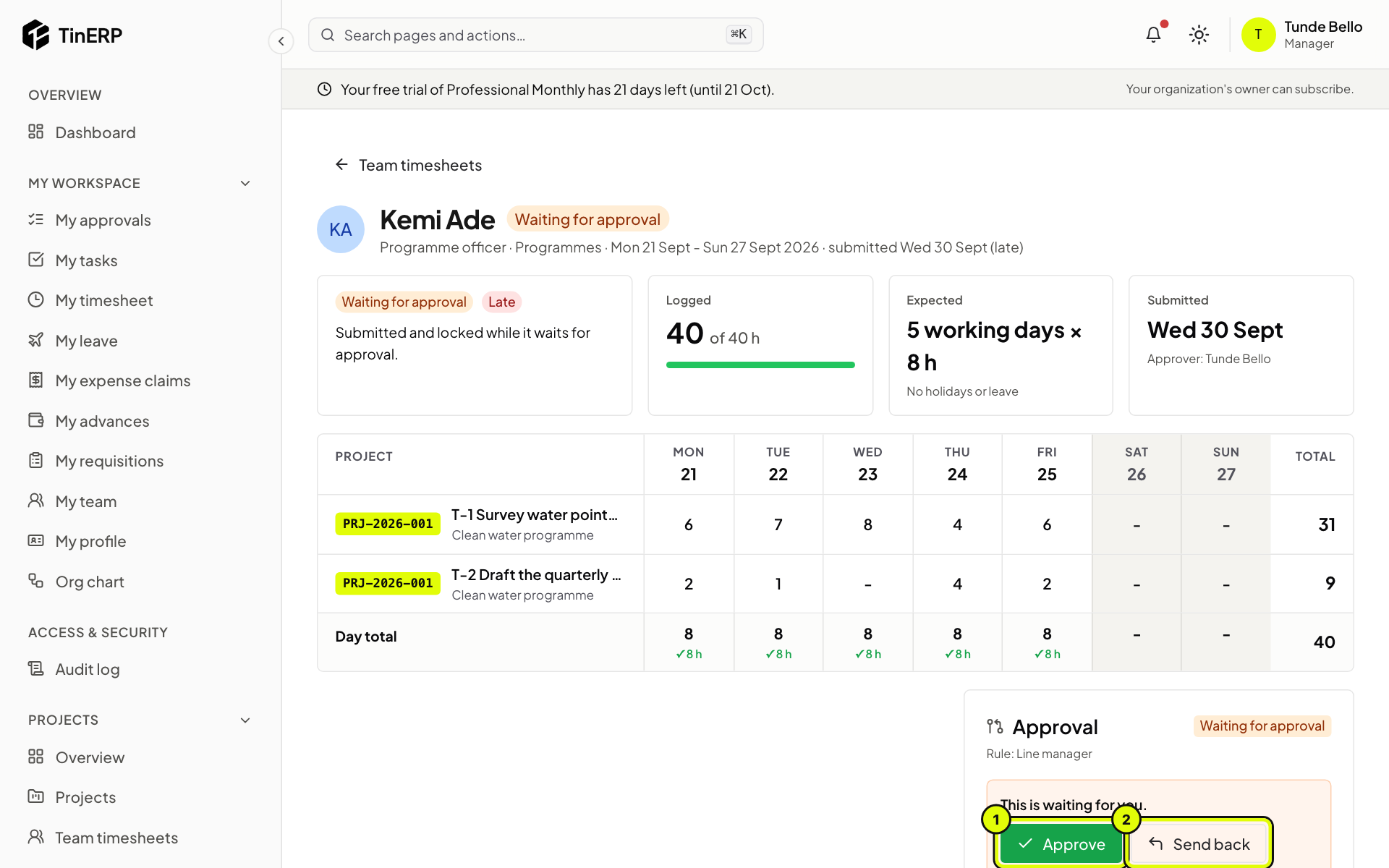
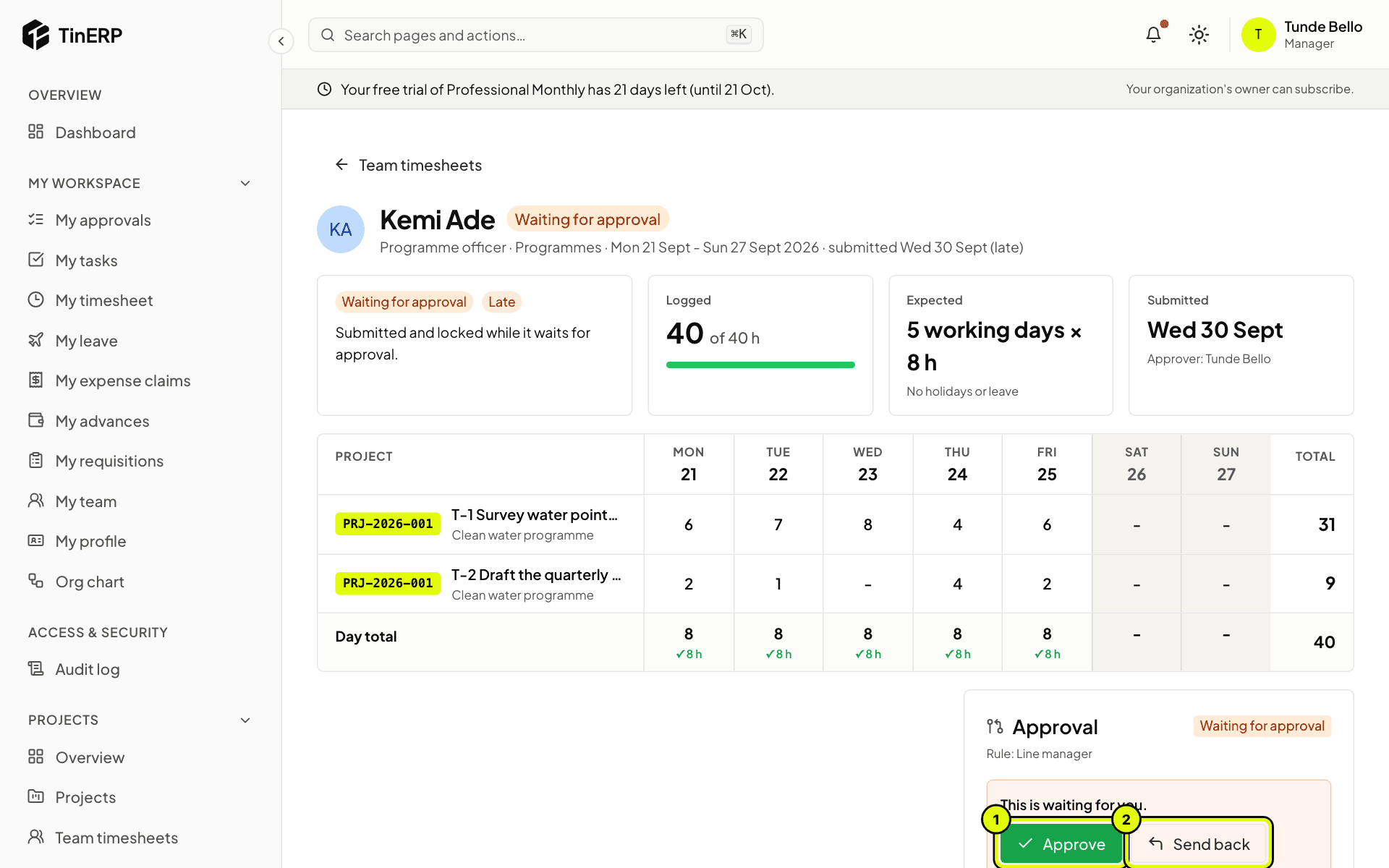
Select Review next to a timesheet waiting for you (or View for any other) to open it: hours by project (or task) and day, the day totals, and the hours expected.
At the bottom, choose Approve (1), or Send back (2) and say what to change - the timesheet opens again for them to correct and submit. Approved timesheets are locked.
Full size
Kemi's timesheet with 40 of 40 hours and the Approve and Send back buttons marked 1 and 2 Tip: You don't need to chase people: everyone who hasn't submitted gets a reminder on the day it's due and an overdue notice after.