Document numbers
Every numbered document has a format - employees, leave requests, projects, requisitions, purchase orders, invoices, journals and more. Set yours before you issue your first documents.
- 1
Change a format
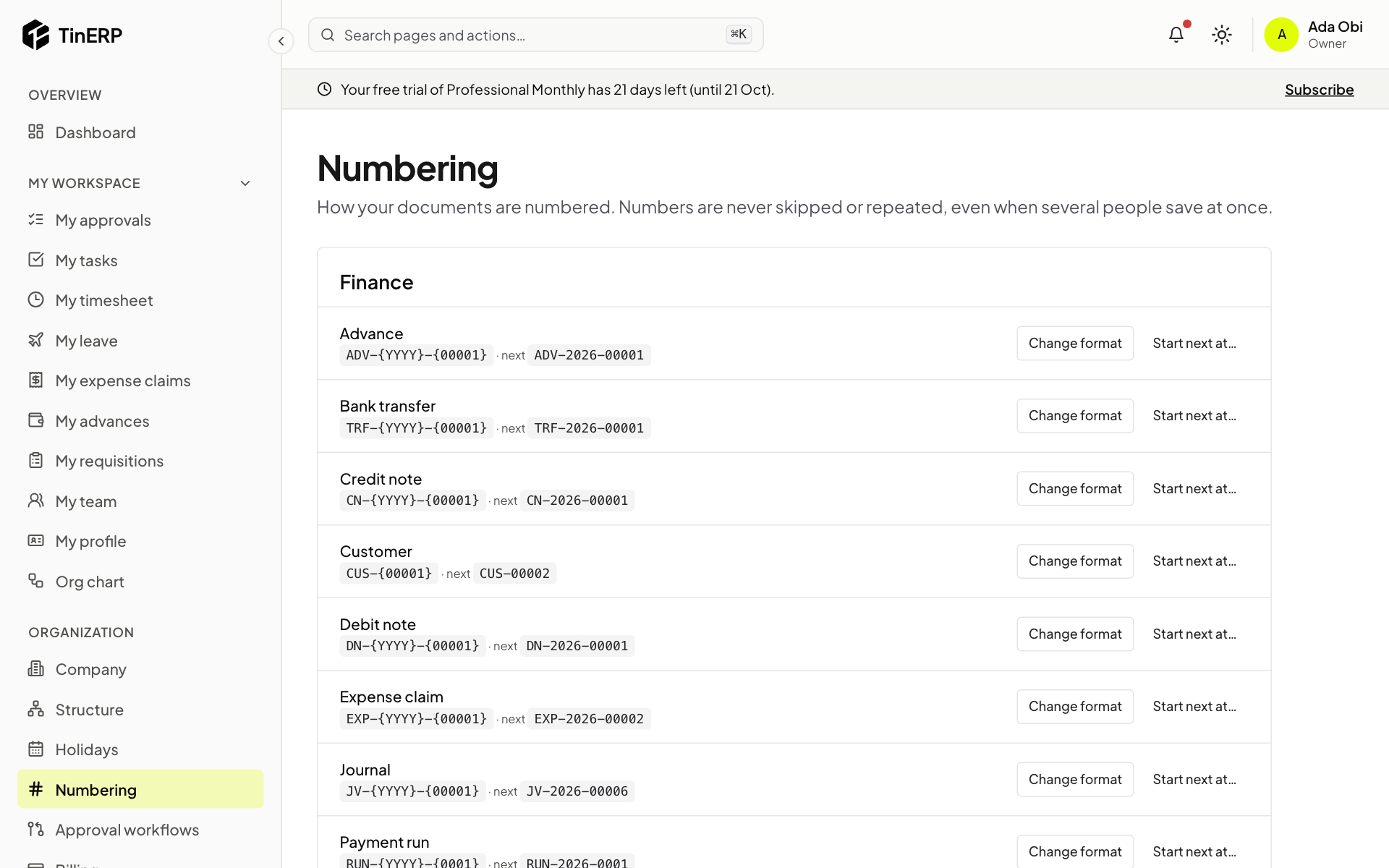
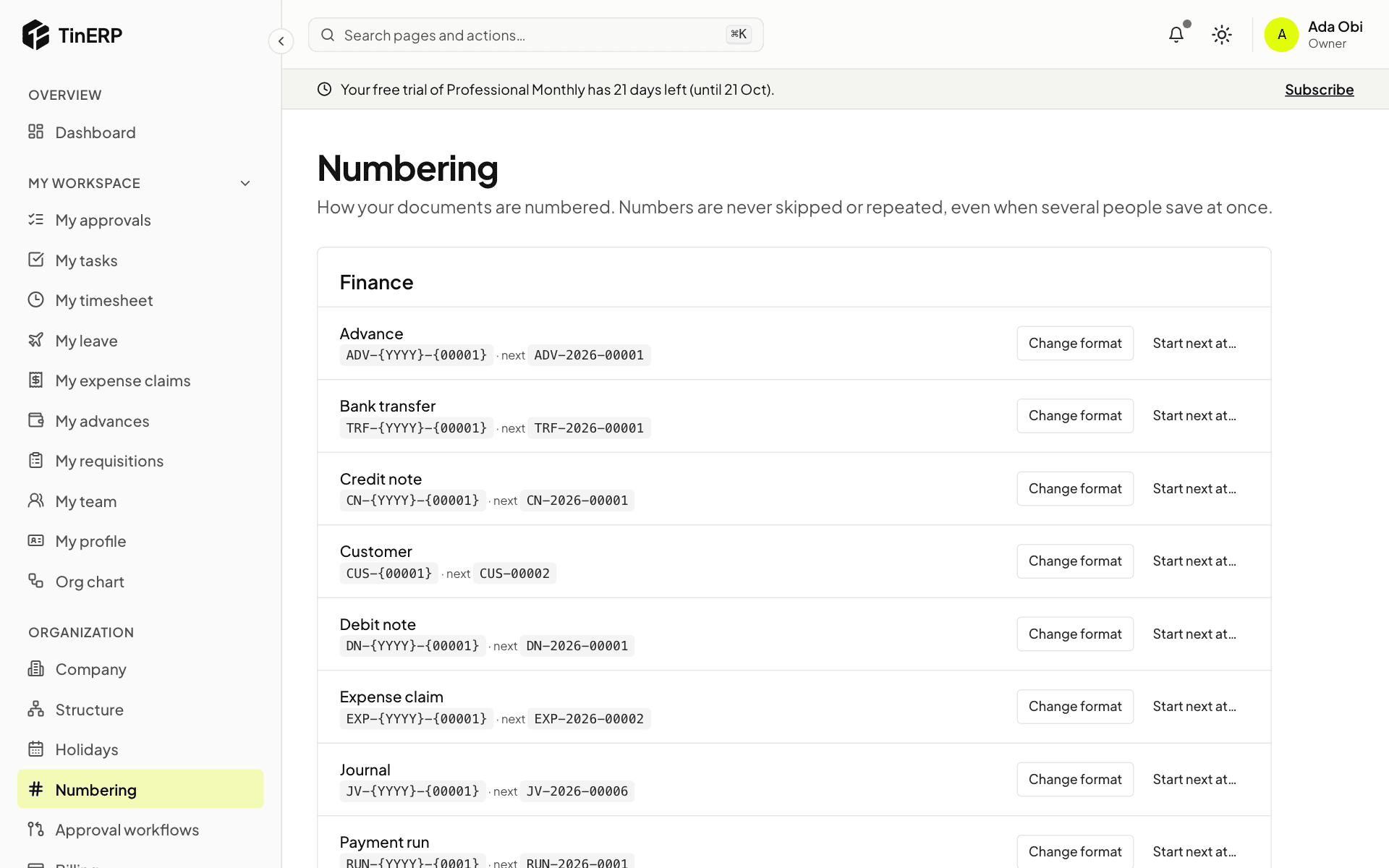
Go to Organization → Numbering. Each kind of document shows its format and the next number. Select Change format and build it from your own text and these parts: {YYYY} or {YY} for the year, {MM} the month, {FY} the financial year, {BRANCH} the branch code, and one counter such as {00001}. A preview shows the next number.
The counter starts again each year when the format includes the year, and counts separately for each branch when it includes {BRANCH}.
Full size
The Numbering page with each document's format, its next number, Change format and Start next at - 2
Carry on from your old system
Select Start next at… and enter the next number - for example 1043 if your last invoice was 1042. You can only move forward, so a number is never given twice.