Bills and payments
Bills are vendors' invoices. With Procurement, invoices approved there arrive here as posted bills by themselves; you enter other bills - rent, utilities, professional fees - directly.
- 1
Enter a bill
Go to Finance → Bills and start a new one: the vendor, their invoice number (TinERP refuses the same number twice for a vendor, so nothing is paid twice), the dates, and the lines with an expense or asset account and the VAT code.
Post it. To correct a posted bill, record a Debit note against it; Void is for one entered by mistake.
Full size
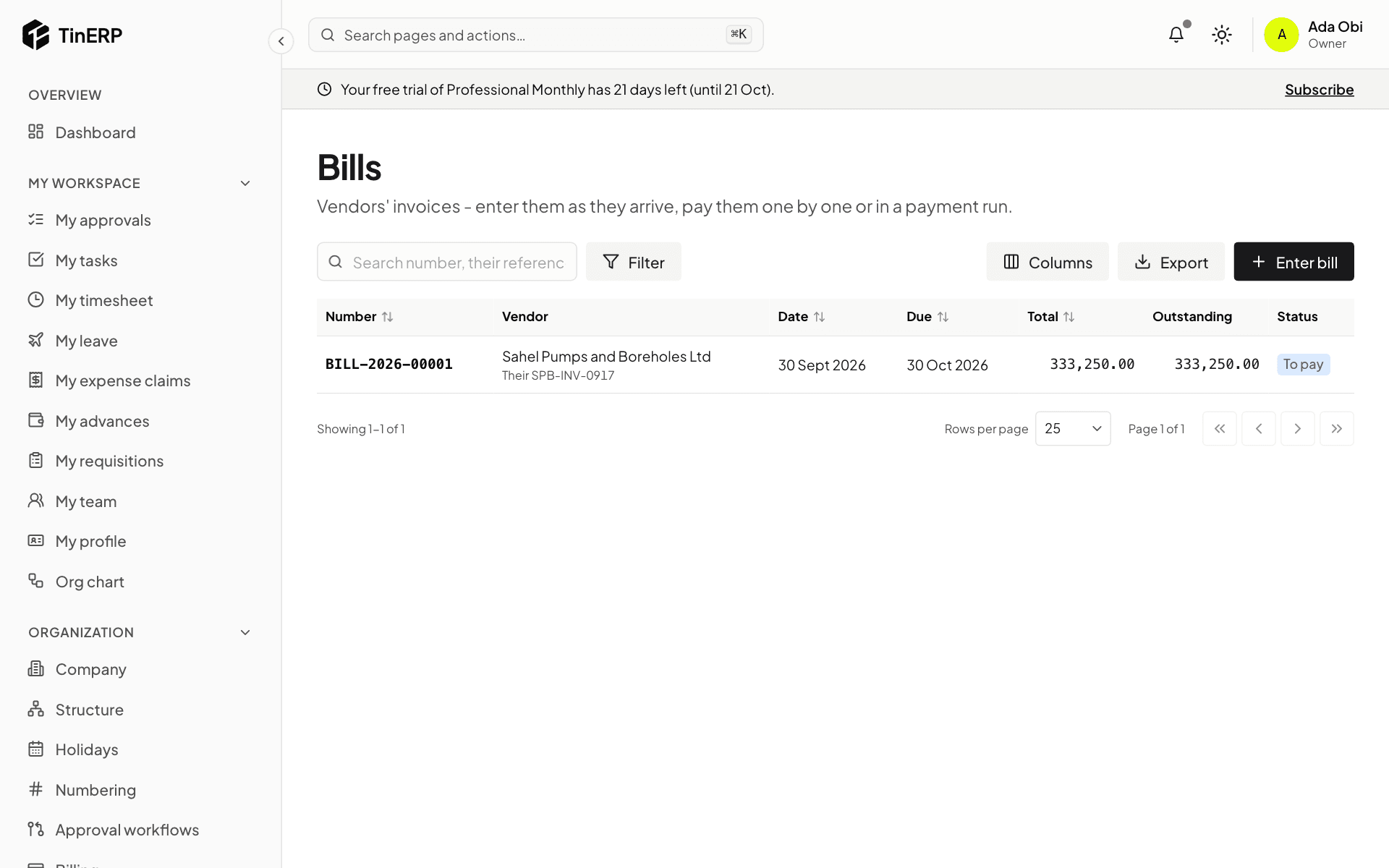
Bills: the pump parts bill that came from Procurement, posted and unpaid - 2
Pay a vendor
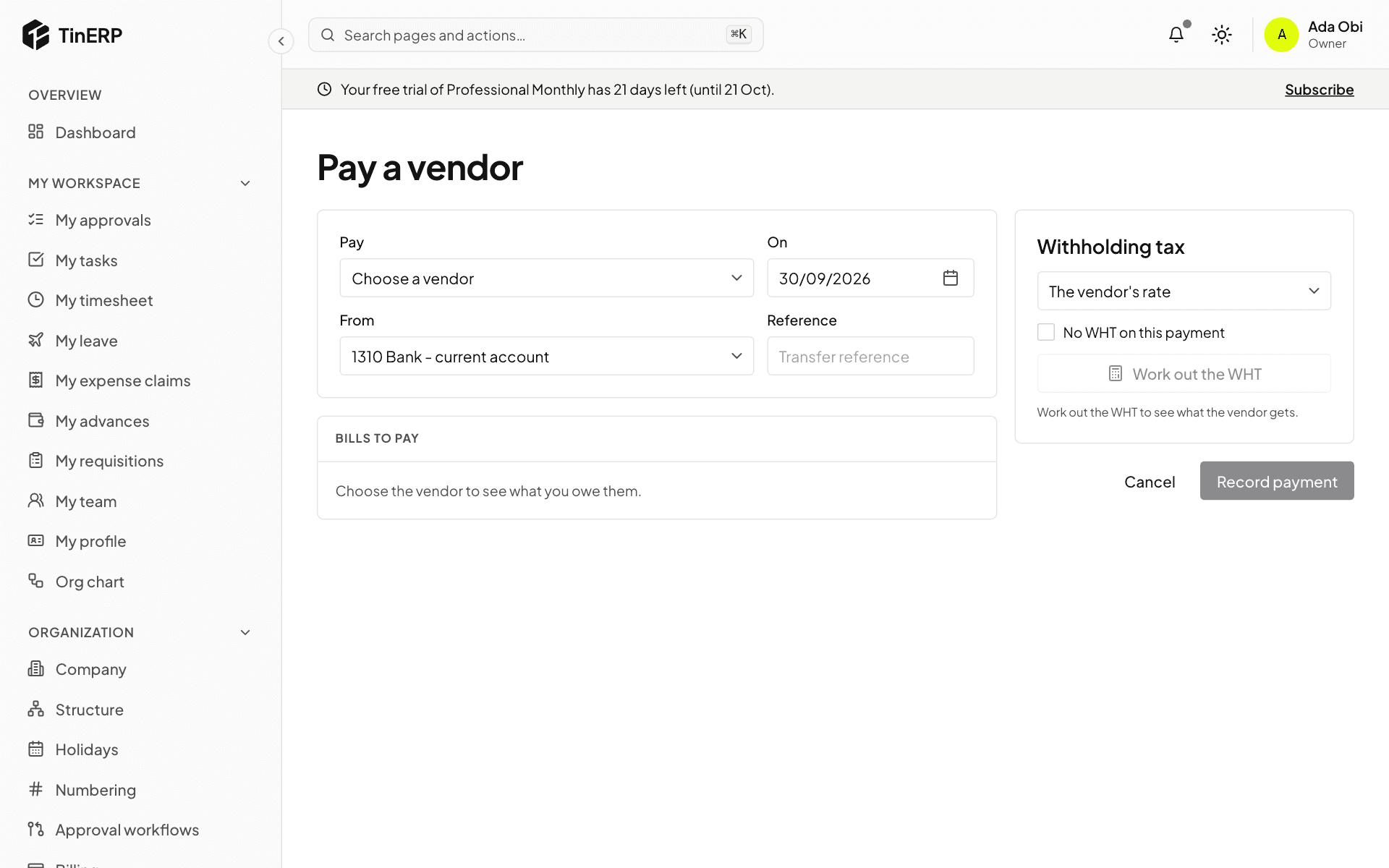
Go to Finance → Payments and pay a vendor: choose them, the date, the bank account and the transfer reference; their unpaid bills are listed - tick what this pays.
Select Work out the WHT: it's worked out on the amount before VAT at the vendor's rate, doubled if they have no TIN. You can change the rate, or tick No WHT on this payment and say why (an exemption certificate). Then Record payment.
Full size
Pay a vendor: vendor, date, bank account, bills to pay and the withholding tax Tip: A payment is held while a change to the vendor's bank details is waiting for approval - a common fraud is changing an account just before a payment.
- 3
Pay many at once
Finance → Payment runs takes every posted bill due by a date, with WHT per vendor, from one bank account. It goes for approval - never by whoever created it. Once approved, download the Bank file for your bank, and someone who neither created nor approved the run selects Execute to record the payments.
- 4
See what you owe
Finance → Aged payables shows what's owed to each vendor by how late it is; a vendor's page has their statement.