Budgets and grant budgets
A budget is what you plan to earn and spend each month. TinERP compares it with what's posted and what's committed, and can flag - or stop - spending that would go over.
- 1
Make a budget
Go to Finance → Budgets and select New budget: the financial year, a name (Original), and start from A blank grid, A copy of another budget or A year's actuals - raised by a percentage if you like. The year's first budget is active.
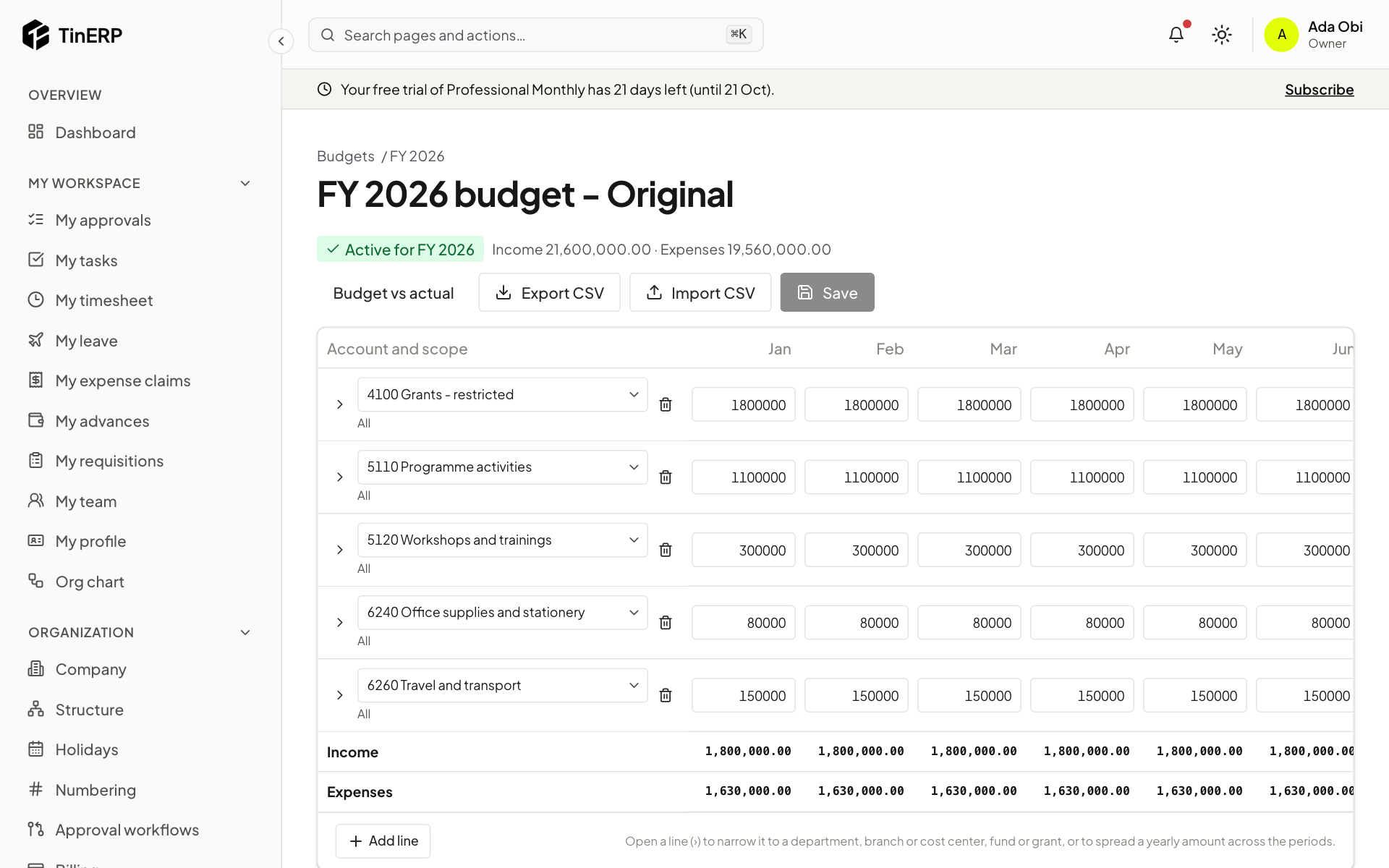
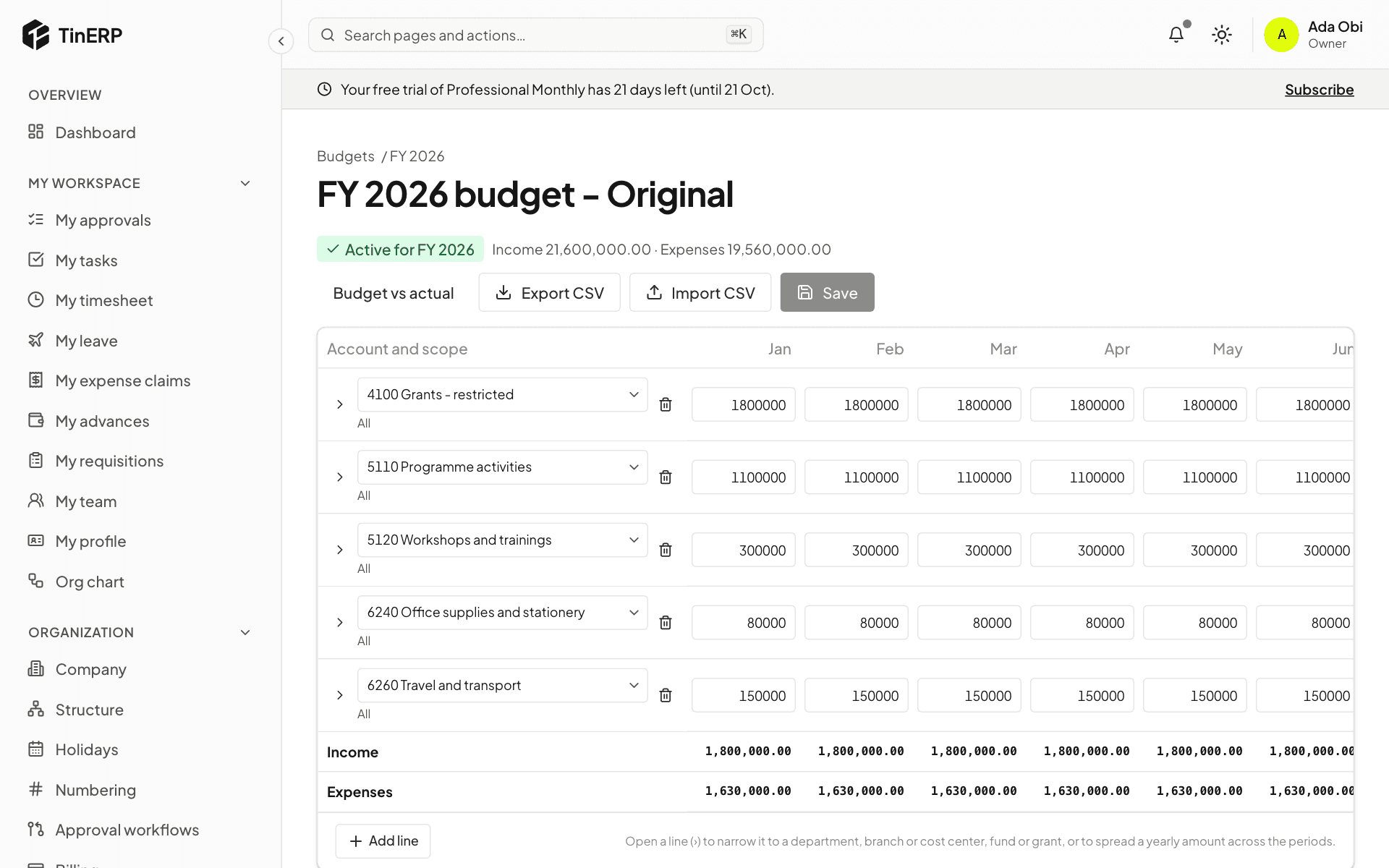
The grid has a line per income or expense account, with an amount for each month. Open a line (›) to narrow it to a department, branch, cost center, fund or grant, or to spread a yearly amount across the months. Save saves the whole grid; Export CSV and Import CSV work with a spreadsheet.
Full size
The FY 2026 budget grid: grant income, programme activities, trainings, office supplies and travel Tip: Later, make a Revised version and Make active when it's agreed - the old one stays for comparison.
- 2
Compare with what's spent
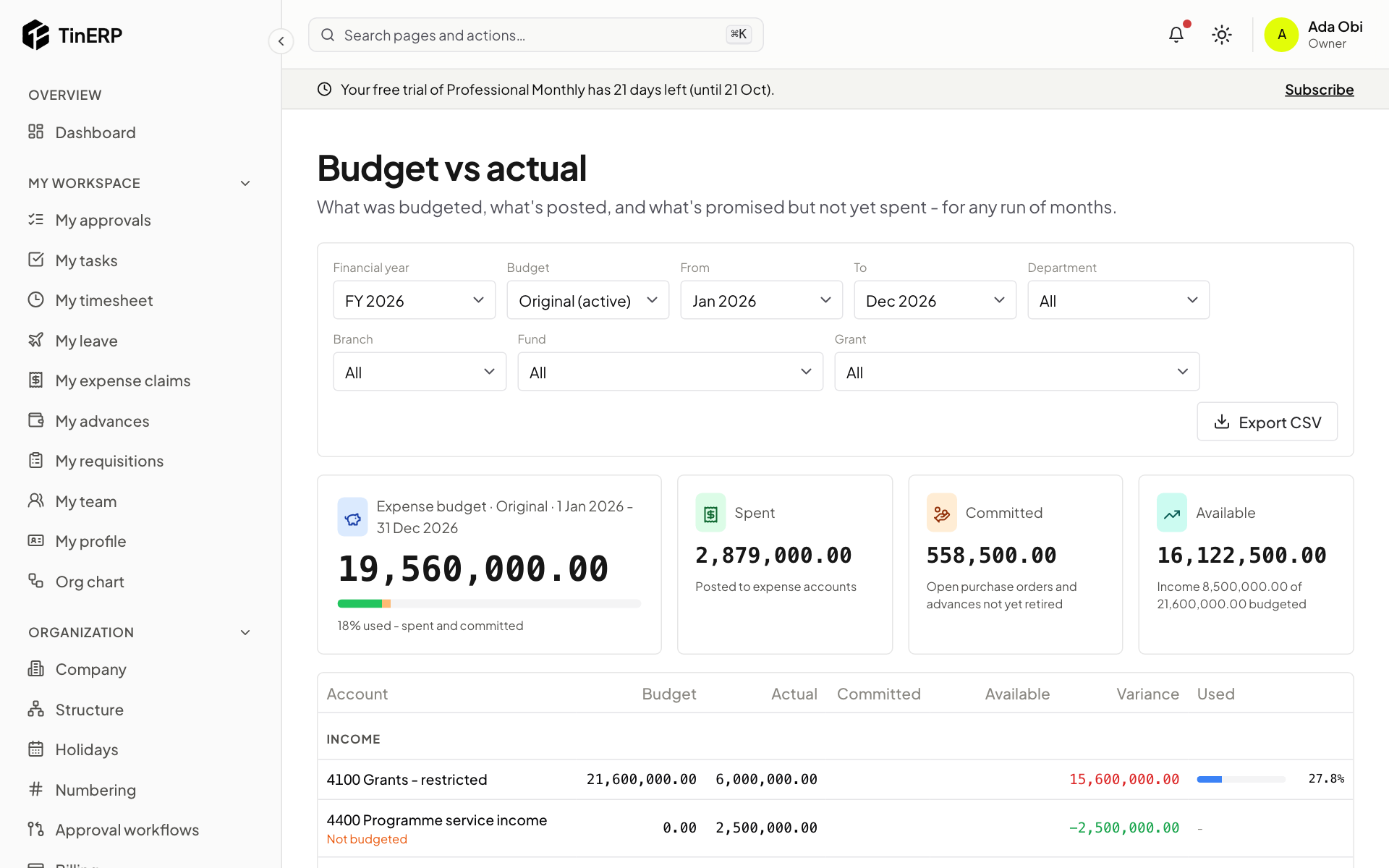
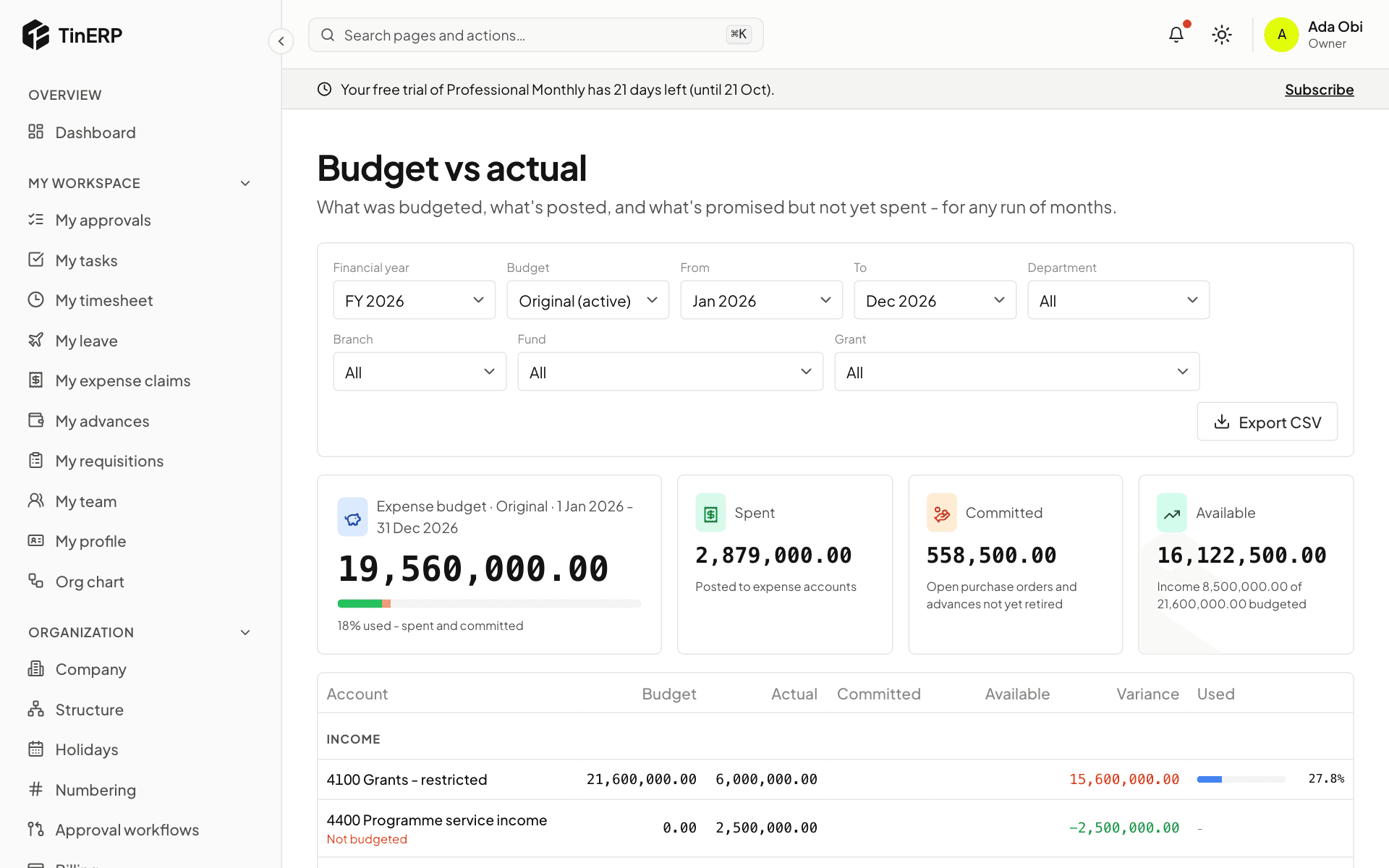
Finance → Budget vs actual shows, for any run of months, each line's budget, what's posted (Actual), what's Committed - open purchase orders and advances not yet retired - what's Available, and how much is used. Accounts with spending but no budget line show as Not budgeted.
Full size
Budget vs actual for FY 2026: the expense budget, spent, committed and available - 3
Choose budget control
On the Budgets page, Budget control decides what happens when a claim, advance or purchase order would spend more than is left: Off (nothing), Warn (it goes ahead, marked over budget for the approver - approval rules can route those to someone else), or Block (it can't be submitted). Accounts with no budget line aren't checked.
- 4
NGOs: follow each grant's budget
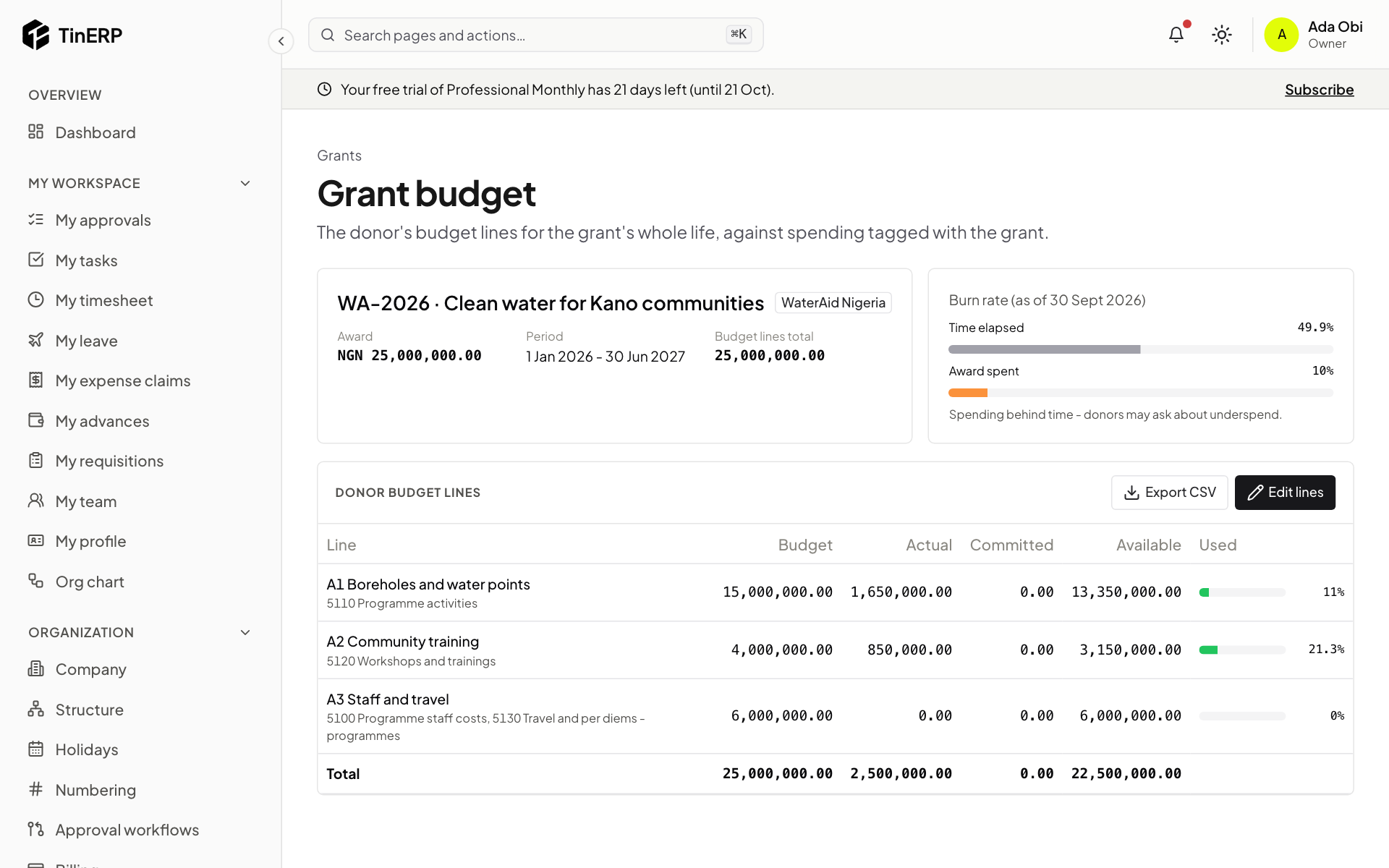
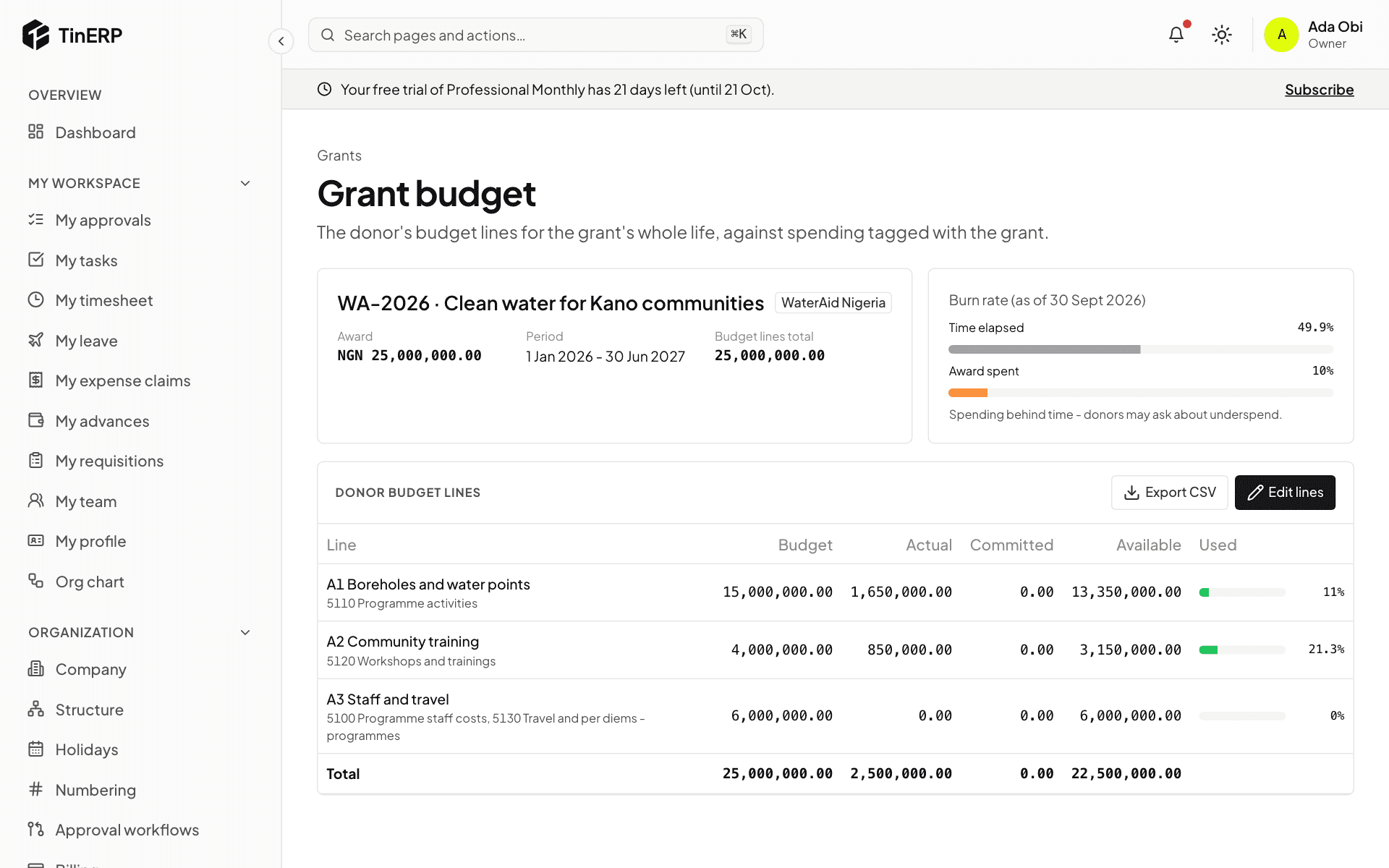
From Finance settings → Grants, open a grant's donor budget and select Edit lines: the donor's own lines, each with the expense accounts that count against it. The page shows each line's actual, committed and available, spending on the grant outside the lines, and the burn rate - time elapsed against the award spent. Export CSV for the donor report.
Full size
The WaterAid grant budget: three donor lines, and the burn rate