
Manage users
A user is someone who can sign in to TinERP. That isn't the same as an employee record in HR: a driver can be an employee who never signs in, and an outside accountant can sign in without being an employee. To invite someone, see Set up your organization.
- 1
See who can sign in
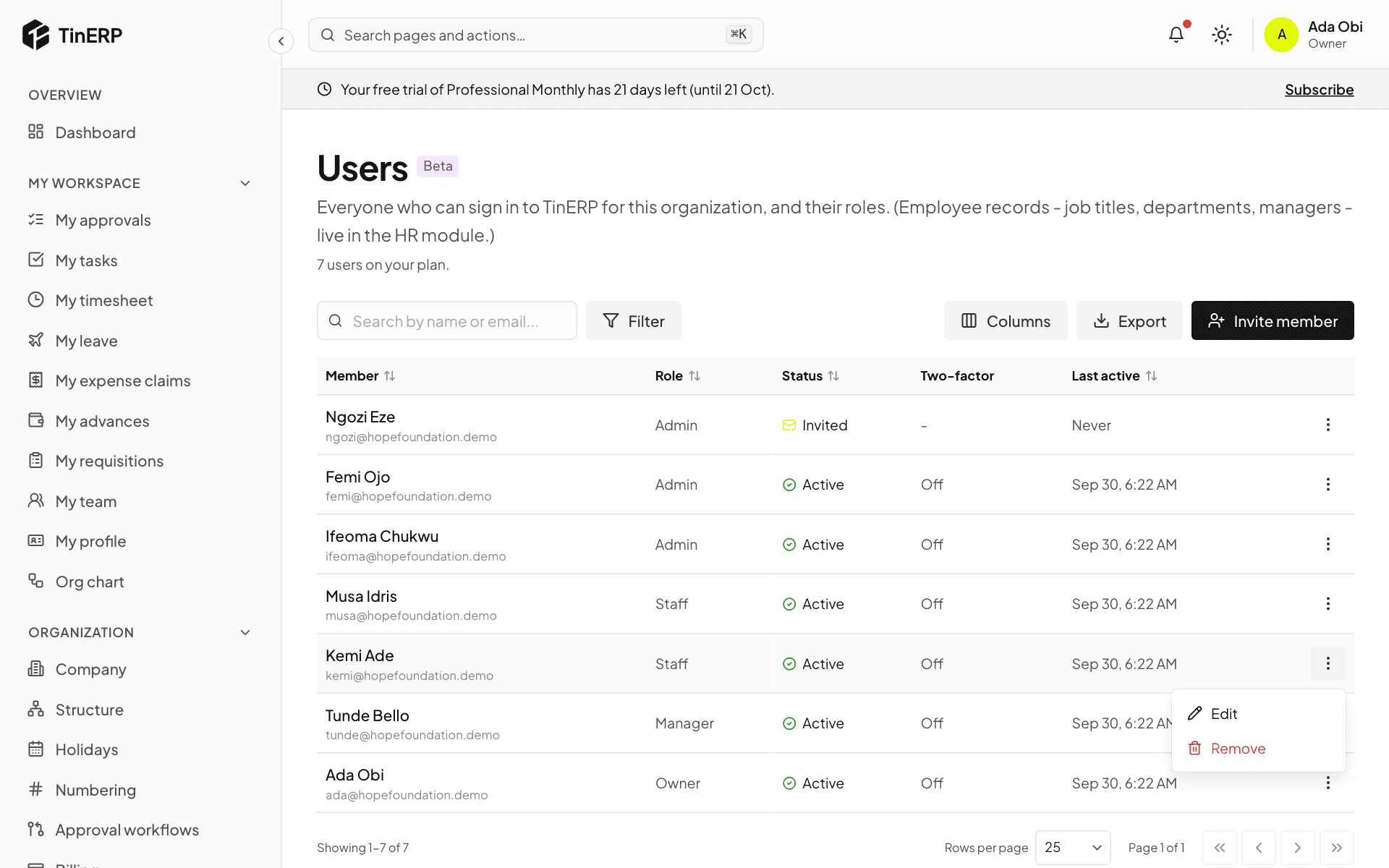
Go to Access & security → Users. The table shows each person's role, their status (Active, Invited or Suspended), whether they use two-factor sign-in, and when they were last active. The line under the title shows how many users your plan includes.
Open the menu at the end of a row for what you can do: Edit and Remove for everyone; Resend invite for someone who hasn't joined yet; Reset two-factor for someone who uses it.
Full size
The Users page with the menu open on Kemi's row, showing Edit and Remove - 2
Change a role, or suspend someone
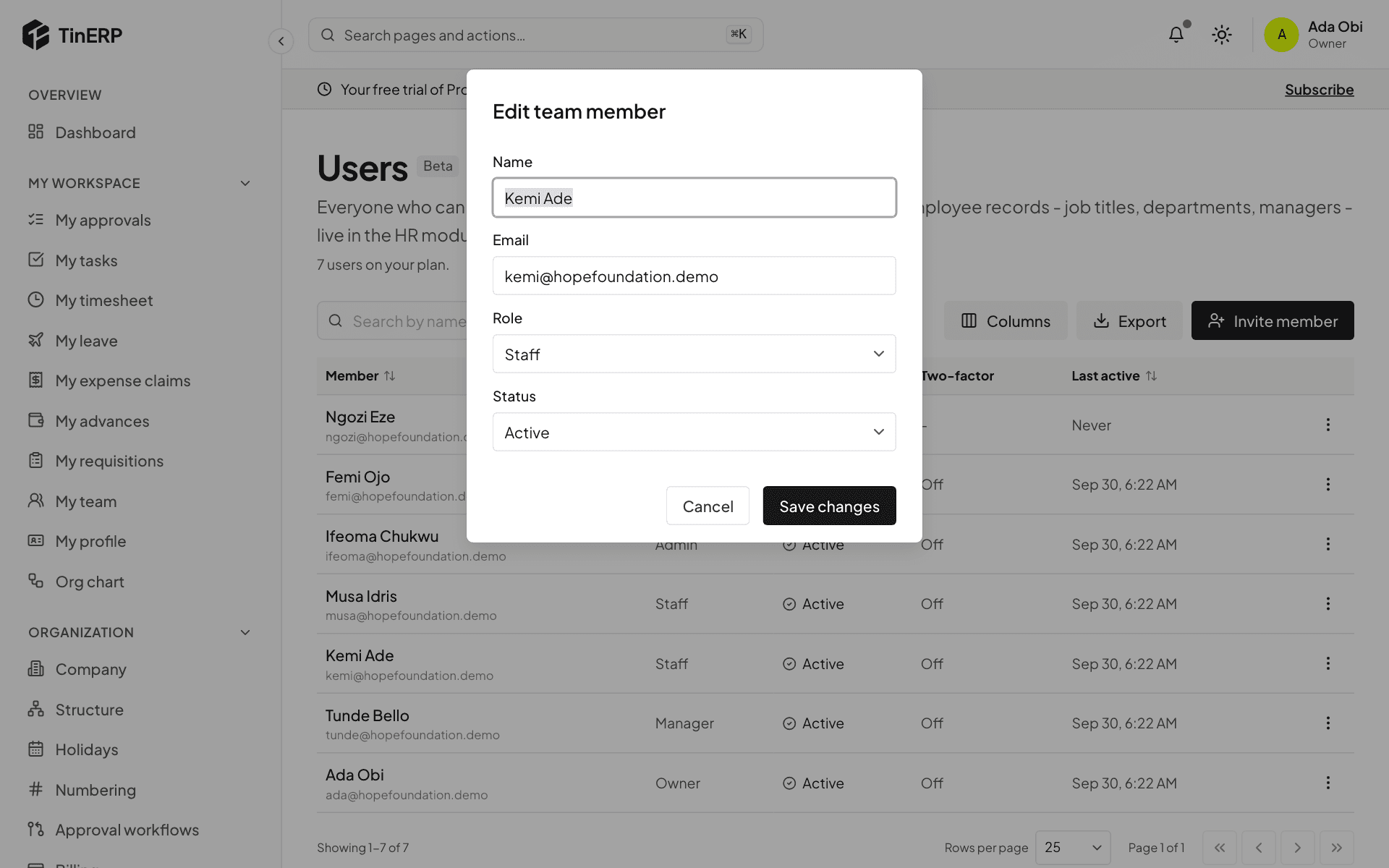
Choose Edit. Pick their new Role - it applies straight away, and they're told.
To stop someone signing in without removing them, set Status to Suspended; set it back to Active to let them in again. Select Save changes.
Full size
The Edit team member window with name, email, role and status - 3
Help someone who lost their phone
If someone can't sign in because they've lost the phone with their authenticator app, choose Reset two-factor. It turns their two-factor sign-in off and signs them out. They then sign in with their password and set it up again on their new phone - straight away, if your organization requires it.
You can't reset your own, and only an owner can reset another owner's.
- 4
Remove someone
Choose Remove to take away their access for good. The audit log keeps what they did. If they might come back, suspend them instead.
Questions
Do I need to remove people who leave?
Not if HR records their exit: on their last day, their login is suspended and they're signed out everywhere.
Why can't I give someone a particular role?
Nobody can give more than they have. You can only give roles whose permissions you have yourself.