Find and run a report
Reports → Report library lists every report you can run, from each module in your plan. What any report shows follows your own access - a manager sees their department, HR everyone.
- 1
Find a report
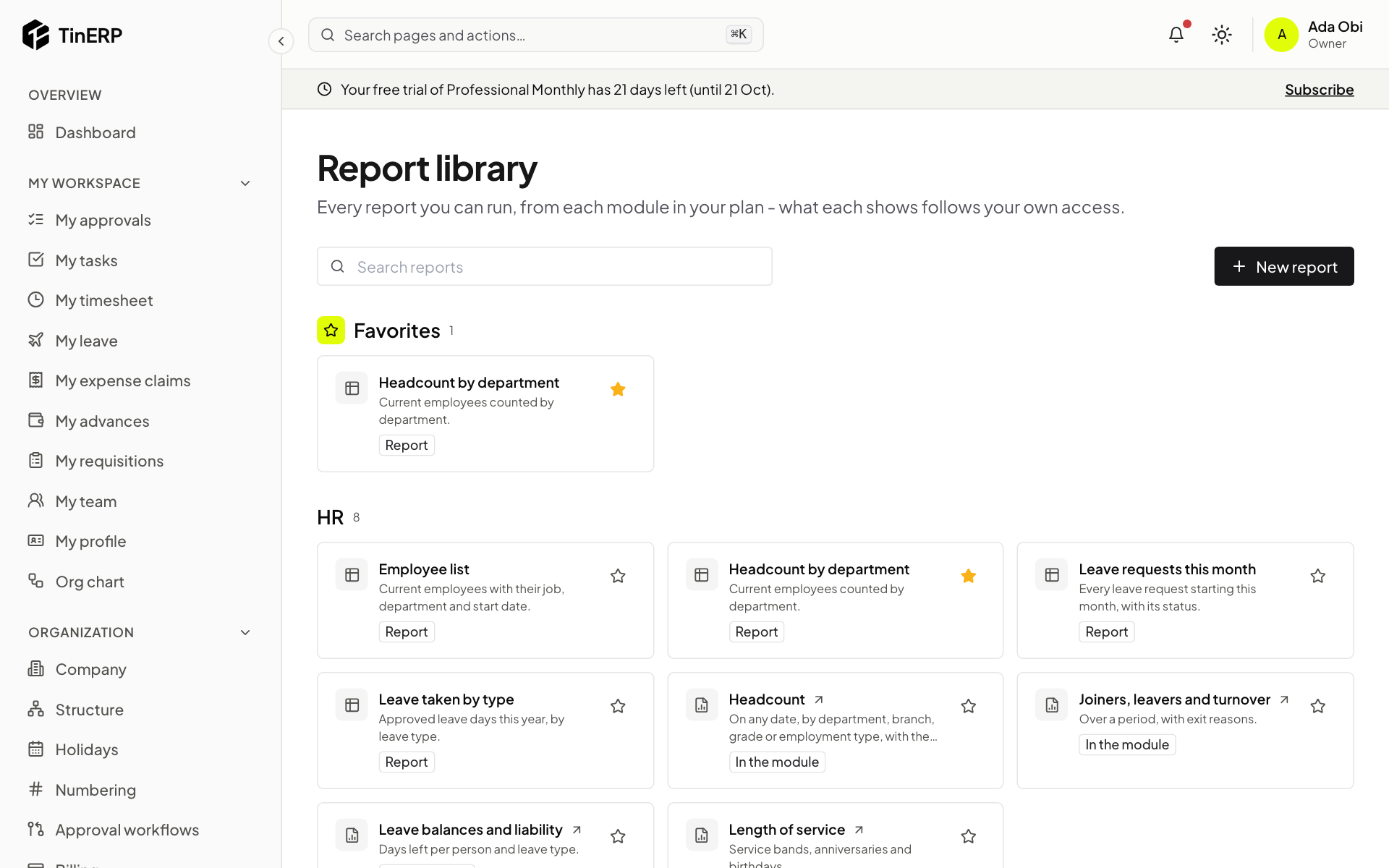
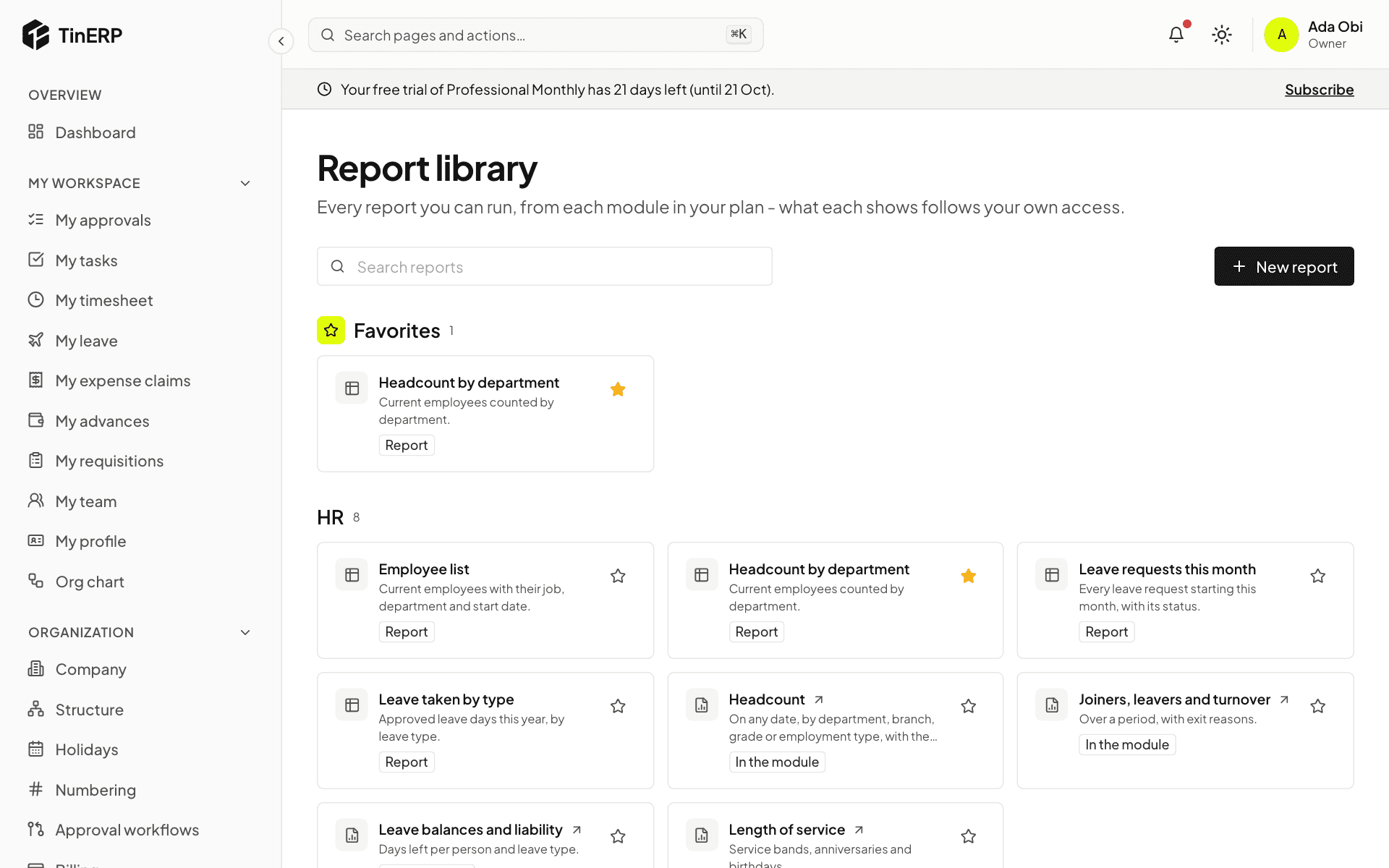
Go to Reports → Report library. Reports are grouped by module, with your Favorites at the top. Search by name.
Most open here. Those marked In the module - HR reports, the financial statements, aged receivables and others - open in their own module. Select the star to make any report a favorite.
Full size
The report library: a favorite at the top, then HR's reports - 2
Run it your way
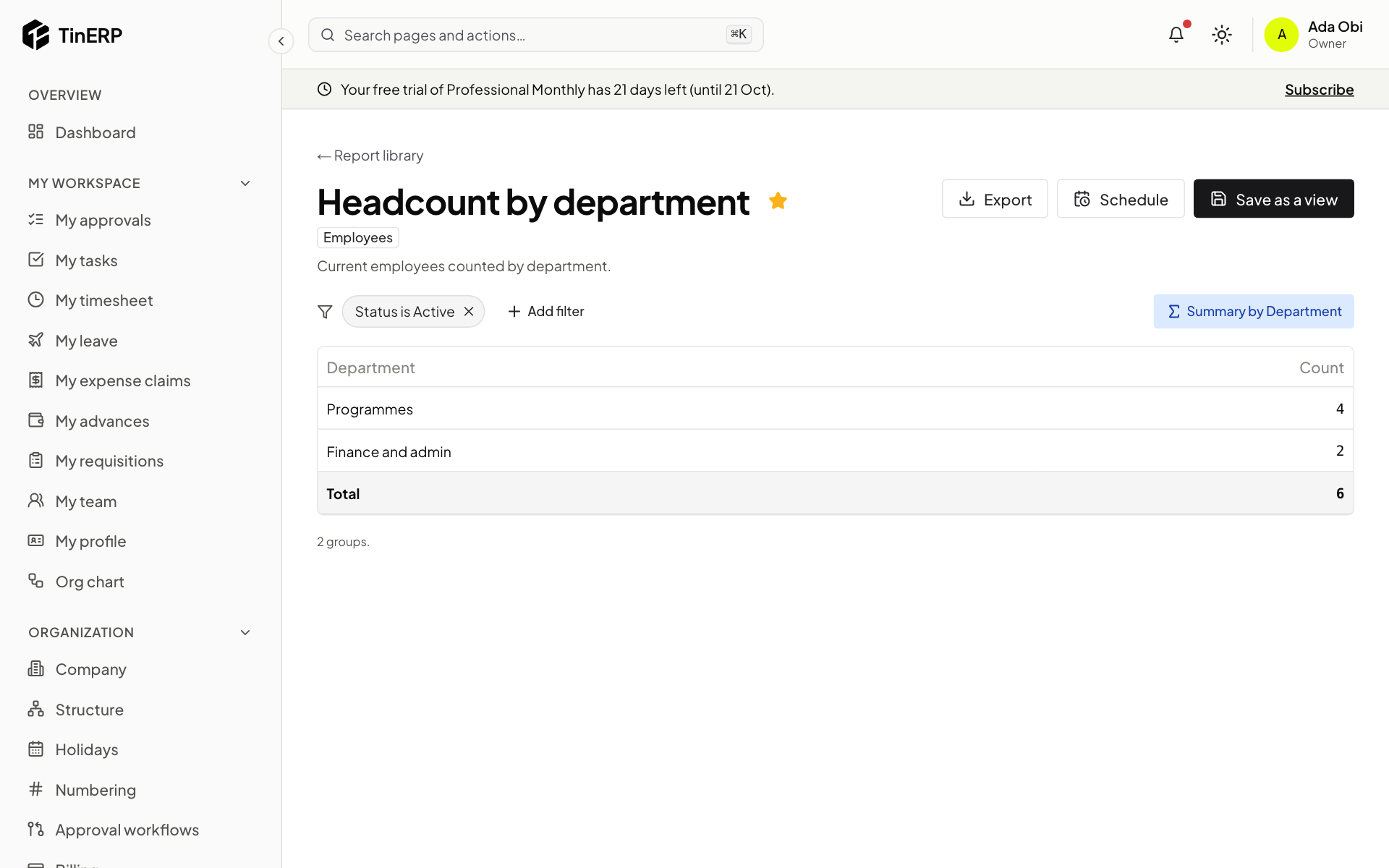
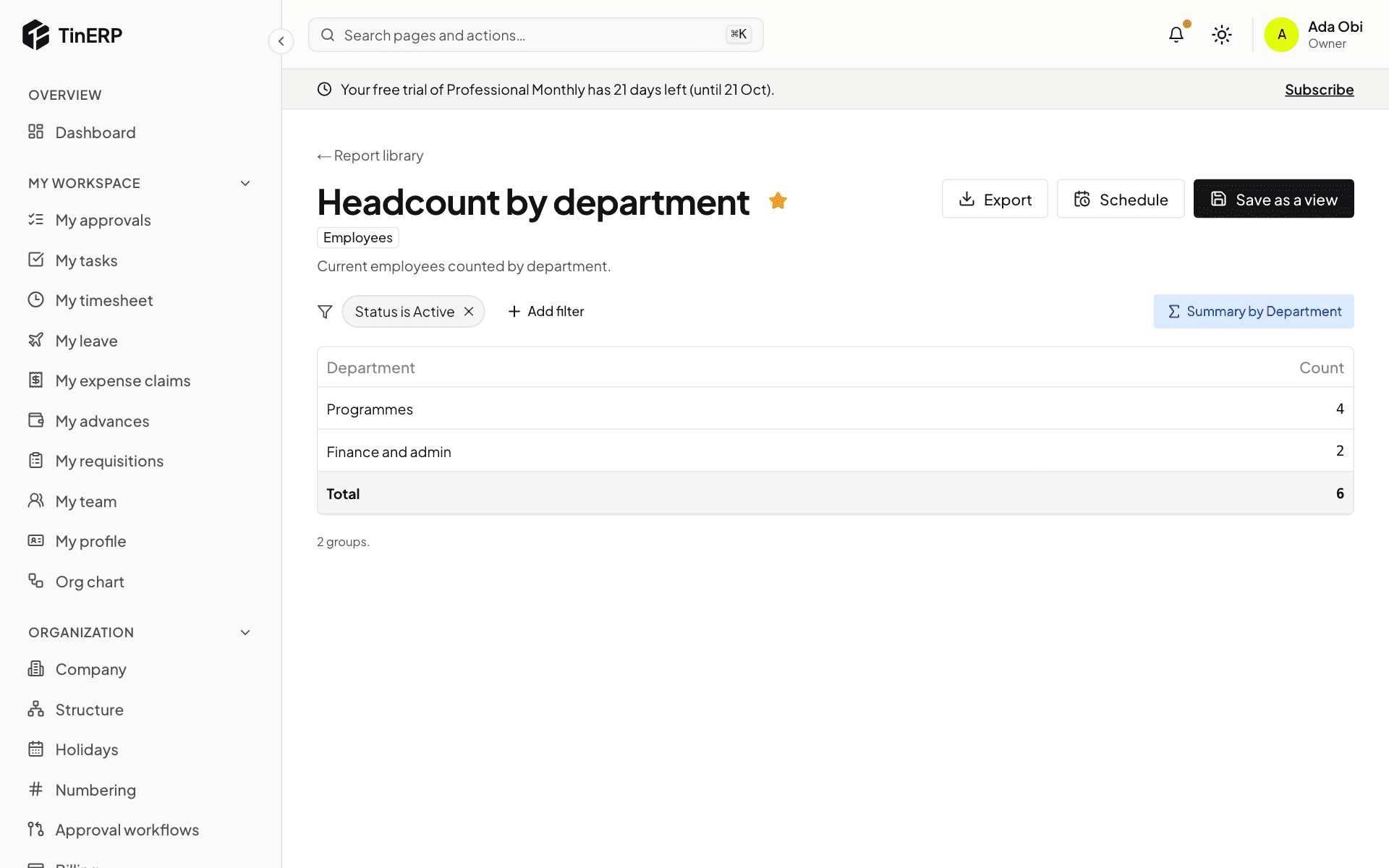
Open a report. The chips at the top are its filters - remove one, or Add filter on any field: a value, a range, text it contains, or a relative period such as this month or last quarter, which moves with the calendar.
Choose the columns to show and sort by any column. Totals cover every matching row, even when the screen shows the first 1,000. Select a row to open its record.
Full size
The Headcount by department report, with its filter, Export, Schedule and Save as a view - 3
Export it
Select Export: CSV for anyone; Excel - numbers and dates stay numbers and dates, with a totals row - and PDF on your letterhead need the export permission. A very large report is made in the background: you're told when it's ready, and it's waiting in Reports → My report files for 7 days.
Tip: Every export is recorded in the audit log - who, which report, which filters.