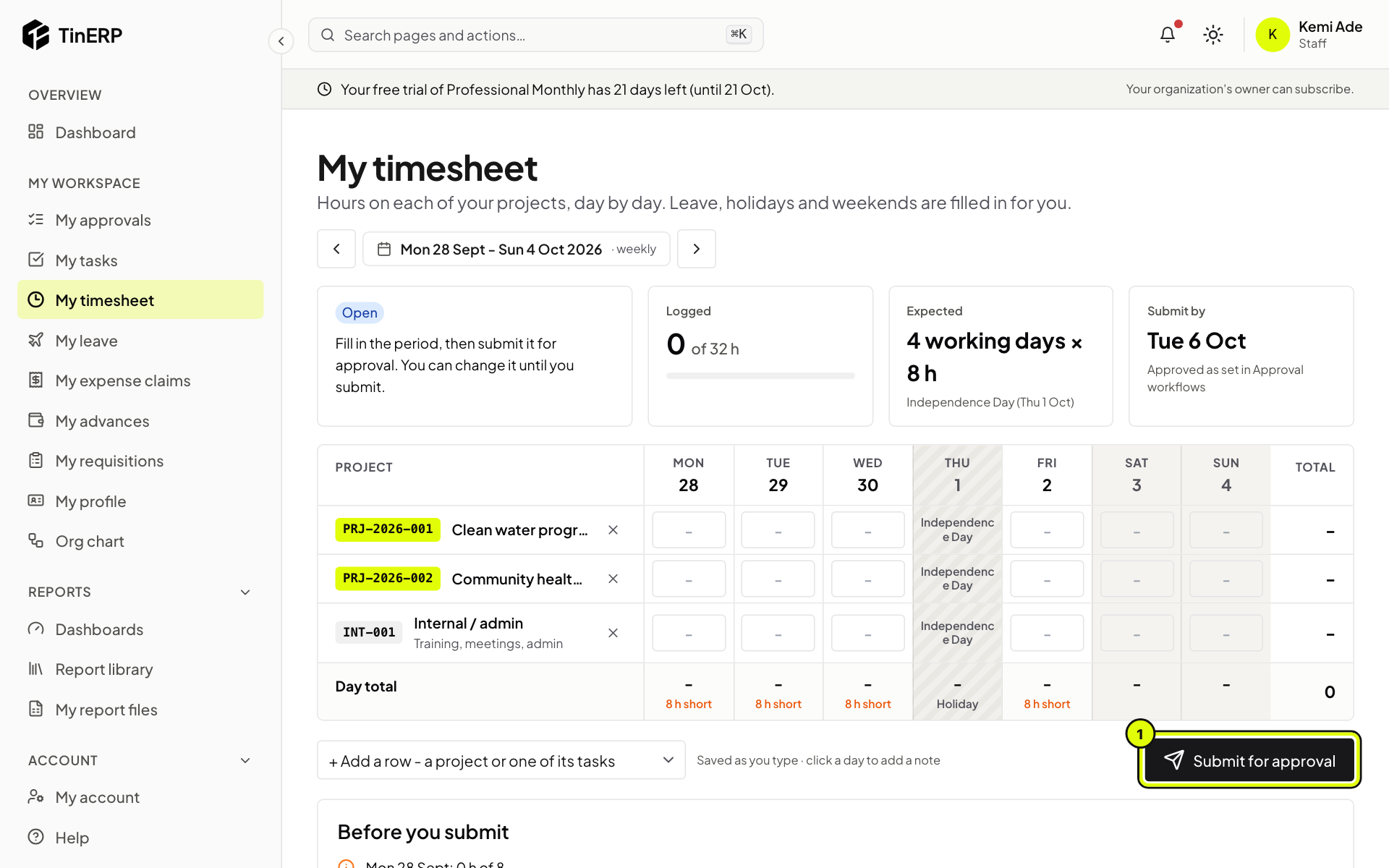
Fill in your timesheet
Your timesheet covers a period your organization chooses - usually a week. Leave, holidays and weekends are already filled in.
- 1
Enter your hours
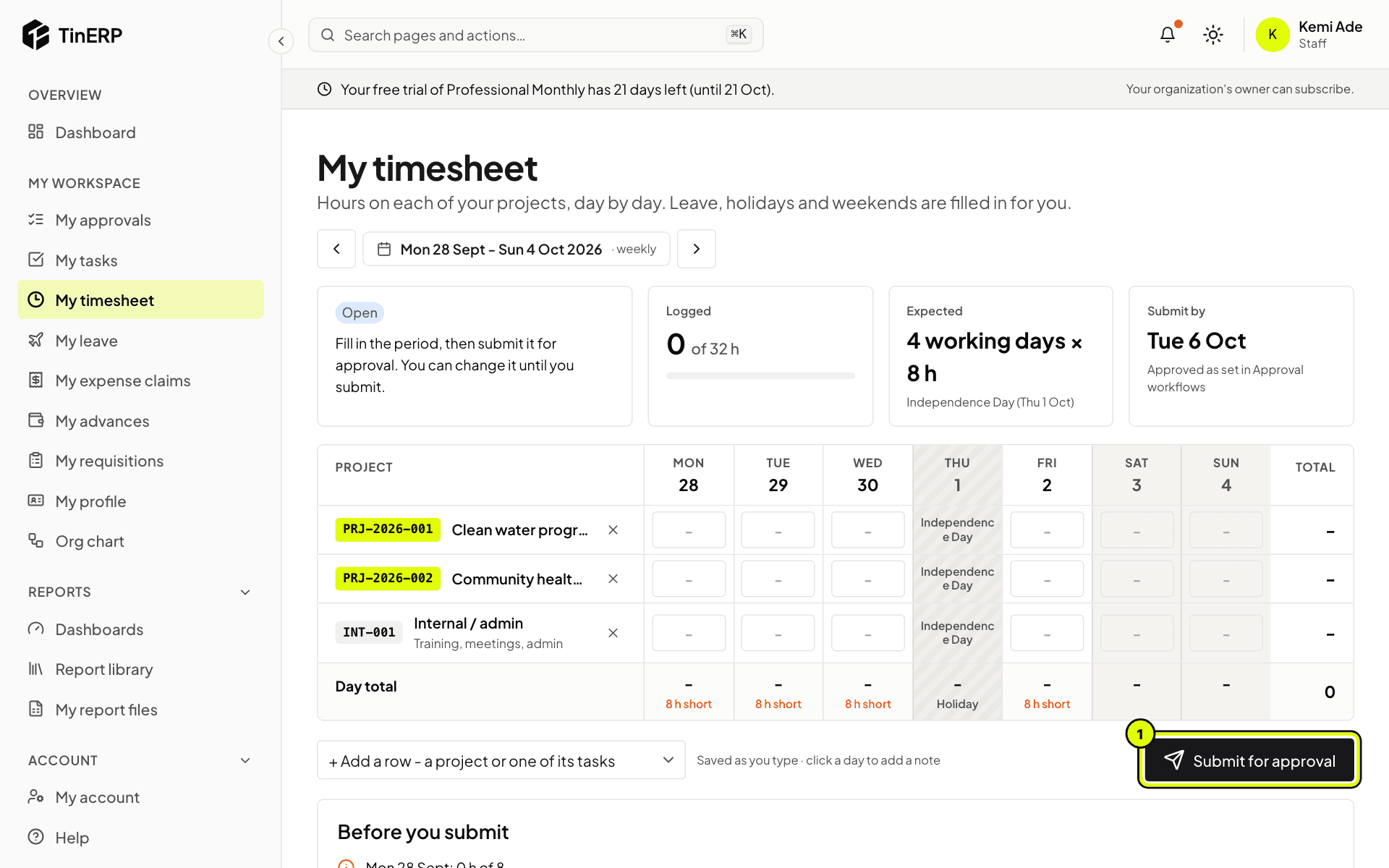
Go to My workspace → My timesheet. Your projects are listed as rows; type the hours for each day. Use Add a row for another project or one of its tasks.
It saves as you type. The totals show how you compare with the expected hours, and Before you submit points out anything to check.
Full size
My timesheet for the week, with Independence Day filled in and Submit for approval marked 1 - 2
Submit it
When the period is done, select Submit for approval (1). It's locked while it waits; if it's sent back, change it and submit again.
Tip: The deadline is shown under Submit by. Late timesheets are marked late.