Keep employee records up to date
Everything about an employee is on their page. Changes to their job are kept as history, each with the date it took effect - nothing is overwritten.
- 1
Open their page
Go to HR → Employees and select the person. Their page shows their job, employment dates, login, personal details, leave, checklists and job history.
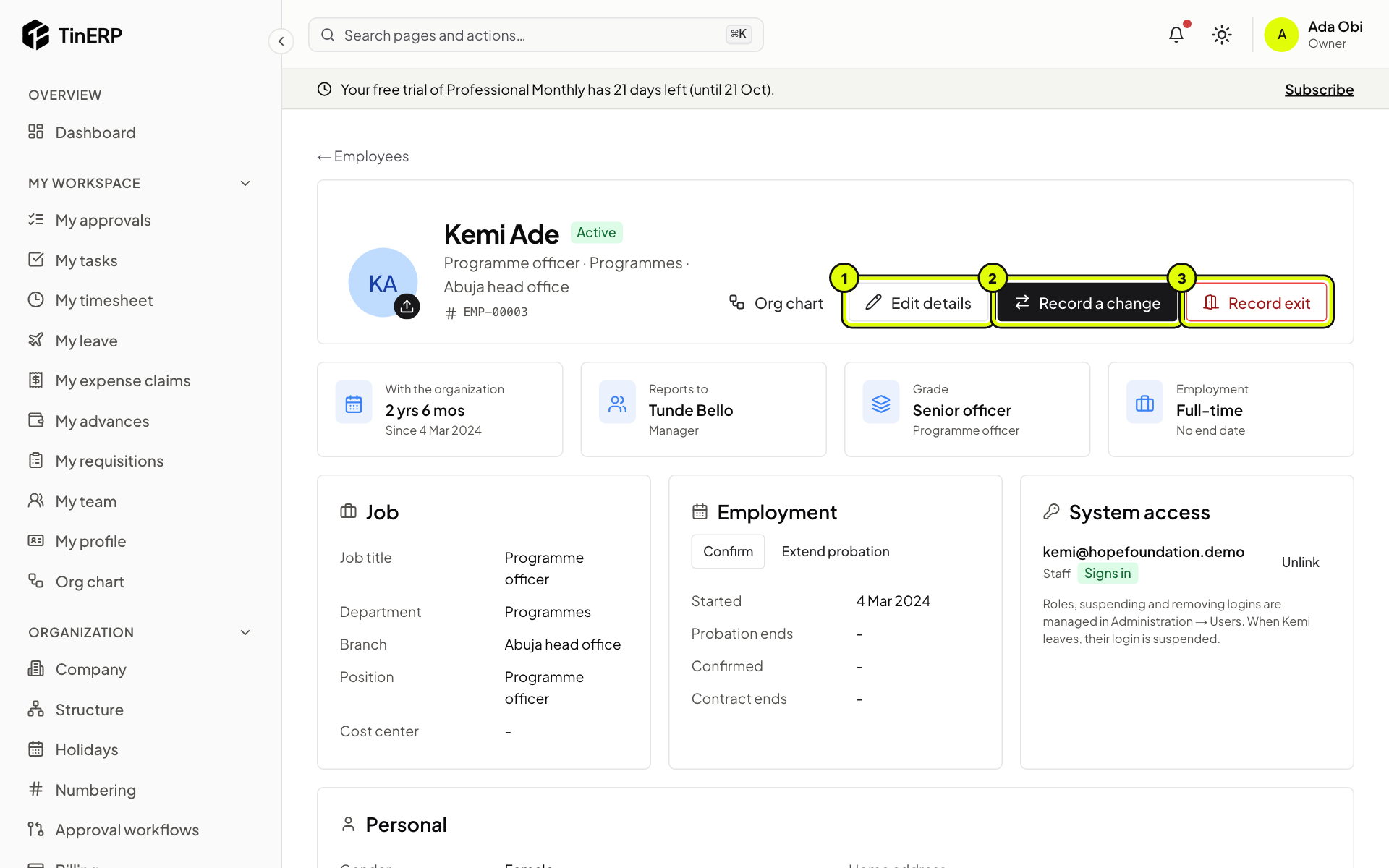
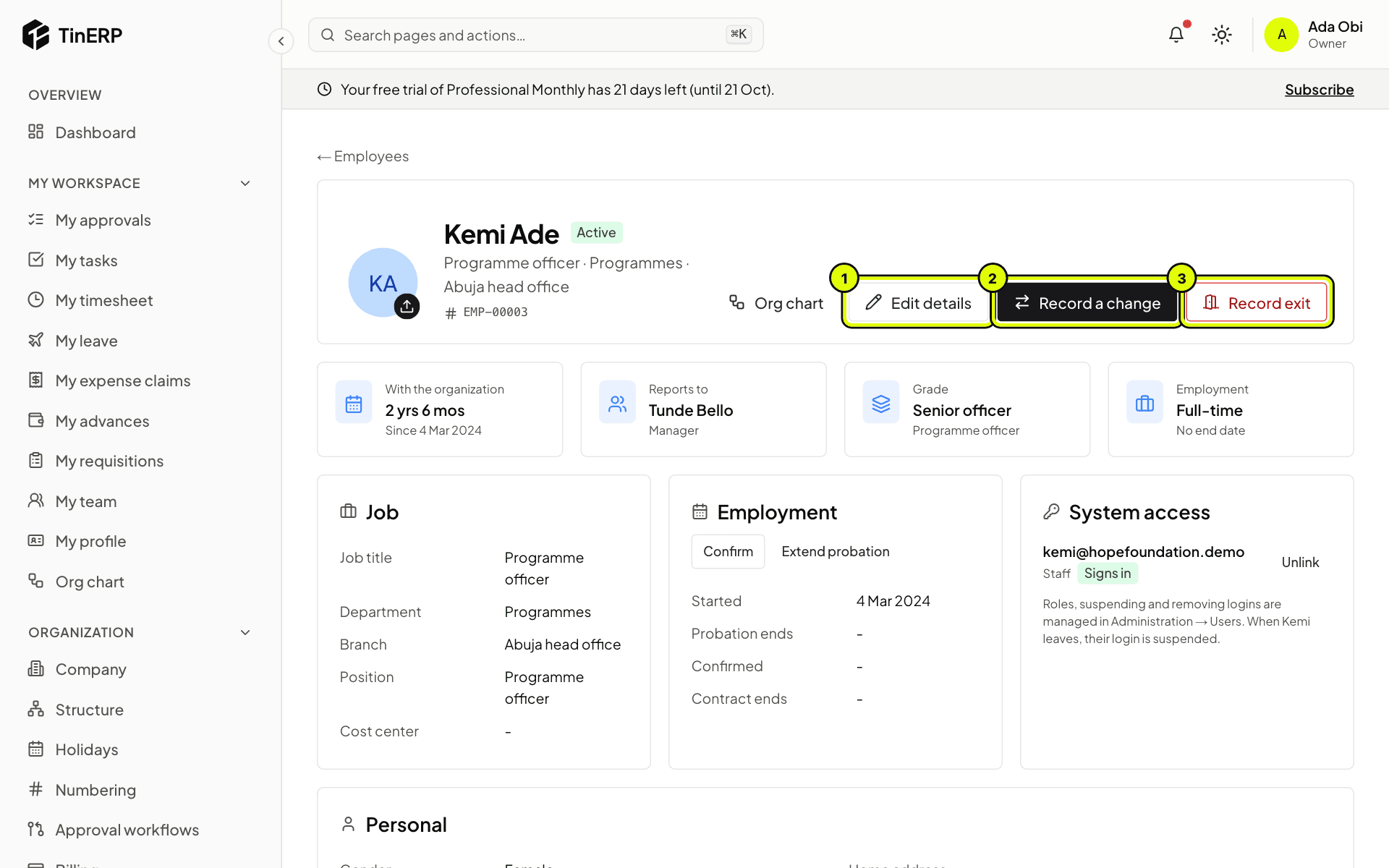
Edit details (1) corrects personal details. Record a change (2) is for their job. Record exit (3) is for when they leave.
Full size
Kemi's employee page, with Edit details, Record a change and Record exit marked 1 to 3 - 2
Record a promotion, transfer or new manager
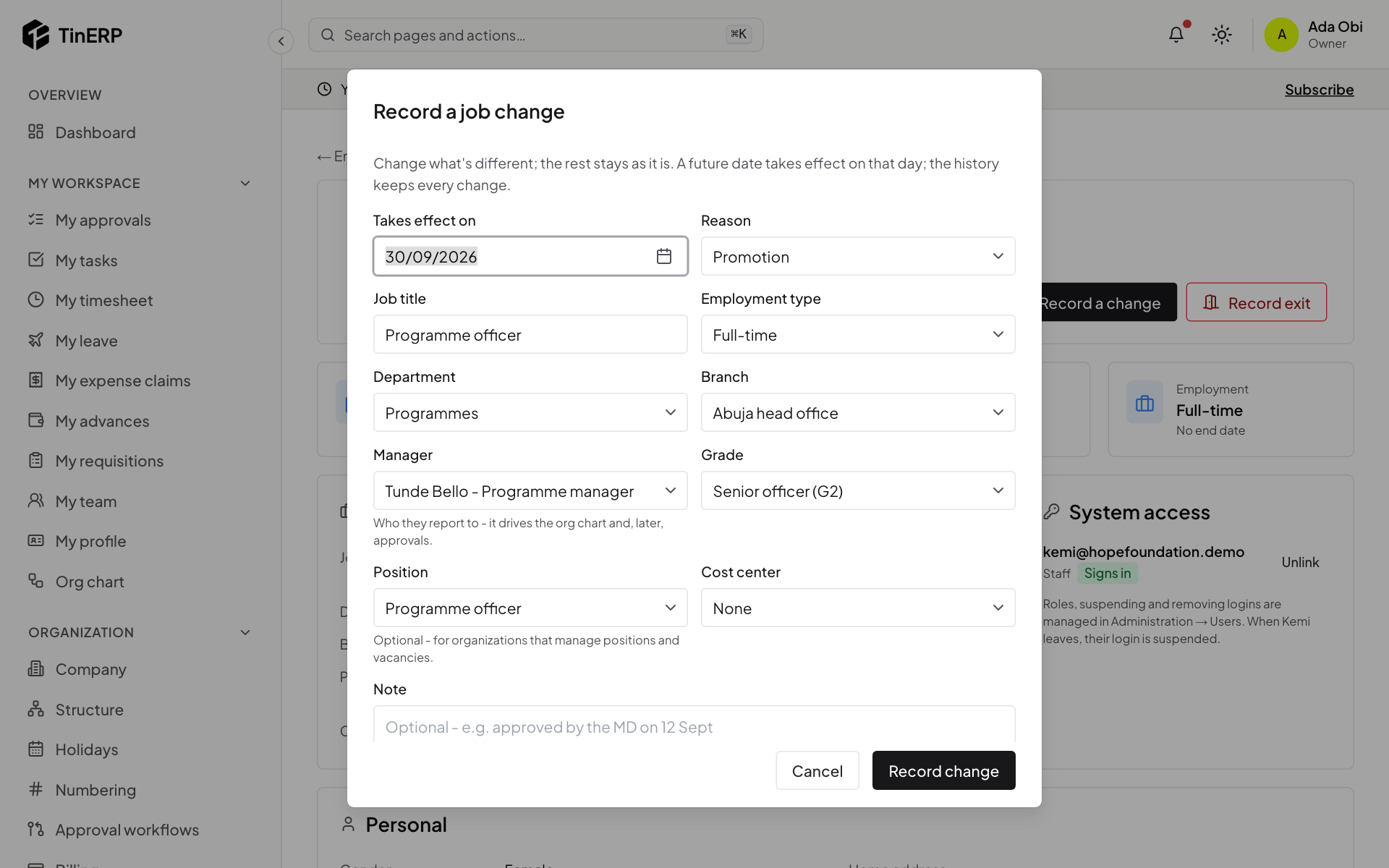
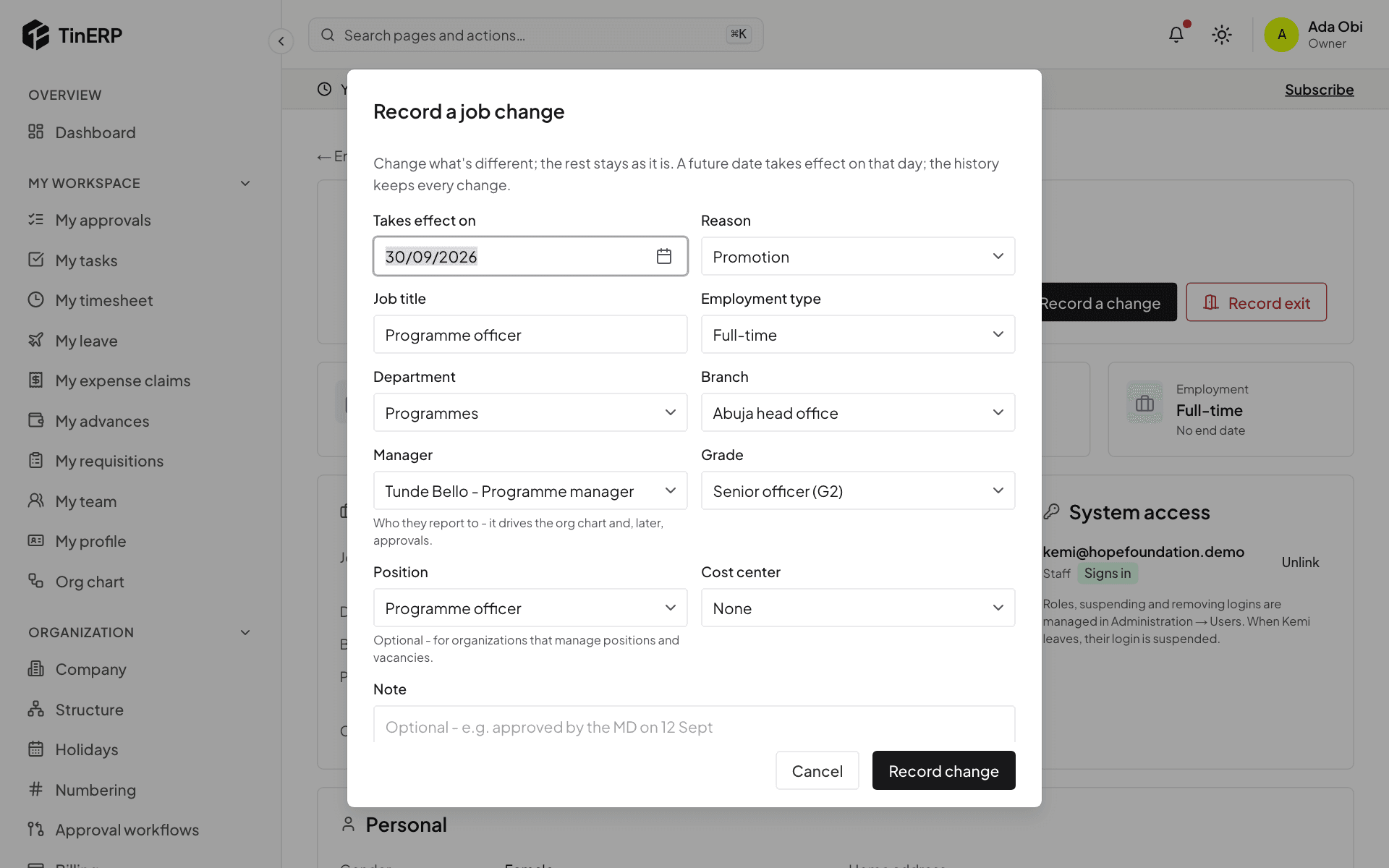
Select Record a change. Change only what's different - job title, department, branch, manager, grade, position or employment type - then choose the date it takes effect and the reason, such as a promotion or transfer.
A future date takes effect on that day. The job history keeps every change.
Full size
The Record a job change window with the job fields, the date it takes effect and the reason - 3
Confirm or extend probation
Under Employment, select Confirm when someone passes probation, or Extend probation to set a later end date. HR and their manager are reminded 14 days before probation ends.
- 4
Contacts, bank details and documents
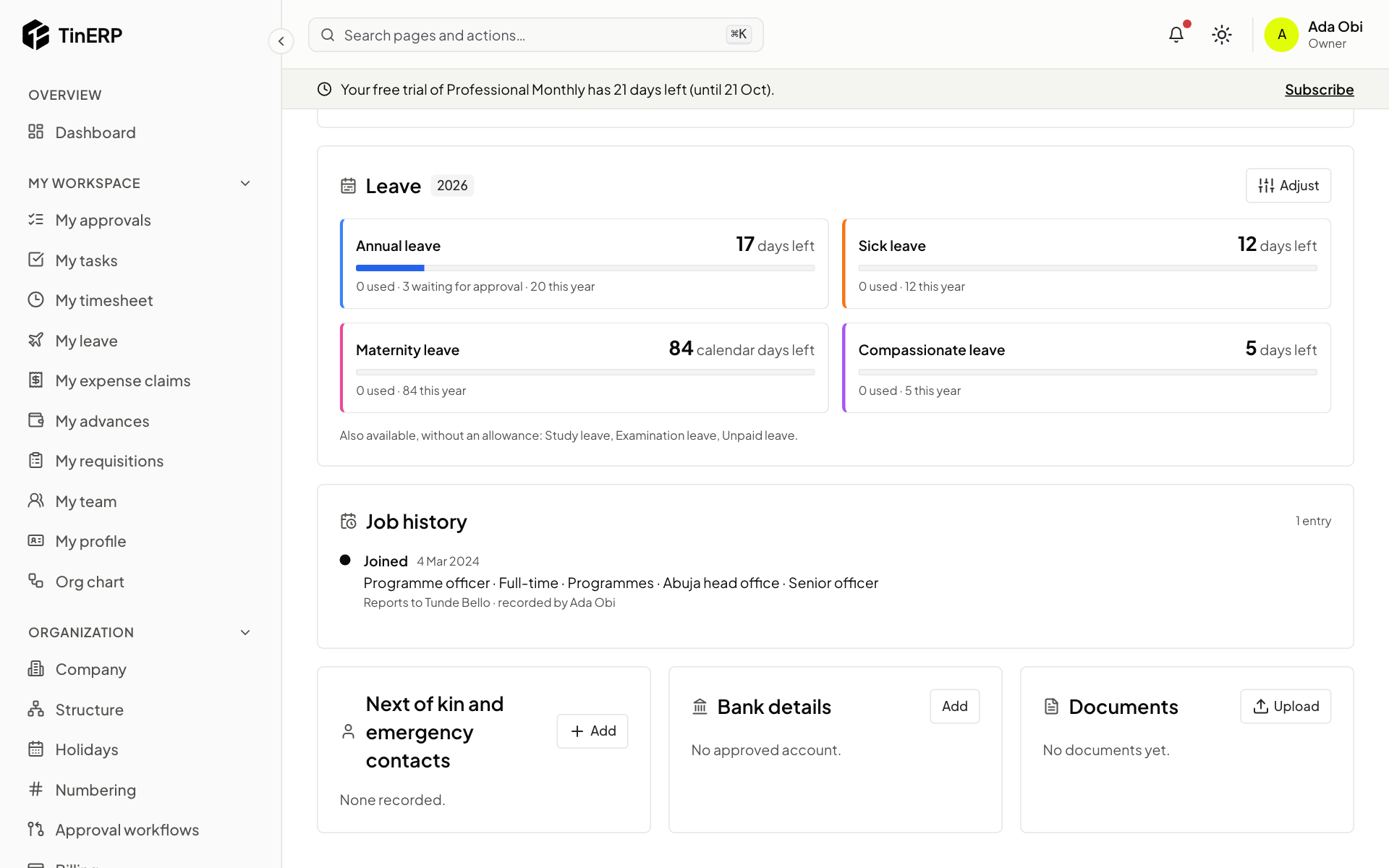
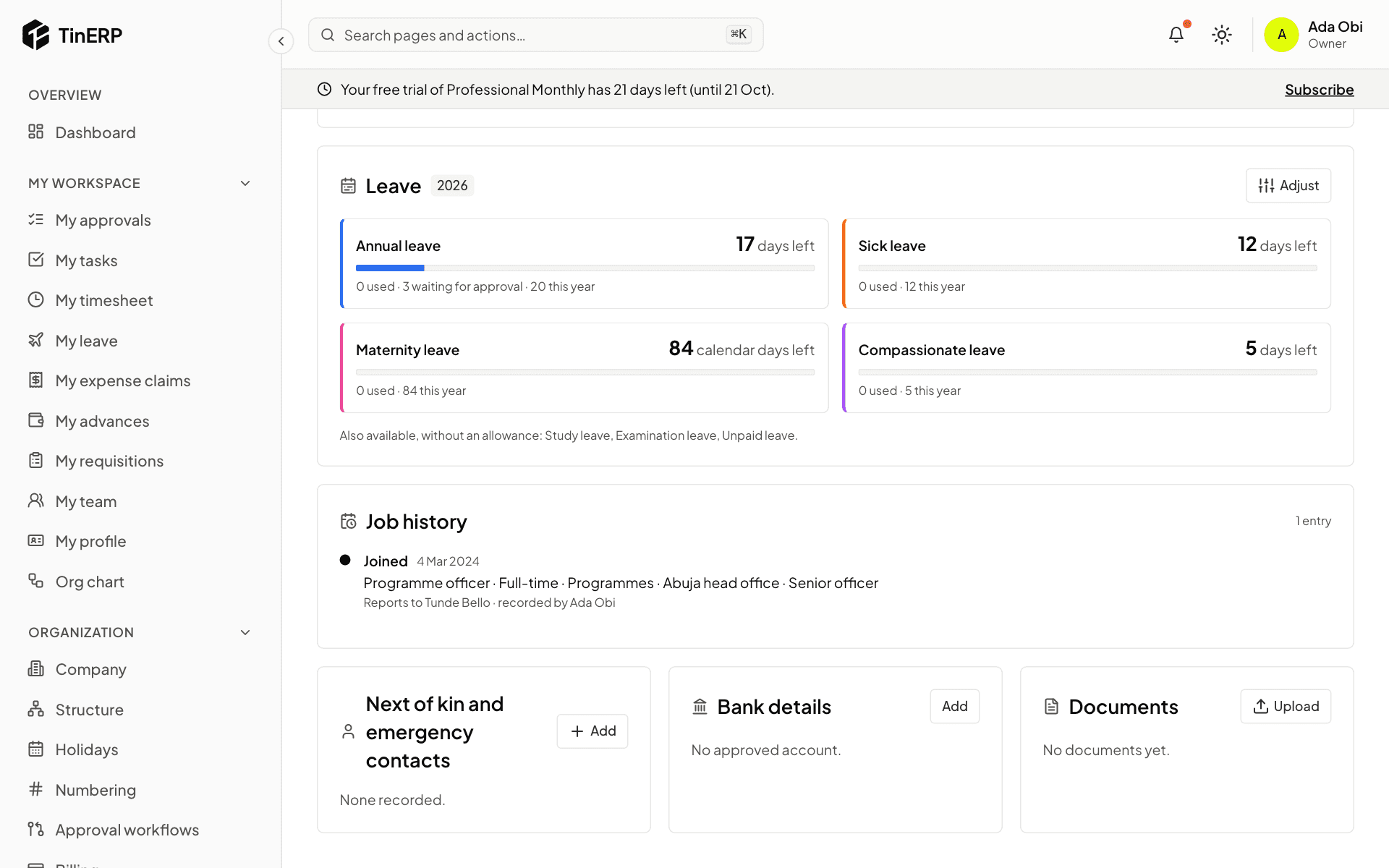
Further down are Next of kin and emergency contacts, Bank details and Documents - contracts, CVs, certificates, IDs - each with an expiry date if it has one.
A new bank account isn't used until someone other than the person who entered it approves it: a common fraud is changing an account just before pay day. These details need the sensitive-details permission.
Full size
Next of kin and emergency contacts, Bank details and Documents on an employee's page - 5
Adjust a leave balance
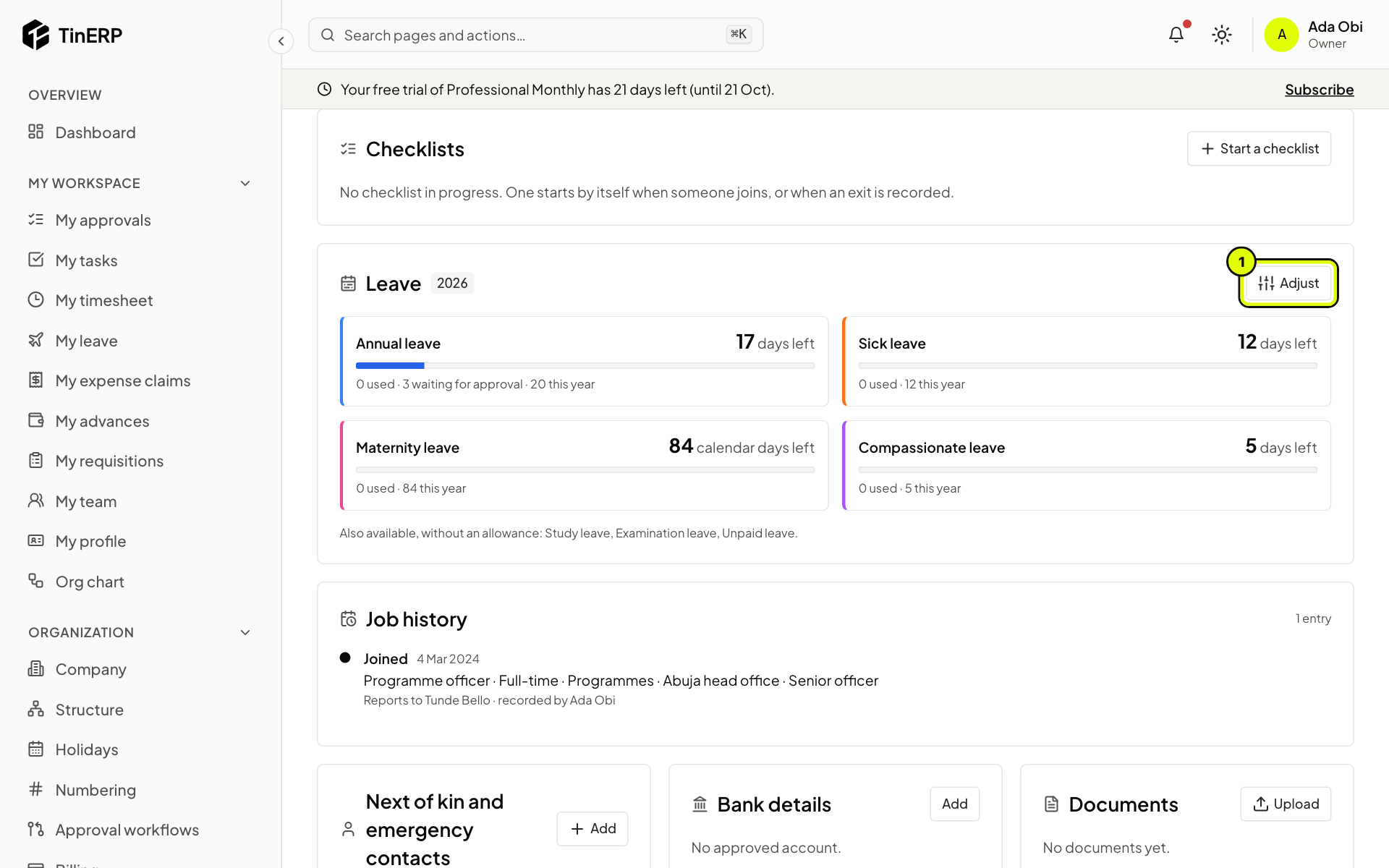
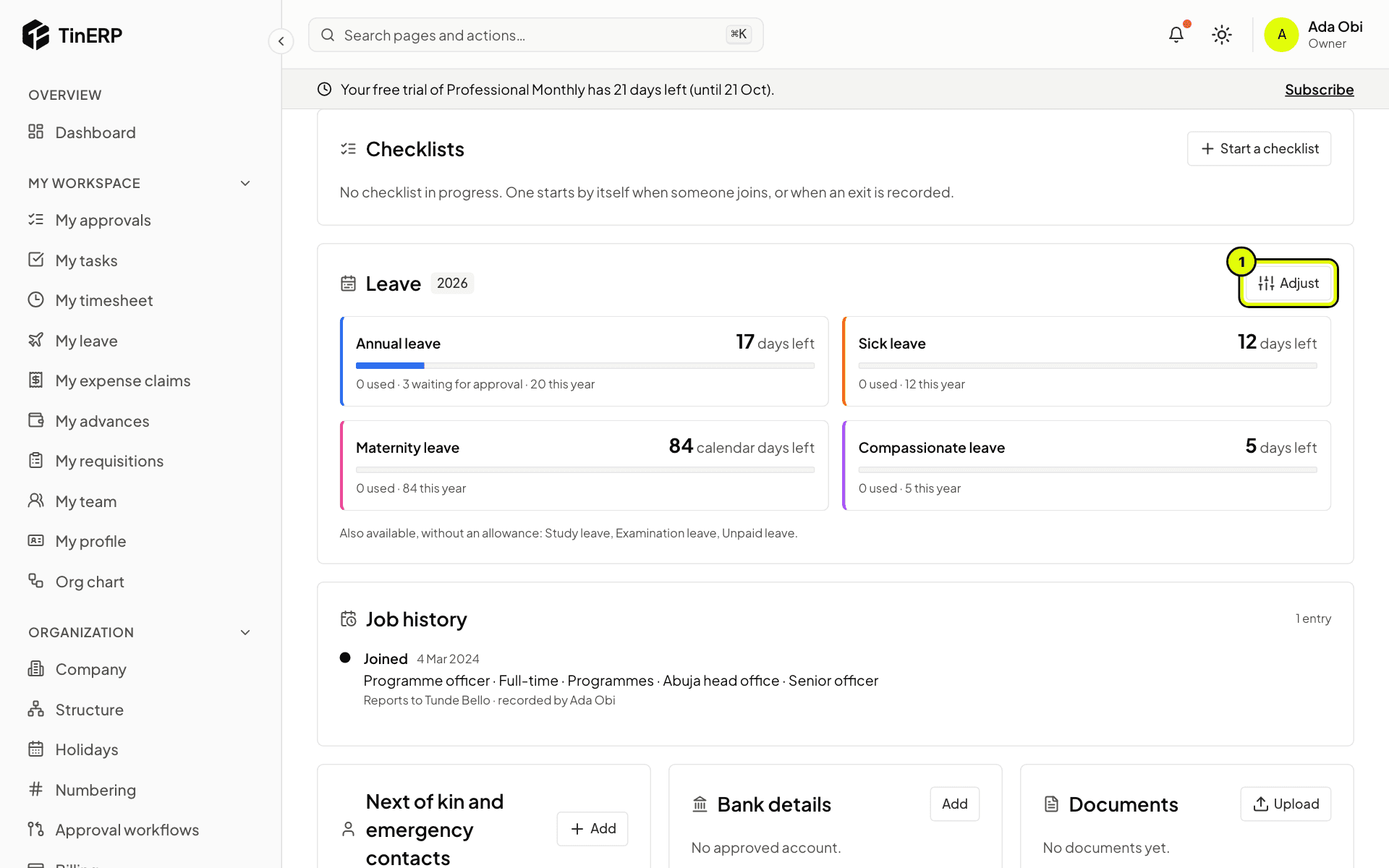
In the Leave card, select Adjust (1) to add or take away days - an opening balance, days given in lieu, or a correction - with a reason. It's kept with the balance and in the audit log.
Full size
The Leave card on Kemi's page with her balances and Adjust marked 1