Match and approve vendor invoices
The three-way match compares the invoice with the order and the delivery: nobody pays for more than was received, or at a higher price than agreed.
- 1
Enter the invoice
Open the order and select Enter invoice, or go to Procurement → Vendor invoices. Enter their invoice number (the same one twice is refused), the dates, and what each line bills - it starts from what's been received and not yet invoiced. Save and match.
- 2
Check the match
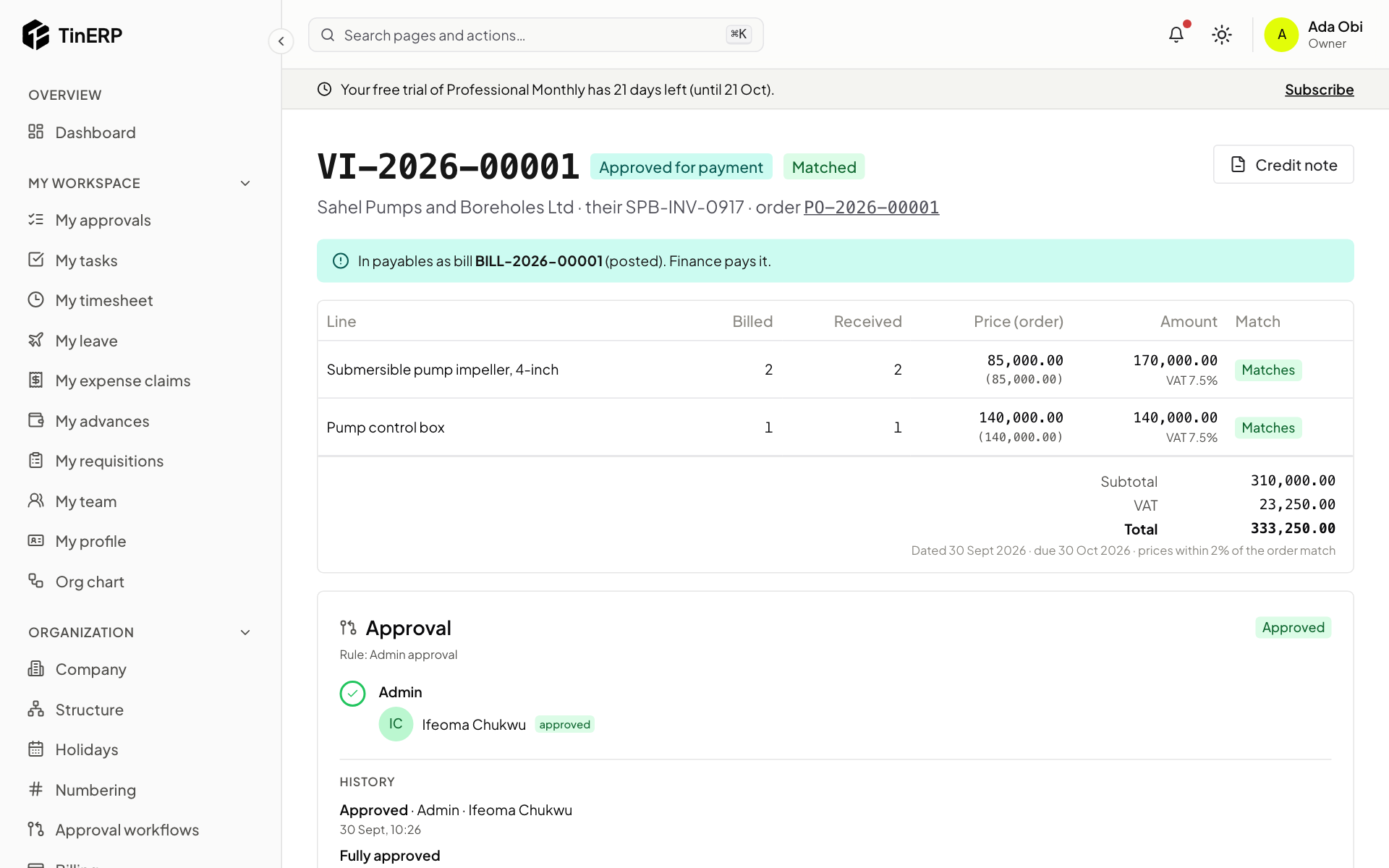
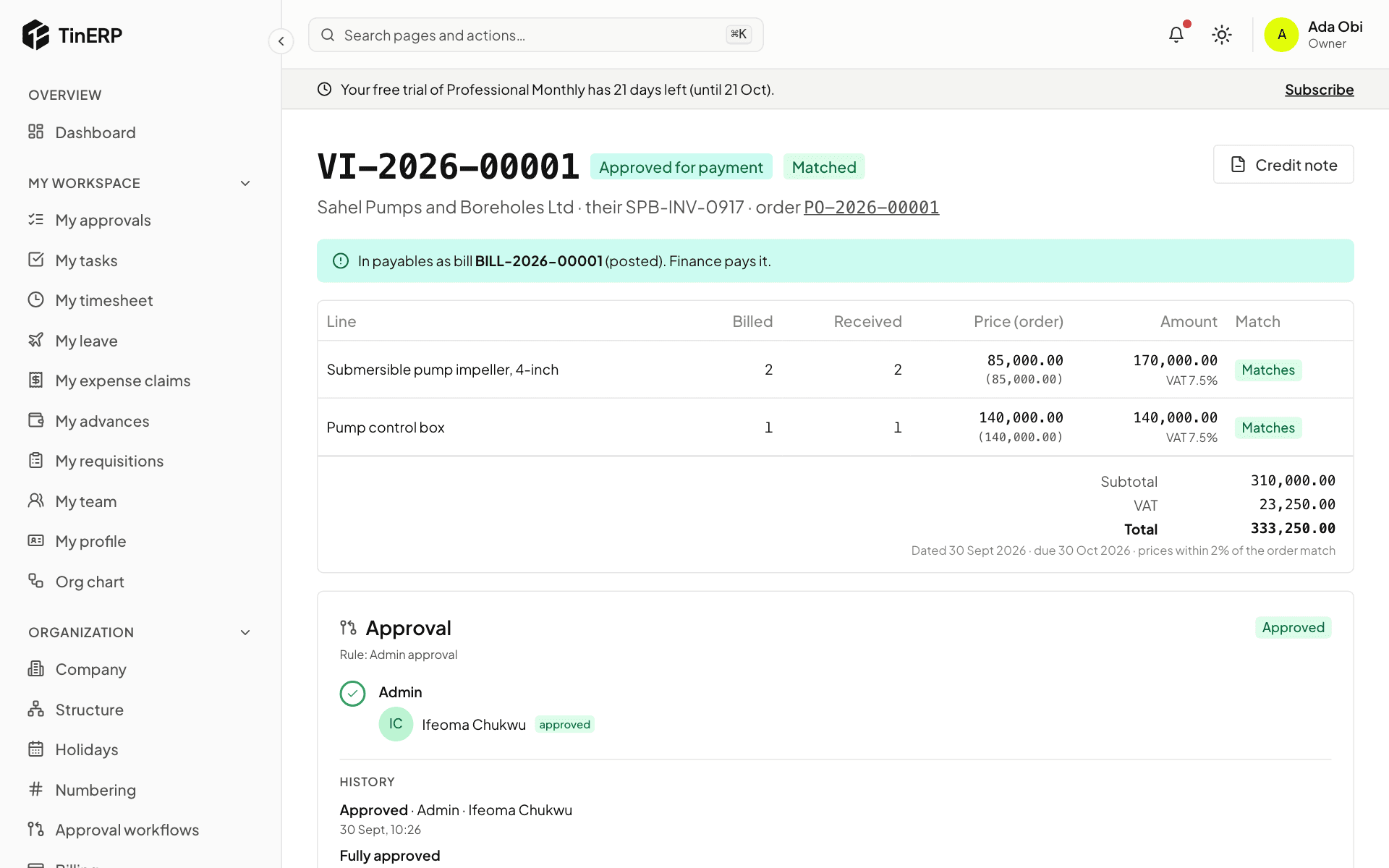
Each line is checked: the quantity against what was received, the price against the order (within your tolerance, 2% by default). A line outside either is an exception, with the reason shown - invoiced 45, but only 40 received.
Correct it, or someone with the permission to override chooses Accept the difference with a reason, which stays on the invoice.
- 3
Approve it for payment
Select Submit for payment. By default an Admin approves - never whoever submitted it or received the goods, and not while a change to the vendor's bank details is waiting.
With Finance, an approved invoice becomes a posted bill in Finance → Bills, and Finance pays it; the invoice shows when it's paid. Without Finance, record the payment on the invoice.
Full size
A vendor invoice approved for payment and matched, now a bill in payables - 4
Credit notes
When the vendor credits you - for a return, say - record their Credit note against the invoice, linked to the return. What's owed goes down; with Finance, a debit note is posted on the bill.